Brand: acer
Category: Handheld Computer
Document Type:
Language: EN
Brand: acer
Category: Handheld Computer
Document Type:
Language: EN
Uploaded: Aug. 10, 2025, 12:09 a.m.
Manual Publish Date: 2002-08-01
No warranty information is available in the provided pages.
We would like to thank you for making Acer n20 your choice for your handheld needs. Your new sleek Acer n20 is a multi-functional tool packed with user-friendly features and high-performance applications designed to make organising work-related information and synchronising it with your personal activities a time-efficient task. We hope you enjoy using your Acer n20 as much as we enjoyed creating it for you.
Use your Acer n20 to effectively manage information related to both business and personal tasks.
This Manual introduces you to the many ways your Acer n20 can help you organise and manage both business and personal information to make your everyday activities a more productive and satisfying experience.
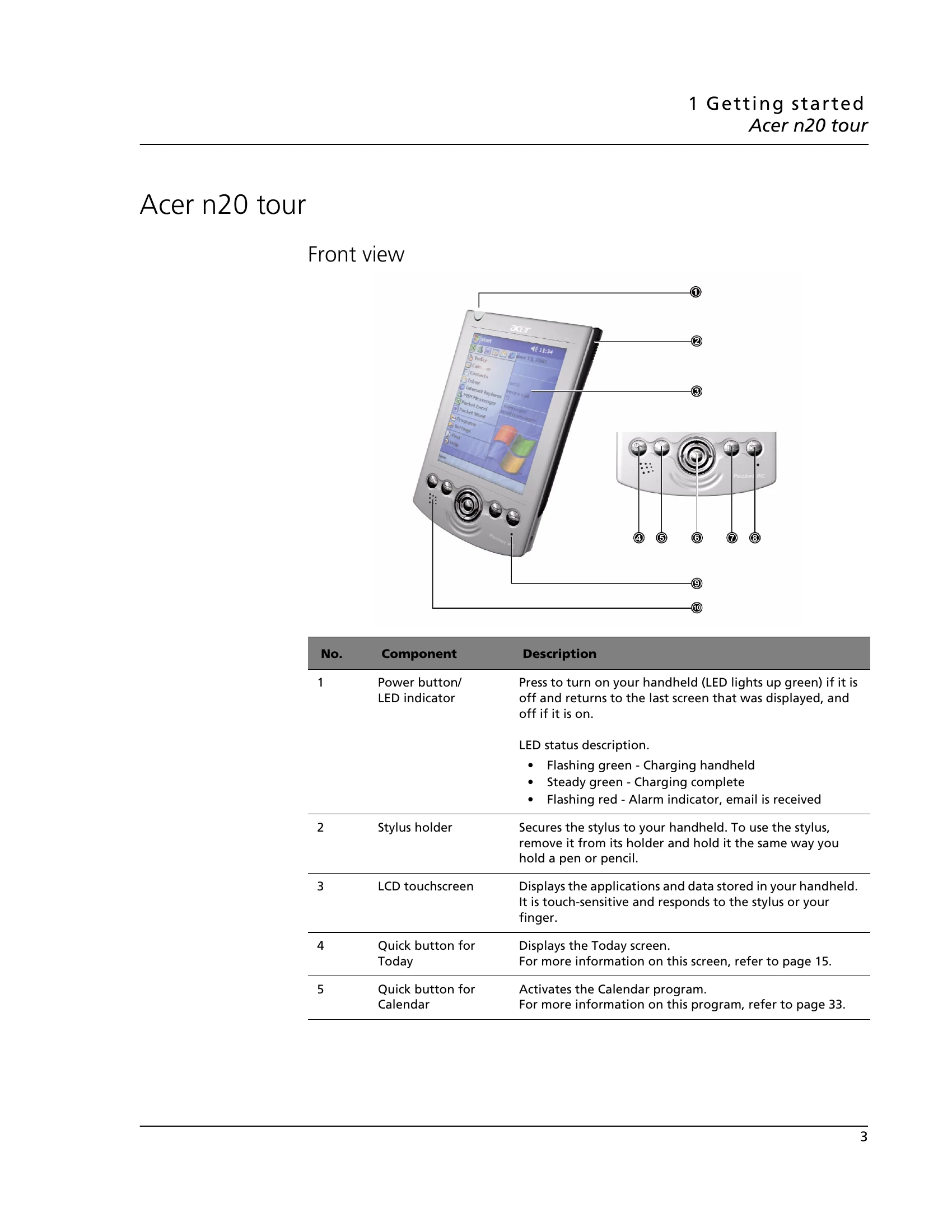
| No. | Component | Description |
|---|---|---|
| 1 | Power button/LED indicator | Press to turn on your handheld (LED lights up green) if it is off and returns to the last screen that was displayed, and off if it is on. LED status description:
|
| 2 | Stylus holder | Secures the stylus to your handheld. To use the stylus, remove it from its holder and hold it the same way you hold a pen or pencil. |
| 3 | LCD touchscreen | Displays the applications and data stored in your handheld. It is touch-sensitive and responds to the stylus or your finger. |
| 4 | Quick button for Today | Displays the Today screen. For more information on this screen, refer to page 15. |
| 5 | Quick button for Calendar | Activates the Calendar program. For more information on this program, refer to page 33. |