Brand: acer
Category: Handheld Computer
Document Type:
Language: EN
Brand: acer
Category: Handheld Computer
Document Type:
Language: EN
Uploaded: Aug. 10, 2025, 12:09 a.m.
Manual Publish Date: 2002-08-01
Acer and its subsidiaries disclaim all warranties, expressed or implied, for the contents of this manual.
| Problem | Solution |
| I cannot install the Palm Desktop software on my Windows computer. | Try the following: 1 Disable any virus scanning software on your computer. 2 Press Ctrl-Alt-Delete and end all tasks except Systray and Explorer. NOTE: If a dialog box with buttons appears instead of a list of tasks, click the Task List button and then end all tasks except Systray and Explorer. 3 Make sure your computer has at least 30 MB of disk space available. 4 Delete all temporary files. 5 Run ScanDisk on your computer. 6 Reinstall Palm Desktop software. |
| I don't see anything on my handheld screen. | Try each of these in turn: • Press an application button to ensure your handheld is turned on. • Tap the Brightness Control icon on the upper-left corner of the Graffiti® writing area. In the Adjust Brightness dialog box, adjust the brightness level by holding down the up scroll button for a few seconds. If this doesn't work, hold the down scroll button for a few seconds. • If your handheld was exposed to the cold, make sure it is at room temperature. • Recharge the unit. • Perform a soft reset. If your handheld still doesn't turn on, perform a hard reset. See "Resetting your Acer handheld" on the Acer s50 and s60 Handhelds Quick Guide for instructions. IMPORTANT: With a hard reset, all records and entries stored in your handheld are erased. Never perform a hard reset unless a soft reset does not solve your problem. You can restore any data previously synchronised with your computer during the next HotSync operation. |
| I get a warning message telling me memory in my handheld is full. | • Purge records from Date Book and To Do List. This deletes To Do List items and past Date Book events from the memory of your handheld. See "Purging records" on page 32. • You may need to perform a HotSync operation to recover the memory. Refer to "9 Exchanging and updating data using HotSync operations" on page 213. • Delete unused memos and records. If necessary, you can save these records. See "Deleting records in your basic applications" on page 31. • If you have installed additional applications on your handheld, remove them to recover memory. See "To remove an add-on application from your handheld" on the Acer s50 and s60 Handhelds Quick Guide. |
| My handheld keeps turning itself off. | Your handheld is designed to turn itself off after a period of inactivity. This period can be set at one, two, or three minutes. Check the Auto-off setting on page 247. |
| My handheld is not making any sounds. | Check the system and game sound settings. Refer to page 248. You can also check the alarm sound settings on page 232. |
| The LED indicator is not blinking when alarms occur. | Check the Alarm LED setting. See "To set the alarm LED settings" on page 233. |
| My handheld has frozen. | Perform a soft reset. For instructions, refer to "Performing a soft reset" on the Acer s50 and s60 Handhelds Quick Guide. |
| When I tap the buttons or screen icons, my handheld activates the wrong feature. | Calibrate the screen. See "Digitizer preferences" on page 244. |
| When I tap the Menu icon, nothing happens. | Not all applications or screens have menus. Try changing to a different application. |
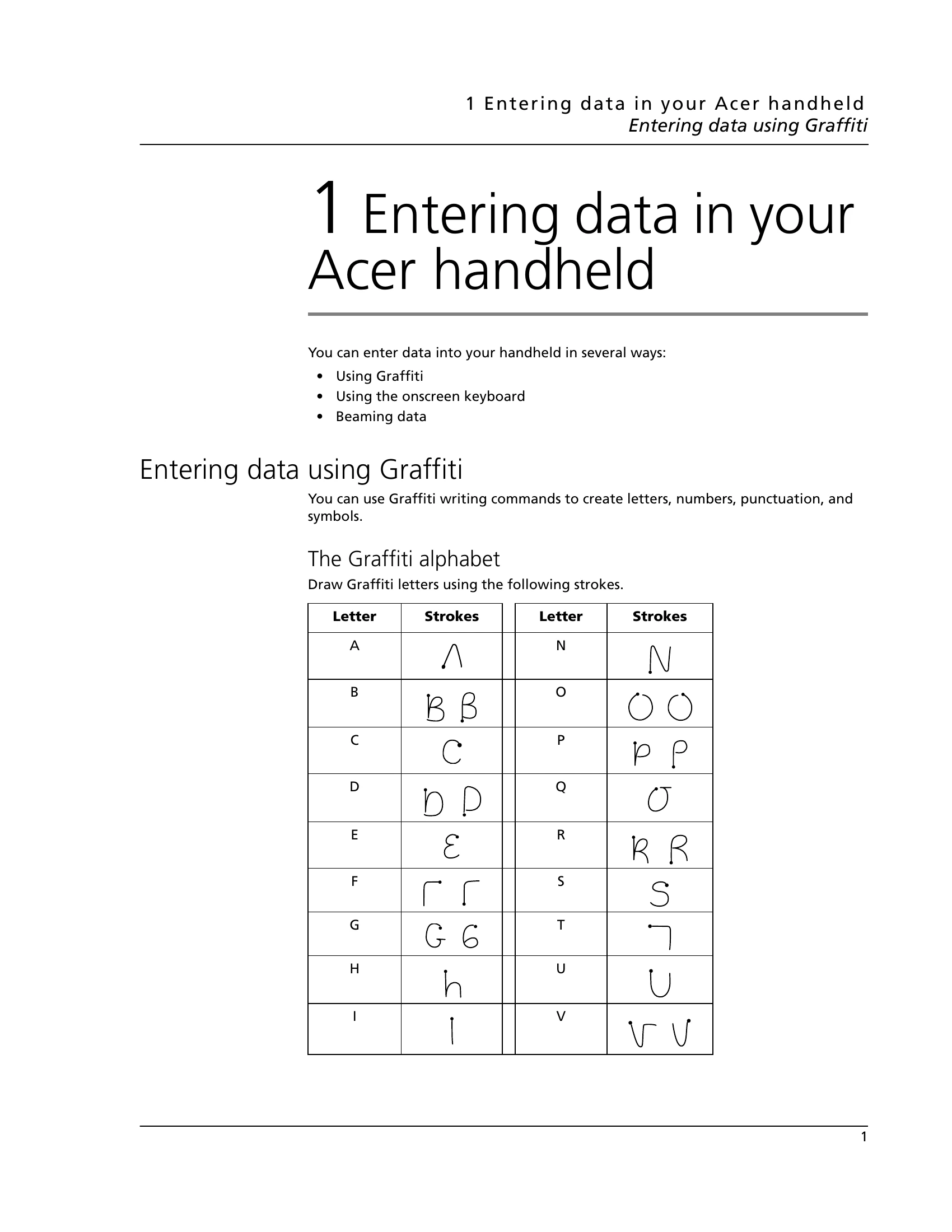
| I cannot get my handheld to recognise my handwriting. | • For your handheld to recognise handwriting input with the stylus, you need to use Graffiti writing. See "Entering data using Graffiti" on page 1. • Make the Graffiti character strokes in the Graffiti writing area, not on the display part of the screen. • Write Graffiti strokes for letters in the left-hand side, and the strokes for numbers in the right-hand side of the Graffiti writing area. • Make sure that Graffiti is not shifted into extended or punctuation modes. See "Entering data using Graffiti" on page 1. • See "Graffiti tips" on page 8 for tips on increasing your accuracy when you write Graffiti characters. |
| I tapped the Today button, but it does not show the correct date. | Your handheld is not set to the current date. Make sure the Set Date box in the Date & Time Preferences panel displays the current date. See "Date & Time preferences" on page 242 for more information. |
| I know I entered some records, but they do not appear in the application. | • Check the Categories pick list (upper-right corner). Choose All to display all records for that application. • Check Security and confirm that Private Records is set to Show private records. • In To Do List, tap Show and see if Show Only Due Items is selected. |
| I am having problems listing memos the way I want to see them. | If you cannot manually arrange the order of the memos in the list screen, check the Memo Preferences setting. Make sure that Sort by is set to Manual. • If you choose to view your memos alphabetically on Palm Desktop software and then perform a HotSync operation, the memos on your handheld still appear in the order defined in the Memo Preferences setting. In other words, the sort settings you use with Palm Desktop software are not transferred to your handheld. |
| I created an event in Date Book, but it doesn't appear in the Week View. | In the Week View, you cannot select overlapping events that have the same start time. If you have two or more events with the same start time, choose the Day View to see the overlapping events. |
| I entered the euro symbol, but after a HotSync operation it doesn't appear in my Palm Desktop software. | You must have fonts that include the euro symbol on your computer. Check this web site for additional information: http://www.microsoft.com/windows/euro.asp/. |
| I cannot do a HotSync operation; what should I check to make sure I am doing it correctly? | • Make sure the cradle/cable is connected securely. On a Windows computer, try these steps: • Check the Windows system tray to make sure the HotSync Manager is running (i.e., the HotSync Manager icon is visible in the bottom right corner of the Windows system tray). If it is not, open Palm Desktop software. • Make sure you selected Local USB or Local Serial, as appropriate, from the HotSync Manager menu. • If you are using the optional Serial Sync Cable, make sure you selected the correct serial port on the Local tab in the Setup dialog. It should be set to the port where you connected the cable. |
| I did a HotSync operation, but one of my applications did not synchronise. | On a Windows computer, click the HotSync Manager icon and choose Custom. Check that the correct conduit is active. |
| I am using Microsoft Outlook as my PIM, but I cannot do a HotSync operation. | • Click the HotSync Manager icon and choose Custom. Check that the correct conduit is active. • Check that Intellisync Lite (conduit for Microsoft Outlook) is installed and properly configured. If it is not, use the Acer s50 and s60 Handhelds Installation CD to install and configure Intellisync Lite in your computer. |
| I cannot launch the HotSync Manager. | • If you are using the optional Serial Sync Cable, make sure you are not running another program, such as America Online, CompuServe, or WinFax, that uses the serial port you selected in the Setup dialog box. • Backup the Palm Desktop software, uninstall it, then reinstall it. |
| I tried to do a local HotSync operation, but it did not complete successfully. | • Make sure your handheld is properly seated in the cradle. • Check the connection between the cradle and the USB (or serial port, if you are using the optional Serial Sync Cable) on your computer. • Make sure the user name you selected in Palm Desktop software matches the user name assigned to your handheld. • Make sure the date on your computer matches the date on your handheld. • Read the HotSync Log for the user account for which you are performing a HotSync operation. On a Windows computer, try each step in turn: • Make sure HotSync Manager is running. If it is running, close it, and restart it. • Make sure you selected Local USB or Local Serial, as appropriate, from the HotSync Manager menu. • If you are using a Serial Sync Cable: Make sure you selected the correct serial port on the Local tab in the Setup dialog. It should be set to the port where you connected the cable. Try a lower baud rate setting on the Local tab in the Setup dialog. Make sure you are not running a program, such as America Online, CompuServe, or WinFax, that uses the serial port you selected in the Setup dialog box. |
| I cannot perform an IR HotSync operation. | • On a Windows computer, be sure the HotSync Manager is running and the Serial Port for local operations is set to the simulated port for infrared communication. See "IR HotSync operations" on page 220 for details. • On your handheld, be sure the HotSync application is set to Local, with the option IR to PC/Handheld. • Be sure the IR port of your handheld is aligned directly opposite to, and within a few inches of, the infrared device of your computer. • IR HotSync operations do not work after you receive a low battery warning, check the battery power of your handheld. Recharge the unit. |
| My handheld seems to freeze when I place it near my computer. | Move your handheld away from the computer's infrared port. |
| When I press the HotSync button on the cradle, nothing happens on Palm Desktop software and my handheld times out. | • Make a copy of your Palm folder. Uninstall, then reinstall Palm Desktop software. • Turn on your handheld and tap the Applications icon Tap the HotSync icon, then tap Local. |
| When I perform a HotSync operation, my information does not transfer to Palm Desktop software. | • If you have performed a HotSync operation successfully, but you cannot find the data from your handheld on Palm Desktop software, check to see you have the correct user name selected for viewing data. • On the Windows system tray, click the HotSync Manager icon and choose Custom. Check that all conduits are set to synchronise files. |
| My handheld displays the message "Waiting for sender" when it's near my computer's infrared port. | • Your computer's infrared port may be set to search automatically for the presence of other infrared devices. Consult the documentation for your operating system for information about turning off this option. • In some cases, simply moving your handheld away from the computer's infrared port solves the problem. |
| I want to synchronise my computer with more than one handheld. | If the computer running Palm Desktop software synchronised with more than one handheld, each handheld must have a unique name. Assign a user name to your handheld the first time you perform a HotSync operation. See "Creating a user profile" on page 213. IMPORTANT: Please be aware that synchronising more than one handheld with the same user name causes unpredictable results and, potentially, loss of information on your handheld. |
| I cannot beam data to another Palm OS handheld. | • Confirm that your handheld and the other Acer handheld are between ten centimeters (approximately 4") and one meter (approximately 39") apart, and that the path between the two handhelds is clear of obstacles. Beaming distance to other Palm OS handhelds may be different. • Move your handheld closer to the receiving handheld. |
| When someone beams data to my handheld, I get a message, telling me it is out of memory. | • Your handheld requires at least twice the amount of memory available as the data you are receiving. For example, if you are receiving a 30K application, you must have at least 60K free. • Perform a soft reset. Refer to "Performing a soft reset" on the Acer s50 and s60 Handhelds Quick Guide. |
| When I place my handheld in the cradle, the LED indicator does not go on. | • Confirm that your handheld is well seated in the cradle, • Confirm that your AC adapter is properly connected to the back of the cradle's power jack. • Confirm that your AC adapter is plugged into an AC outlet that has power. • Confirm that the cradle is properly connected to a USB port in your computer. |
| I forgot the password, and my handheld is not locked. | First, use the password hint to try and remember the password. If this does not help, or if you do not have a password hint, you can use Security to delete the password, but all entries marked as private are deleted. However, if you perform a HotSync operation before you delete the password, the HotSync process backs up all entries, whether or not they are marked private. Then, you can follow these steps to restore your private entries: 1 Use the Palm Desktop software and the cradle or infrared communication to synchronise your data. 2 Tap Forgotten Password in Security to remove the password and delete all private records. 3 Perform a HotSync operation to synchronise your data and restore the private records by transferring them from your computer to your handheld. |
| I forgot the password and my handheld is locked. | First, use the password hint to try and remember the password. If this does not help, or if you do not have a password hint, you must perform a hard reset to continue using your handheld. For instructions, see "Performing a hard reset" on the Acer s50 and s60 Handhelds Quick Guide. |