Brand: acer
Category: Handheld Device
Document Type: Manual
Language: EN
Brand: acer
Category: Handheld Device
Document Type: Manual
Language: EN
Uploaded: April 20, 2026, 7:49 p.m.
Manual Publish Date: 2010-01-27
Warranty information for the Acer P300 smartphone.
Your new smartphone is a multi-functional tool packed with intuitive features and powerful applications that make organizing your information and synchronizing it with your personal activities an easy, efficient task. Your smartphone lets you:
To help you use your smartphone, we have designed a set of guides:
| For information on: | Refer to: |
|---|---|
| Programs on your smartphone and additional programs that can be installed on your smartphone | This User Guide. Included on the smartphone Companion CD, it provides online reference for using your smartphone. |
| Up-to-date information regarding your smartphone | www.acer.com/ |
| Service enquiries | www.acer.com/support/ |
Your smartphone features detailed help menus to aid you in making connections and using the embedded applications.
When using your product for the first time, it is recommended that you immediately register it. This will give you access to some useful benefits, such as:
Hurry and register, as other advantages await you!
To register your Acer product, visit our website at registration.acer.com. Choose your country and follow the simple instructions.
You can also click Registration to register using your smartphone.
After we receive your product registration, we will send you a confirmation email with important data that you should keep in a safe place.
Your smartphone comes packed in a protective box. Carefully unpack the box and remove the contents. If any of the following items is missing or damaged, contact your dealer immediately:
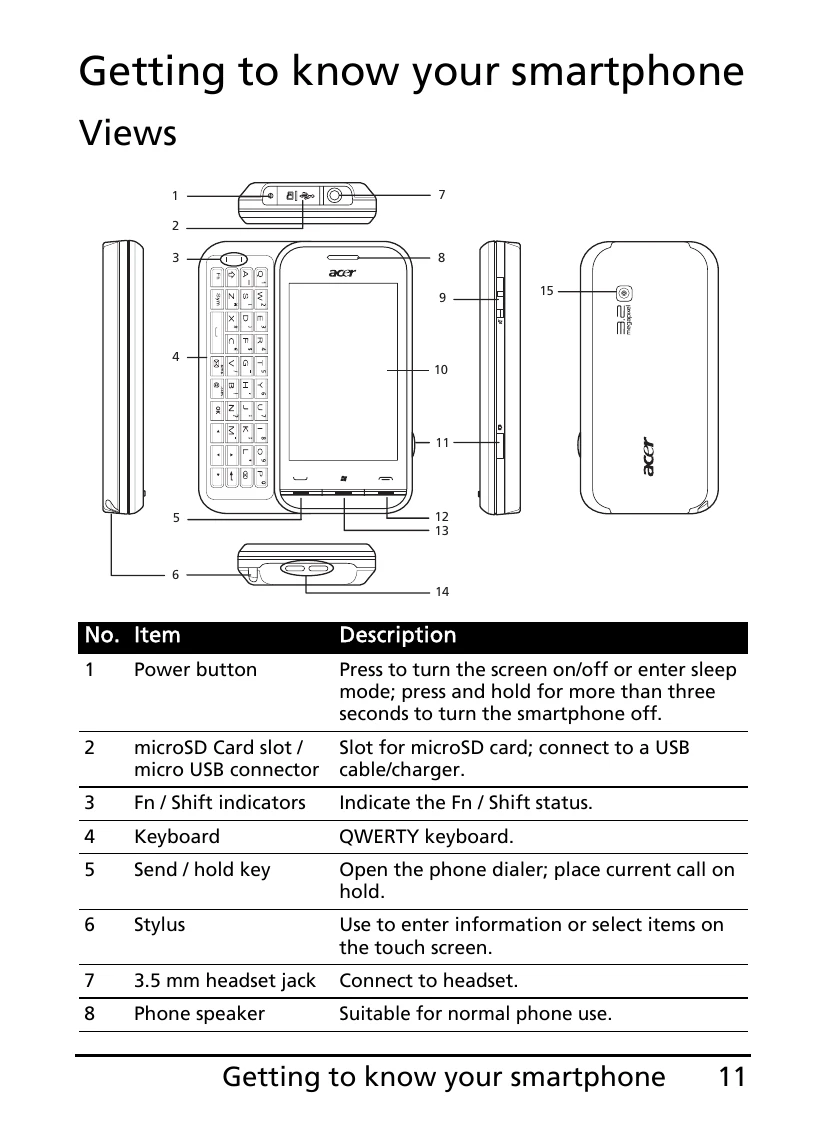
The following table describes the items shown in the diagram:
| No. | Item | Description |
|---|---|---|
| 1 | Power button | Press to turn the screen on/off or enter sleep mode; press and hold for more than three seconds to turn the smartphone off. |
| 2 | microSD Card slot / micro USB connector | Slot for microSD card; connect to a USB cable/charger. |
| 3 | Fn / Shift indicators | Indicate the Fn / Shift status. |
| 4 | Keyboard | QWERTY keyboard. |
| 5 | Send / hold key | Open the phone dialer; place current call on hold. |
| 6 | Stylus | Use to enter information or select items on the touch screen. |
| 7 | 3.5 mm headset jack | Connect to headset. |
| 8 | Phone speaker | Suitable for normal phone use. |
| 9 | Volume control | Increase or decrease the ringer/system volume; mute the smartphone. |
| 10 | Touchscreen | 400 x 240 pixel screen to display data, phone content and enter information. |
| 11 | Camera button | Activate the camera or take a picture. |
| 12 | End / back key | Press to end a call. |
| 13 | Start key | Press to open the Applications menu. |
| 14 | Strap holes / speaker | Holds phone danglers; emits audio from your smartphone |
| 15 | Camera | A 3.2-megapixel camera for taking high-resolution images. |
| Indicator | State | Description |
|---|---|---|
| ----- | Solid white for all LEDs | Device is fully charged. |
| -- -- | Slow flashing for left and right LEDs | Device is charging. |
| --- | Ascending / descending flash (center LED) | Device is in sleep mode, with new event (missed call, new message, voicemail etc.) |
| ----- | Solid-Flash-Solid | Device is fully charged, with new event (missed call, new message, voicemail etc.) |
| ----- | Slow flashing for all LEDs | Device is charging, with new event (missed call, new message, voicemail etc.) |
Your smartphone uses a replaceable battery to provide power. It is packed separately from your smartphone and needs to be inserted and charged before you can use the smartphone.
CAUTION: RISK OF EXPLOSION IF BATTERY IS REPLACED BY AN INCORRECT TYPE. DISPOSE OF USED BATTERIES ACCORDING TO THE INSTRUCTIONS.
For initial use, you need to charge your smartphone for eight hours. After that you can charge it each day to recharge the battery to full capacity.
Connect the AC adapter cord to the micro USB connector on your smartphone.
To take full advantage of your smartphone's telephony capabilities, you must install a SIM card. The SIM card holder is located at the top of the battery bay.
Additionally, you may wish to increase your smartphone's storage by inserting a microSD Card into the slot provided. This is located above the micro USB connector on the outside of the phone.
Note: Ensure that the microSD Card is inserted all the way into the card slot.
Your smartphone may come with a SIM card lock, i.e., you will only be able to use the SIM card provided by your network operator.
To cancel the SIM lock, contact your network provider.
To turn on your smartphone for the first time, press and hold the power button until the system bootup screen appears. Follow the setup screens to set up your phone.
When you install a SIM card for the first time, you may need to enter a PIN.
Important: Depending on your settings, you may be required to enter your PIN each time you switch on the phone function.
If the PIN you enter is incorrect, a warning message appears.
If you are using your SIM card for the first time, it may require activation. Contact your network operator for details on how to do this.
After rebooting, your smartphone will display the Today screen. This screen gives you quick, icon-based access to many of the frequently-used features of your smartphone.
The first time you start your smartphone, you will see shortcuts on the screen.
You can synchronize the data on your smartphone with the data on your PC using the supplied USB sync cable and the Windows Sync Center or ActiveSync.
Refer to Connecting to a PC and installing software on page 46 for more details on connecting and synchronizing.
This chapter shows you how to make phone calls, and the various options available to you during your call.
Check that the phone function is on before you make a call; you can activate the phone from the Comm. Manager (refer to Comm. Manager on page 38).
Note: The phone function needs to be enabled before the call can be connected.
The onscreen number pad allows you to enter numbers to dial.
Your Call History is also displayed above the onscreen number pad and displays recent received, dialed and missed calls. Tap a number to view the call details. To redial any number in the call history, select the number and tap . Missed calls will be displayed in the telephone icon on the Today screen using the icon.
You can dial numbers quickly and easily even when using other applications.
When dialing international numbers, there is no need to enter the international direct dialing prefix ('00' etc.) before the country code. Simply tap and hold +0 on the onscreen number pad until + appears onscreen.
Warning: International call rates can vary greatly depending on the country you are calling and your network provider. We suggest you check all call rates with your network provider, to avoid excessive phone bills. If you are using your smartphone abroad, international roaming charges will apply. Consult your network provider for roaming rates specific to the country you are visiting before you leave.
Do not throw this electronic device into the trash when discarding.
To minimize pollution and ensure utmost protection of the global environment, please recycle. For more information on the Waste from Electrical and Electronics Equipment (WEEE) regulations, visit www.acer-group.com/public/Sustainability/sustainability01.htm
For projectors or electronic products containing an LCD/CRT monitor or display:
Lamp(s) inside this product contain mercury and must be recycled or disposed of according to local, state or federal laws. For more information, contact the Electronic Industries Alliance at www.eiae.org. For lamp-specific disposal information, check www.lamprecycle.org.
This product is in compliance with Directive 2002/95/EC of the European Parliament and of the Council of 27 January 2003, on the restriction of the use of certain hazardous substances in electrical and electronic equipment (RoHS) and its amendments.
The LCD unit is produced with high-precision manufacturing techniques. Nevertheless, some pixels may occasionally misfire or appear as black or red dots. This has no effect on the recorded image and does not constitute a malfunction.
Note: Regulatory information below is for models with wireless LAN and/or Bluetooth only.
This product complies with the radio frequency and safety standards of any country or region in which it has been approved for wireless use. Depending on configuration, this product may or may not contain wireless radio devices (such as wireless LAN and/or Bluetooth modules). Information below is for products with such devices.
Caution: Permanent hearing loss may occur if earphones or headphones are used at high volume for prolonged periods of time.
This device has been tested to comply with the Sound Pressure Level requirement laid down in the applicable EN 50332-1 and/ or EN 50332-2 standards.
Note: For France, mobile headphones or earphones for this device have been tested to comply with the Sound Pressure requirement laid done in the applicable NF EN 50332-1:2000 and/or NF EN 50332-2:2003 standards as required by French Article L. 5232-1.
| N. America | 2.412-2.462 GHz | Ch01 through Ch11 | |
|---|---|---|---|
| Japan | 2.412-2.484 GHz | Ch01 through Ch14 | |
| Europe ETSI | 2.412-2.472 GHz | Ch01 through Ch13 |
Some areas of France have a restricted frequency band. The worst case maximum authorized power indoors are:
Note: Channels 10 through 13 inclusive operate in the band 2446.6 MHz to 2483.5 MHz.
There are few possibilities for outdoor use: On private property or on the private property of public persons, use is subject to a preliminary authorization procedure by the Ministry of Defense, with maximum authorized power of 100 mW in the 2446.5 - 2483.5 MHz band. Use outdoors on public property is not permitted.
In the departments listed below, for the entire 2.4 GHz band:
Departments in which the use of the 2400 - 2483.5 MHz band is permitted with an EIRP of less than 100 mW indoors and less than 10 mW outdoors:
| 01 Ain Orientales | 36 Indre | 67 Bas Rhin |
| 02 Aisne | 37 Indre et Loire | 68 Haut Rhin |
| 03 Allier | 41 Loir et Cher | 70 Haute Saone |
| 05 Hautes Alpes | 45 Loret | 71 Saone et Loire |
| 08 Ardennes | 50 Manche | 75 Paris |
| 09 Ariege | 55 Meuse | 82 Tarn et Garonne |
| 11 Aude | 58 Nievre | 84 Vaucluse |
| 12 Aveyron | 59 Nord | 88 Vosges |
| 16 Charente | 60 Oise | 89 Yonne |
| 24 Dordogne | 61 Orne | 90 Territoire de Belfort |
| 25 Doubs | 63 Puy Du Dome | 94 Val de Marne |
| 26 Drome | 64 Pyrenees Atlantique | |
| 32 Gers | 66 Pyrenees |
This requirement is likely to change over time, allowing you to use your wireless LAN card in more areas within France. Please check with ART (www.art-telecom.fr) for the latest information.
Note: Your WLAN card transmits less than 100 mW, but more than 10 mW.
This equipment may be operated in the following countries:
| Country | ISO 3166 (2 letter code) | Country | ISO 3166 (2 letter code) |
|---|---|---|---|
| Austria | AT | Malta | MT |
| Belgium | BE | Netherlands | NT |
| Cyprus | CY | Poland | PL |
| Czech Republic | CZ | Portugal | PT |
| Denmark | DK | Slovakia | SK |
| Estonia | EE | Slovenia | SL |
| Finland | FI | Spain | ES |
| France | FR | Sweden | SE |
| Germany | DE | United Kingdom | GB |
| Greece | GR | Iceland | IS |
| Hungary | HU | Liechtenstein | LI |
| Ireland | IE | Norway | NO |
| Italy | IT | Switzerland | CH |
| Latvia | LV | Bulgaria | BG |
| Lithuania | LT | Romania | RO |
| Luxembourg | LU | Turkey | TR |
This mobile phone complies with part 15 of the FCC Rules. Operation is subject to the following two conditions: (1) This device may not cause harmful interference, and (2) this device must accept any interference received, including interference that may cause undesired operation.
This mobile phone has been tested and found to comply with the limits for a Class B digital device, pursuant to Part 15 of the FCC Rules. These limits are designed to provide reasonable protection against harmful interference in a residential installation. This equipment generates, uses and can radiated radio frequency energy and, if not installed and used in accordance with the instructions, may cause harmful interference to radio communications. However, there is no guarantee that interference will not occur in a particular installation If this equipment does cause harmful interference to radio or television reception, which can be determined by turning the equipment off and on, the user is encouraged to try to correct the interference by one or more of the following measures:
Changes or modifications not expressly approved by the party responsible for compliance could void the user's authority to operate the equipment.
The equipment complies with FCC RF exposure limits set forth for an uncontrolled environment.
The antenna(s) used for this transmitter must not be co-located or operating in conjunction with any other antenna or transmitter.
| FCC_US model | |
|---|---|
| Head (W/kg) | Body (W/kg) |
| 0.435 | 0.697 |
| FCC ID_US model | |
|---|---|
| HLZDMP300EU |
For body worn operation, this phone has been tested and meets the FCC RF exposure guidelines for use with an accessory that contains no metal and the positions the handset a minimum of 1.5 cm from the body. Use of other accessories may not ensure compliance with FCC RF exposure guidelines. If you do no t use a body-worn accessory and are not holding the phone at the ear, position the handset a minimum of 1.5 cm from your body when the phone is switched on.
This device meets the EU requirements (1999/519/EC) on the limitation of exposure of the general public to electromagnetic fields by way of health protection.
The limits are part of extensive recommendations for the protection of the general public. These recommendations have been developed and checked by independent scientific organizations through regular and thorough evaluations of scientific studies. To guarantee the safety of all persons, regardless of age and health, the limits include a significant safety buffer.
Before radio devices can be put in circulation, their agreement with European laws or limits must be confirmed; only then may the CE symbol be applied.
The unit of measurement for the European Council's recommended limit for mobile telephones is the "Specific Absorption Rate" (SAR). This SAR limit is 2.0 W/kg, averaged over 10 g of body tissue. It meets the requirements of the International Commission on Non-Ionizing Radiation Protection (ICNIRP) and was included in the European Standard EN 50360 for mobile radio devices. The SAR regulation for mobile telephones is in line with European Standard EN 62209-1.The maximum SAR value is calculated at the highest output level in all frequency bands of the mobile telephone. During use, the actual SAR level is usually much lower than the maximum value, because the mobile telephone works in different output levels. It only transmits with as much output as is required to reach the network. In general the following applies: The closer you are to a base station, the lower the transmission output of your mobile telephone. The tested SAR of this device is as follows:
| CE | NCC | ||
|---|---|---|---|
| Head (W/kg 10g) | Body (W/kg 10g) | Head (W/kg 10g) | Body (W/kg 10g) |
| 0.435 | 0.697 | 0.522 | NA |
ATTENZIONE! Rischio di esplosione della batteria se sostituita in modo errato. Sostituire la batteria con un una di tipo uguale o equivalente consigliata dalla fabbrica. Non disperdere le batterie nell'ambiente.
VORSICHT! Explosionsgefahr bei unsachgemäßen Austausch der Batterie. Ersatz nur durch denselben oder einem vom Hersteller empfohlenem ähnlichen Typ. Entsorgung gebrauchter Batterien nach Angaben des Herstellers.
ADVARSELI! Lithiumbatteri - Eksplosionsfare ved fejlagtig håndtering. Udskiftning må kun ske med batteri af samme fabrikat og type. Levér det brugte batteri tilbage til leverandøren.
VARNING! Explosionsfara vid felaktigt batteribyte. Använd samma batterityp eller en ekvivalent typ som rekommenderas av apparattillverkaren. Kassera använt batteri enligt fabrikantens instruktion.
VAROITUS! Paristo voi räjähtää, jos se on virheellisesti asennettu. Vaihda paristo ainoastaan laitevalmistajan sousittelemaan tyyppiin. Hävitä käytetty paristo valmistagan ohjeiden mukaisesti.
ATTENTION ! Il y a danger d'explosion s'il y a remplacement incorrect de la batterie. Remplacer uniquement avec une batterie du mêre type ou d' un type équivalent recommandé par le constructeur. Mettre au rebut les batteries usagées conformément aux instructions du fabricant.
ADVARSEL! Eksplosjonsfare ved feilaktig skifte av batteri. Benytt samme batteritype eller en tilsvarende type anbefalt av apparatfabrikanten. Brukte batterier kasseres i henhold til fabrikantens instruksjoner.
| Indicator | State | Description |
|---|---|---|
| ----- | Solid white for all LEDs | Device is fully charged. |
| -- -- | Slow flashing for left and right LEDs | Device is charging. |
| --- | Ascending / descending flash (center LED) | Device is in sleep mode, with new event (missed call, new message, voicemail etc.) |
| ----- | Solid-Flash-Solid | Device is fully charged, with new event (missed call, new message, voicemail etc.) |
| ----- | Slow flashing for all LEDs | Device is charging, with new event (missed call, new message, voicemail etc.) |