Brand: Acer
Category: LCD TV
Document Type: Manual
Language: EN
Brand: Acer
Category: LCD TV
Document Type: Manual
Language: EN
Uploaded: April 20, 2026, 8:13 p.m.
Manual Publish Date: 2005-06-01
Refer to the warranty card for service information if troubleshooting steps do not resolve the issue.
Power On: Turn on the main power switch on the bottom of the TV, then press the power button, number keys, or channel up/down button on the remote control.
Setup Wizard: The first time you power on the TV, a setup wizard will guide you through language selection and channel scanning.
Changing Channels: Press number keys (0-9) to select a channel, or use the Channel Up/Down buttons on the remote control.
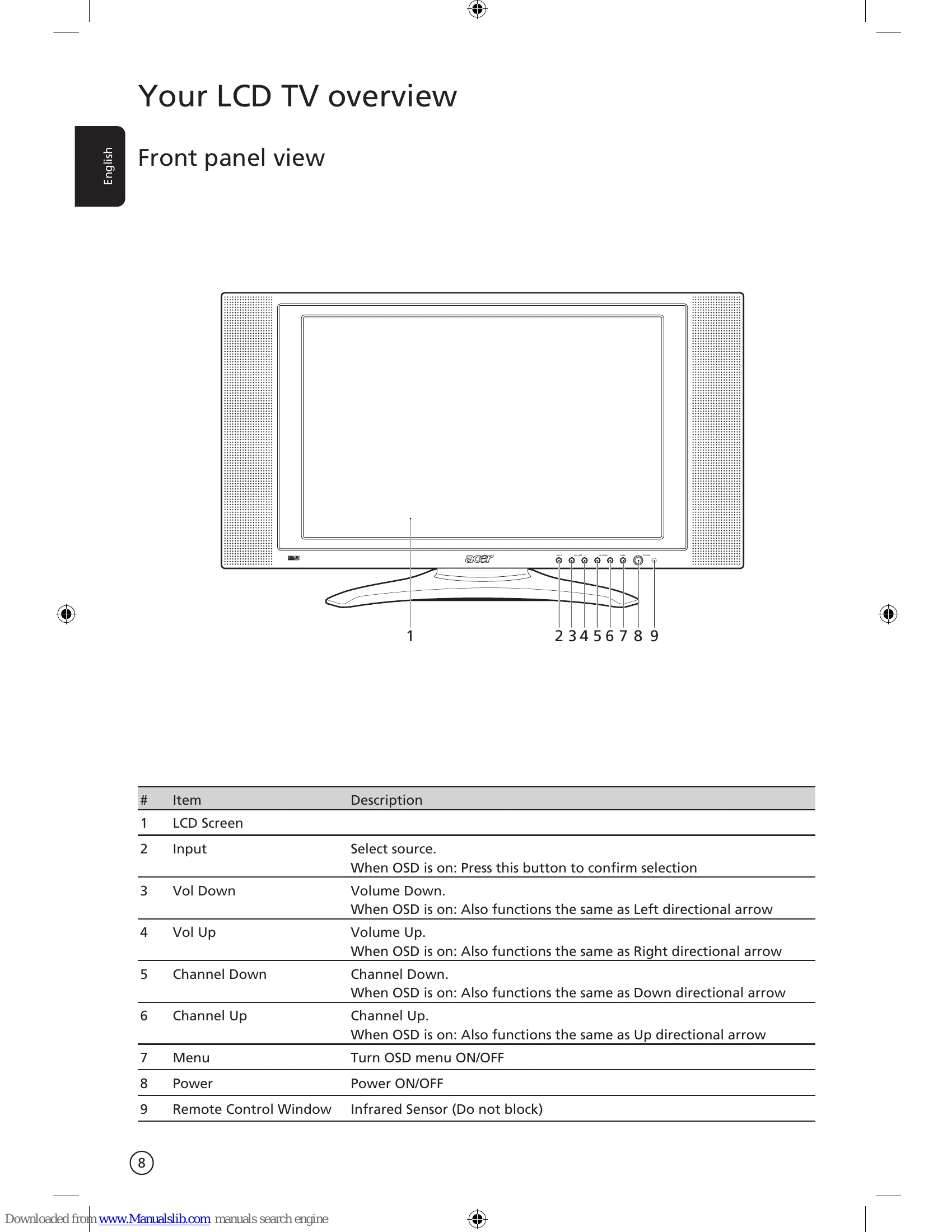
Adjusting Volume: Use the VOL +/- buttons on the remote control or the front panel controls.
OSD Navigation: Access menus like Picture, Audio, Settings, Options, and Empowering using the MENU button and directional pad on the remote control.
Advanced Features: Explore PIP/PBP/POP modes, Parental Control, Empowering Key settings (Scenario Mode, Favorite Channels), and Card Reader functions.
| Problem | Possible Cause | Solution |
|---|---|---|
| There is no picture or sound. | Power cord not properly inserted. | Make sure the power cord is properly inserted in the power outlet. |
| Input mode not correctly set. | Make sure the input mode is correctly set by your selected input. | |
| Antenna not properly connected. | Make sure the antenna at the rear of the TV is properly connected. | |
| Main power switch is turned off. | Make sure the main power switch is turned on. | |
| Volume is minimum or muted. | Make sure the volume is not set to minimum or the sound is not set to mute. | |
| Headphones are connected. | Make sure the headphones are not connected. | |
| Other reception issues. | Reception other than those of broadcasting stations can be considered. | |
| Picture is not clear. | Antenna cable not properly connected. | Make sure the antenna cable is properly connected. |
| TV signals not being received properly. | Consider whether TV signals are being properly received. | |
| Peripheral connections. | Poor picture quality can occur due to A-VHS camera or camcorder and other peripheral connections at the same time. Switch off one of the other peripheral. | |
| Antenna obstruction. | The 'ghost' or double image may be caused by obstruction to the antenna due to high rise buildings or hills. Using a highly directional antenna may improve the picture quality. | |
| Electrical interference. | The horizontal dotted lines shown on the pictures may be caused by electrical interference, e.g. hair dryer, nearby neon lights and etc. Turn off or remove these equipment. | |
| Picture is too dark, too light or tinted. | Color adjustment. | Check the color adjustment. |
| Brightness setting. | Check the brightness setting. | |
| Sharpness function. | Check the sharpness function. | |
| Fluorescent lamp issue. | Fluorescent lamp may have reached the end of service life. | |
| Remote control does not work. | Batteries. | Check the batteries of the remote control. |
| Lighting conditions. | Make sure the remote sensor window is not under strong fluorescent lighting. | |
| Sensor lens dirty. | Try to clean the remote control sensor lens on the TV with a soft cloth. | |
| Remote control malfunction. | Use the buttons (hot keys) on the TV before the remote control works. |