Manual for AT2720/AT3220

Manual for AT2720/AT3220

Brand: Acer

Category: LCD TV

Document Type: Manual

Language: EN
Uploaded: April 20, 2026, 8:13 p.m.

Manual Publish Date: 2006-06

First things first

We would like to thank you for making this Acer LCD TV your choice. With proper care, your new Acer LCD TV will provide you with years of entertainment and satisfaction.

This User's Guide introduces you to the various features your LCD TV can offer, and provides clear and concise information about the product, so please read it thoroughly and retain it for future reference.

Packing checklist

Your LCD TV package should contain the following accessories, in addition to the accessory box. Please ensure that they are all present. If any of the items is missing, then please contact your retailer.

  • Remote control (x1) / AAA batteries (x2)
  • Power cord (x1)*
  • User's Guide / Quick Guide

* The power cord supplied varies according to your region.

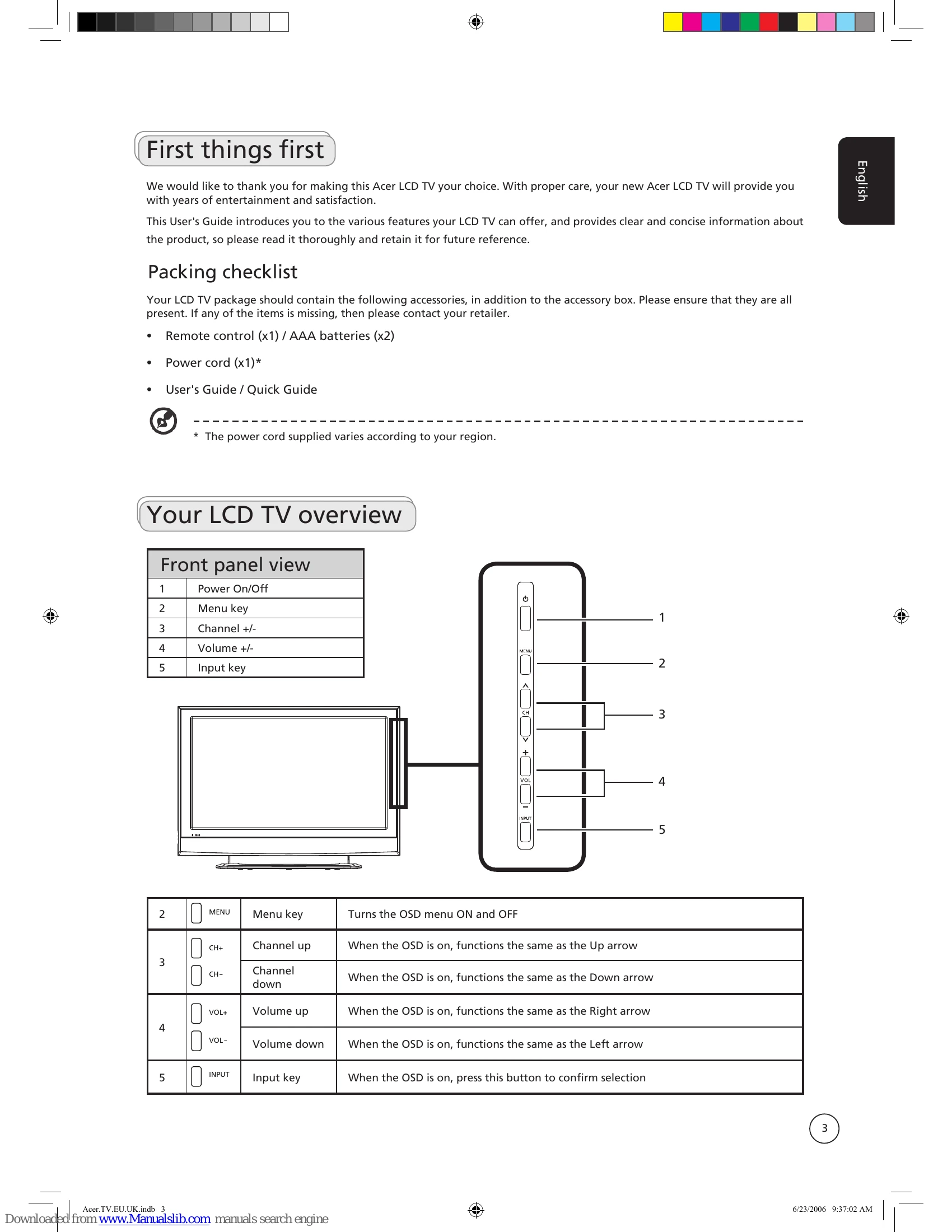
Your LCD TV overview

Front panel view

1 Power On/Off

2 Menu key

3 Channel +/-

4 Volume +/-

5 Input key

2 MENU Menu key Turns the OSD menu ON and OFF
3 CH+ Channel up When the OSD is on, functions the same as the Up arrow
CH- Channel down When the OSD is on, functions the same as the Down arrow
4 VOL+ Volume up When the OSD is on, functions the same as the Right arrow
VOL- Volume down When the OSD is on, functions the same as the Left arrow
5 INPUT Input key When the OSD is on, press this button to confirm selection

Basic connections

Connecting the power cord

1 Connect the AC cord into the AC input on the back of the set.

2 Connect the plug to the wall outlet as shown.

Setting up the remote control

1 Open the cover on the back of the remote unit.

2 Insert two AAA batteries (supplied) to match the polarity indicated inside the battery compartment.

Enjoying analog TV

Connecting an antenna/cable

Connect the antenna cable to the appropriate antenna terminal on the back of the TV set as shown below.

Getting started watching your TV

Power

a. Turn on the power switch beneath the screen.

b. Press the power button, number keys or channel up / down button on the remote control.

Setup Wizard

The first time you switch on the TV, the Setup Wizard will guide you to complete the language selection and channel scanning.

Press the OK key to begin the setup process.

You can also adjust these settings using the front control panel. Please see "Front panel view" on page 3 for details.

Step 1. Select the setup language you prefer.

Step 2. Please select country.

Step 3. Ensure that your co-axial cables are connected correctly before proceeding.

Step 4. Scan for analog channels.

Step 5. Setup is now complete. You are ready to begin watching TV.

If you leave the setup process before it is complete, you will be given a choice of options:

  1. Resume setup
  2. Resume setup wizard at next startup
  3. Exit and do not remind me

Select an option and press OK to exit.

Changing channels

a. Press 0-9 on the remote control to select a channel. The channel changes after 2 seconds. Press ENTER to select the channel immediately.

b. Pressing the channel (CH) up / down button on the remote control will also change the channel.

Adjusting the volume

Adjust the volume level using the (VOL) up/down button on the remote control.

Setup may vary due to local broadcast differences.

Connecting external audio/video devices

Connecting a DVD, VCR, STB or audio/video equipment

Connect your DVD player, VCR or audio/video equipment using the SCART port located at the rear of your LCD TV as shown below.

Connecting a camera, camcorder or video game

Connect your camera or camcorder to the video/audio ports on the rear of the TV set as shown below.

Connecting a PC or notebook computer

To display PC output on your TV, connect your PC or notebook computer to the TV as shown below.

For VGA input, Acer recommends setting your PC's external monitor resolution to 1360 x 768 pixels @ 60 Hz refresh rate.

Selecting the input source

Once you have connected your antenna or external equipment to the TV, you need to select the correct input source.

Press the corresponding button on the remote control to select the correct input source.

TV AV SCART PC
1 2 3 4

Input button guide:

  1. TV key: Toggle Analog TV (ATV) between input sources.
  2. AV key: Toggle AV, HDMI1 and HDMI2 between input sources.
  3. SCART key: Toggle SCART1 and SCART2 between input sources.
  4. PC key: Toggle VGA between input sources.

OSD navigation

Many of the advanced settings and adjustments are available through using the OSD (onscreen display) menus, as shown in the example screenshot below.

Basic operations required to navigate these menus (Picture, Audio, Channel management, Options, Settings) are described in this section.

Navigating the OSD with the remote control

You can also interact with these menus using the front panel controls. Please see "Front panel view" on page 3 for details.

There are five main OSD menus. These are: Picture, Audio, Channel management, Options and Settings.

Use the following method to navigate these menus.

  1. Press the MENU button on the remote control or the MENU button on the control panel.
  2. Select your desired menu by using the up and down directional keys to switch between the five menus.
  3. Use the directional keys to interact with the menu. The up / down directions will scroll through the menu options, while left/right will adjust the different settings (for example, in the Picture menu, settings such as brightness, contrast, etc.). Press MENU to exit.

Adjusting the OSD settings

The OSD can be used for adjusting the settings of your LCD TV.

Press the MENU key to open the OSD. You can use the OSD to adjust the picture quality, audio settings, channel settings and general settings. For advanced settings, please refer to following page:

Adjusting the picture quality

  1. Press the MENU key to bring up the OSD.
  2. Using the directional keys, select Picture from the OSD. Then navigate to the picture element you wish to adjust.
  3. Use the left or right keys to adjust the sliding scales.
  4. The Picture menu can be used to adjust the current Scenario mode, brightness, contrast, colour, sharpness and other image-related qualities.

Adjusting the audio settings

  1. Press the MENU key to bring up the OSD.
  2. Using the directional keys, select Audio from the onscreen display. Then navigate to the feature you wish to adjust.
  3. Use the left or right keys to adjust the sliding scale. Press OK to save.
  4. The Audio menu can also be used to adjust the treble, balance, sound effects and other important sound-related settings

Adjusting the channel management

  1. Press the MENU key to bring up the OSD.
  2. Using the directional keys, select Channel management from the OSD.
  3. Use the directional keys to navigate the menus.
  4. The Channel management menu can be used to adjust frequency, and set the channel namings.

Adjusting other options

  1. Press the MENU key to bring up the OSD.
  2. Using the directional keys, select Options from the OSD.
  3. Use the directional keys to navigate the menus.
  4. The Options menu can be used to select the picture aspect-ratio mode, set the sleep timer and reset options.

Adjusting the settings

  1. Press the MENU key to bring up the OSD.
  2. Using the directional keys, select Settings from the OSD. Then navigate to the feature you wish to adjust.
  3. The Settings menu can be used to adjust the menu language and other important settings.

The options available on the OSD may vary depending on the TV signal source.

Advanced features

Lock TV

Locking TV content

Lock TV is a handy feature that can block all TV sources.

Lock TV allows you to enter a password and effectively stop anyone without the password from watching TV.

To enable this feature:

Setting a personal PIN

  1. Press the MENU key on the remote control to bring up the OSD.
  2. Use the directional keys to navigate to the Settings menu. Then select Set PIN.
  3. Enter a four-digit password. Type it again and press OK to reconfirm.
  4. Press MENU to exit.

The default PIN for this TV is "0000." First enter "0000" when you want to change the PIN. If you forget your PIN, please enter 6163 to reset.

Locking your TV

  1. Press the MENU key on the remote control to bring up the OSD.
  2. Use the directional keys to navigate to the Settings menu. Then select Lock TV.
  3. Enter your PIN. Type it again and press OK to reconfirm. (see page 11 note)

Reorder for channels

The first time you completed the setup wizard, all available channels were listed. If you need to reorder for new channels, please follow the steps below:

Reordering for channels

  1. Press the MENU key on the remote control to bring up the OSD.
  2. Use the directional keys to navigate and select Channel Management.
  3. Highlight Reorder. Then, select the channel you wish to reorder and press OK to confirm. Move to the right channel number and press OK to reconfirm.
  4. Select OK and press MENU to exit.

Re-scan for channels

The first time you completed the setup wizard, all available channels were listed. If you need to re-scan for new channels, please follow the steps below:

Scanning for channels

  1. Press the MENU key on the remote control to bring up the OSD.
  2. Use the directional keys to navigate and select Channel Management.
  3. Highlight Auto Scan. Then, select Start and press OK to begin.
  4. Select OK and press MENU to exit.

Widescreen display mode

Your Acer LCD TV has a special widescreen mode that allows you to toggle between 4:3, 16:9, Panorama, and Letterbox 1, 2 and 3 type views.

Press the WIDE key on the remote control to toggle the display between the four wide modes.

Wide mode

The Acer LCD contains four widescreen modes, including 4:3, 16:9, Panorama, and Letterbox 1, 2 and 3.

4:3

For 4:3 standard pictures. A side bar appears on each side.

16:9

In this mode, the whole picture is stretched toward each side of the screen.

Panorama

In this mode, the picture is progressively stretched toward each side of the screen.

Letterbox 1, 2, and 3

In this mode, the picture is enlarged linearly to fit the screen. The top and bottom portions of the picture may be cut off.

Troubleshooting

Before you call the Acer service center, please check the following items:

Here is a list of possible situations that may arise during the use of your LCD TV. Easy answers and solutions are provided for each.

There is no picture or sound.

  • Make sure the power cord is properly inserted in the power outlet.
  • Make sure the input mode is correctly set by your selected input.
  • Make sure the antenna at the rear of the TV is properly connected.
  • Make sure the main power switch is turned on.
  • Make sure the volume is not set to minimum or the sound is not set to mute.
  • Make sure the headphones are not connected.
  • Reception other than those of broadcasting stations can be considered.

Picture is not clear.

  • Make sure the antenna cable is properly connected.
  • Consider whether your TV signal is being properly received.
  • Poor picture quality can occur due to a VHS camera, camcorder, or other peripheral being connected at the same time. Switch off one of the other peripherals.
  • The 'ghost' or double image may be caused by obstruction to the antenna due to high-rise buildings or hills. Using a highly directional antenna may improve the picture quality.
  • The horizontal dotted lines shown on the pictures may be caused by electrical interference, e.g., hair dryer, nearby neon lights, etc. Turn off or remove these.

Picture is too dark, too light or tinted.

  • Check the colour adjustment.
  • Check the brightness setting.
  • Check the sharpness function.
  • The fluorescent lamp may have reached the end of its service life.

Remote control does not work.

  • Check the batteries of the remote control.
  • Make sure the remote sensor window is not under strong fluorescent lighting.
  • Try to clean the remote control sensor lens on the TV with a soft cloth.
  • Use the buttons (hotkeys) on the TV before the remote control works.

If the above suggestions do not solve your technical issue, please refer to the warranty card for service information.

Troubleshooting and error codes

Possible Problem Solution
There is no picture or sound.
  • Make sure the power cord is properly inserted in the power outlet.
  • Make sure the input mode is correctly set by your selected input.
  • Make sure the antenna at the rear of the TV is properly connected.
  • Make sure the main power switch is turned on.
  • Make sure the volume is not set to minimum or the sound is not set to mute.
  • Make sure the headphones are not connected.
  • Reception other than those of broadcasting stations can be considered.
Picture is not clear.
  • Make sure the antenna cable is properly connected.
  • Consider whether your TV signal is being properly received.
  • Poor picture quality can occur due to a VHS camera, camcorder, or other peripheral being connected at the same time. Switch off one of the other peripherals.
  • The 'ghost' or double image may be caused by obstruction to the antenna due to high-rise buildings or hills. Using a highly directional antenna may improve the picture quality.
  • The horizontal dotted lines shown on the pictures may be caused by electrical interference, e.g., hair dryer, nearby neon lights, etc. Turn off or remove these.
Picture is too dark, too light or tinted.
  • Check the colour adjustment.
  • Check the brightness setting.
  • Check the sharpness function.
  • The fluorescent lamp may have reached the end of its service life.
Remote control does not work.
  • Check the batteries of the remote control.
  • Make sure the remote sensor window is not under strong fluorescent lighting.
  • Try to clean the remote control sensor lens on the TV with a soft cloth.
  • Use the buttons (hotkeys) on the TV before the remote control works.
Privacy Policy