Features and functions
Your new smartphone is a multi-functional tool packed with intuitive features and powerful applications that make organizing your information and synchronizing it with your personal activities an easy, efficient task. It lets you:
- Access your email while on the move.
- Make voice calls when connected to a 3G/EDGE/GPRS/ GSM/HSDPA/UMTS network.
- Connect wirelessly to your local cellular network to access the Internet and other network features.
- Exchange information between devices that have Bluetooth capabilities.
- Easily manage your contacts and social networking interaction.
- Read PDF files on your smartphone.
Product features
- Qualcomm MSM 7227 600 MHz processor
- 512 MB of ROM, 256 MB of RAM
- 3.2" 480 x 320-pixel TFT LCD touchscreen
- microSD Card slot with SDHC support
- High-density, rechargeable 1090 mAh Lithium Polymer battery (replaceable)
- Windows Mobile 6.5 Professional
- Easy-to-use Acer features: Phonebook, Phone Dialer with Favorites and Call History, Social Networking, Notification Manager and Preferences.
Turning on for the first time
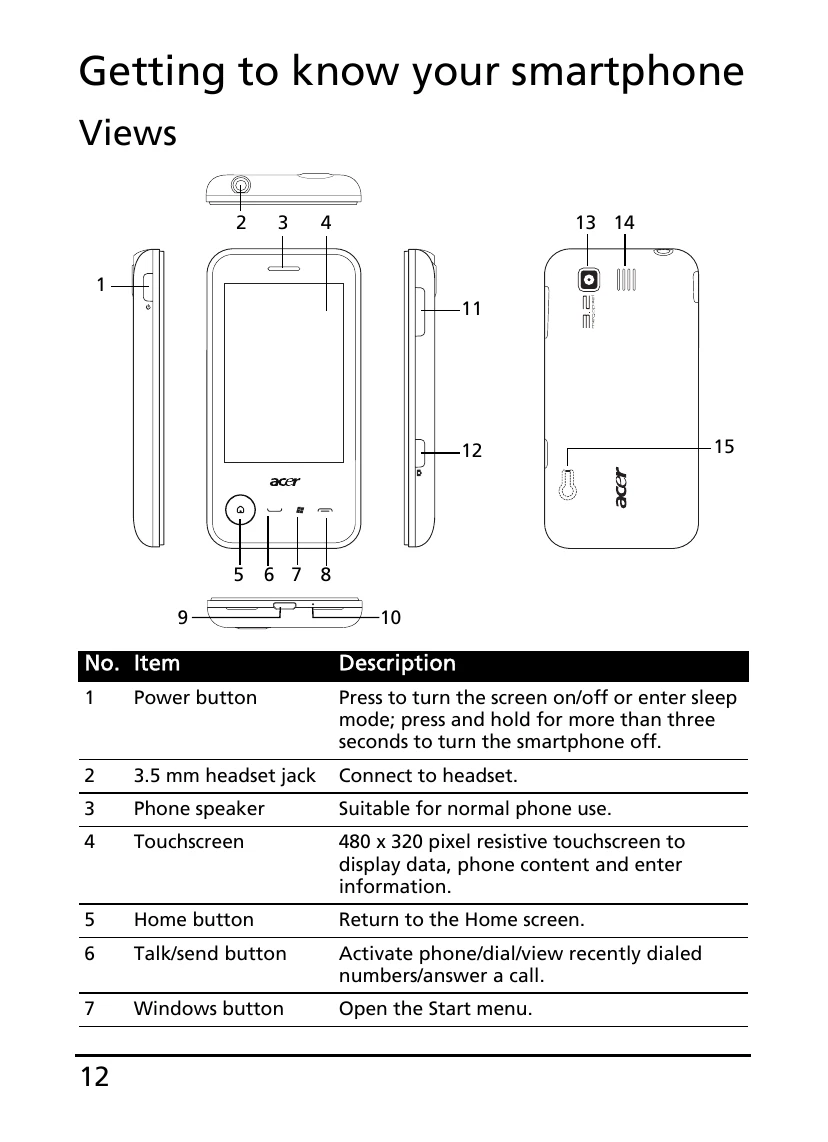
To turn on your smartphone for the first time, press and hold the power button until the system bootup screen appears. Follow the setup screens to set up your phone.
Entering your PIN
When you install a SIM card for the first time, you may need to enter a PIN.
Important: Depending on your settings, you may be required to enter your PIN each time you switch on the phone function.
If the PIN you enter is incorrect, a warning message appears.
Activating a new SIM card
If you are using your SIM card for the first time, it may require activation. Contact your network operator for details on how to do this.
Using the touchscreen
The touchscreen is used to select items and enter information. Use your finger to perform any action on the screen.
Tap: Touch the screen once to open items and select options.
Drag: Hold your finger on the screen and drag across the screen to select text and images. Drag on a scroll bar to scroll up and down the screen.
Tap and hold: Tap and hold an item to see a list of actions available for that item. On the pop-up menu that appears, tap the action you want to perform.