Manual for S57

Manual for S57

Brand: acer

Category: Mobile Phone

Document Type: Manual

Language: EN
Uploaded: April 20, 2026, 7:59 p.m.

Manual Publish Date: 2015-03-01

Warranty Information

Refer to the End User License Agreement for warranty information.

Unpacking your smartphone

Your new smartphone comes packed in a protective box. Carefully unpack the box and remove the contents.
  • Your new Acer smartphone
  • USB cable
  • AC adapter
  • Headset

In-box content varies depending on country and region.

Getting to know your smartphone

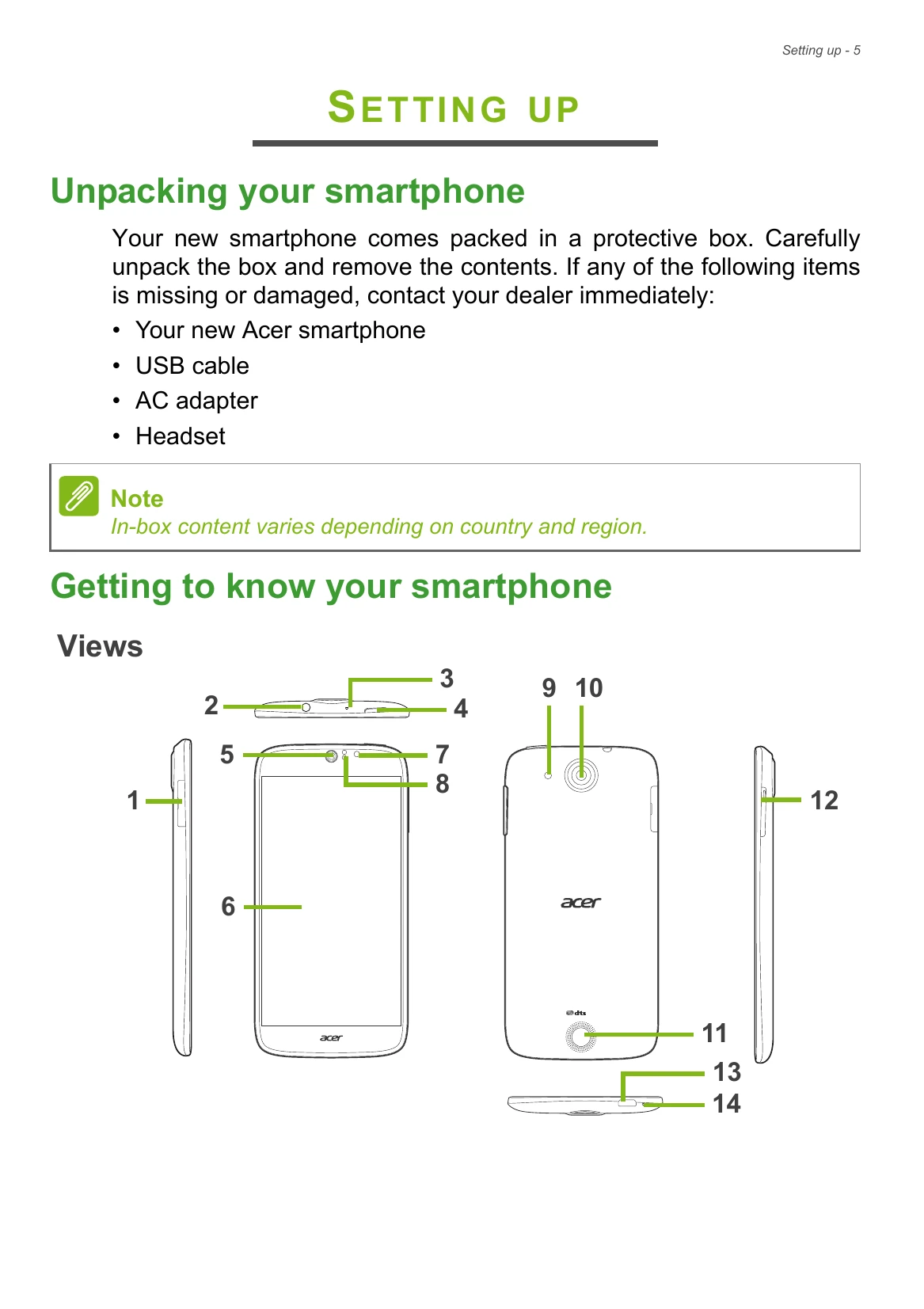
Views

Diagrams of the smartphone's front, back, and sides with numbered components.

Charging the battery

For initial use, you need to charge your smartphone for eight hours. After that you can recharge the battery as needed.

Installing a SIM or microSD card

Follow these steps:
  1. Turn off the smartphone by pressing and holding the power button.
  2. Pull out the SIM / microSD card carrier.
  3. Insert the SIM and/or microSD card as shown.
  4. Insert the carrier, taking care to ensure that the card(s) remain correctly seated in the carrier.

Note: Your smartphone can accept one nano SIM and one microSD card, OR two nano SIMs.

SIM card lock

Your smartphone may come with a SIM card lock, i.e., you will only be able to use the SIM card provided by your network operator. To cancel the SIM lock, contact your network provider.

Using your smartphone

Turning on for the first time

Press and hold the power button until the screen turns on. Follow the onscreen instructions to complete setup.

Sign in to or create a Google account

Open the Apps menu, tap Settings > Add account. Tap the type of account you want to add (e.g. Google).

Entering your PIN

When you install a SIM card for the first time, you may need to enter a PIN using the onscreen number pad.

Important: Depending on your settings, you may be required to enter your PIN each time you switch on the smartphone function.

Activating a new SIM card

Contact your network operator for details on how to do this.

Locking your smartphone

Briefly press the power button to lock access.

Troubleshooting and error codes

Aspect Question Suggestions
Unlock pattern I forgot my unlock pattern. After a certain number of wrong entries, you will be presented with an option to reset your pattern. Tap Forgot pattern? and enter your Google account username and password. You must have an active Google account on the smartphone. Alternatively, you restore your smartphone to factory settings. See Restoring to factory settings on page 68.
Heat The smartphone heats up when charging or making long duration calls. It is normal for the smartphone to heat up when charging. When charging is complete, it will return to its normal temperature. It is also normal for the smartphone to heat up during long periods of use, such as watching a video or a long smartphone conversation.
Privacy Policy