Brand: Acer
Category: Notebook Computer
Document Type: Manual
Language: EN
Brand: Acer
Category: Notebook Computer
Document Type: Manual
Language: EN
Uploaded: April 20, 2026, 8:07 p.m.
Manual Publish Date: 2022-04-01
Turn on your Chromebook by pressing the power button. Select your language and connect to a network. Accept the Terms of Service for system updates. You can sign in with an existing Google Account or create a new one. Alternatively, you can browse as a guest.
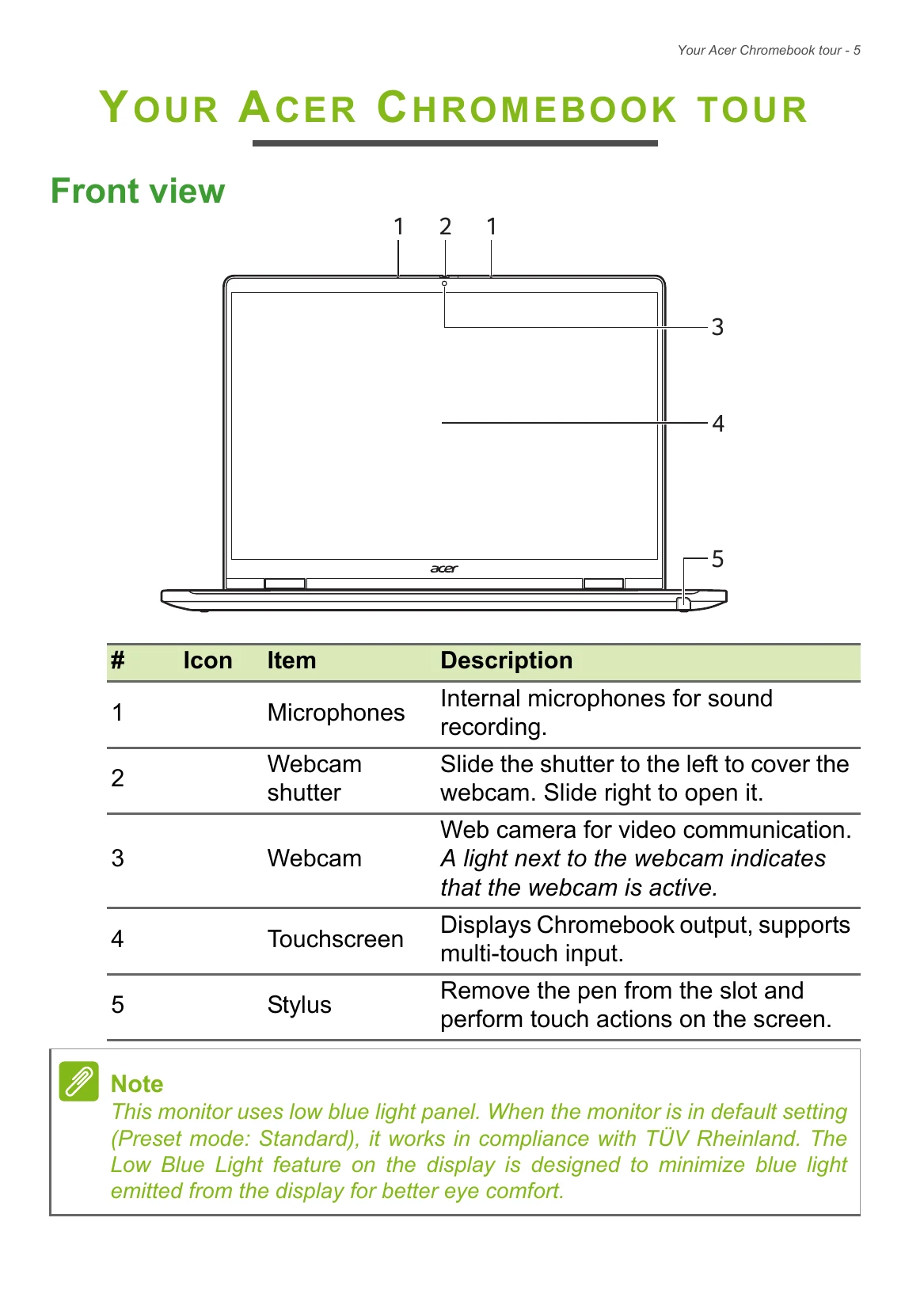
Familiarize yourself with the front, keyboard, left, right, and bottom views of your Chromebook. Identify microphones, webcam, touchscreen, stylus, speakers, keyboard, fingerprint reader, touchpad, ports (USB Type-C, HDMI), power button, and battery indicator.
Charge the stylus by inserting it into the designated slot. It offers 4 hours of usage after 15 minutes of charging.
Your Chromebook can be used in Laptop, Display, Tent, or Tablet modes.
Learn about Chromebook apps, getting more apps, Microsoft Office compatibility, file storage, transferring local files, and the role of your Google Account.
Follow basic care tips, including how to turn the computer on/off and general computer care. Understand how to care for your AC adapter, cleaning and servicing procedures, and guidelines for safe battery usage. Also, find information on internal battery handling and taking care of your vision to reduce eyestrain.
| Question | Answer |
|---|---|
| What software works on a Chromebook? | Chromebooks use apps from the Google Play Store and on the web. There are apps to be productive, get creative, enjoy movies and shows, play games and more. |
| How do I get more apps? | You can get more apps from the Google Play Store or the web. |
| Can I use Microsoft Office software? | Chromebooks work with Microsoft® Office. Whether it's Word, Excel® or PowerPoint®, you can easily find the apps on the web. |
| Where can I find my files? | All your files are stored in the Files app. Find the app by clicking the Launcher icon and searching “Files”. |
| How do I transfer my local files? | Transfer your local files using a compatible storage device. Your Chromebook works with most external storage devices (e.g.: USB thumb drives, removable hard drives). You can also upload your files, photos, and videos to Google Drive. After setting up your Chromebook with your Google Account, you'll be able to access your files on Drive. |
| Why does my Chromebook need my Google Account information? | You'll use your Google Account to sign in to your Chromebook. It is the same account you use for Google services such as Gmail and Drive. Your Chromebook uses your account information to automatically sign you into apps and services. |
| How do I set this up for my child? | If you want to set up parental controls for your child, it's important that you sign in using your child's personal Google Account. If they don't already have one, you can create one during the sign-in process on your Chromebook. You will be able to add your child's school account after you complete device onboarding. |