Manual for OPTIMA 104

Manual for OPTIMA 104

Brand: Agfa

Category: Camera

Document Type:

Language: EN
Uploaded: Aug. 9, 2025, 11:36 p.m.

Warranty Information

Contact the distributor or manufacturer for service, support, and warranty information.

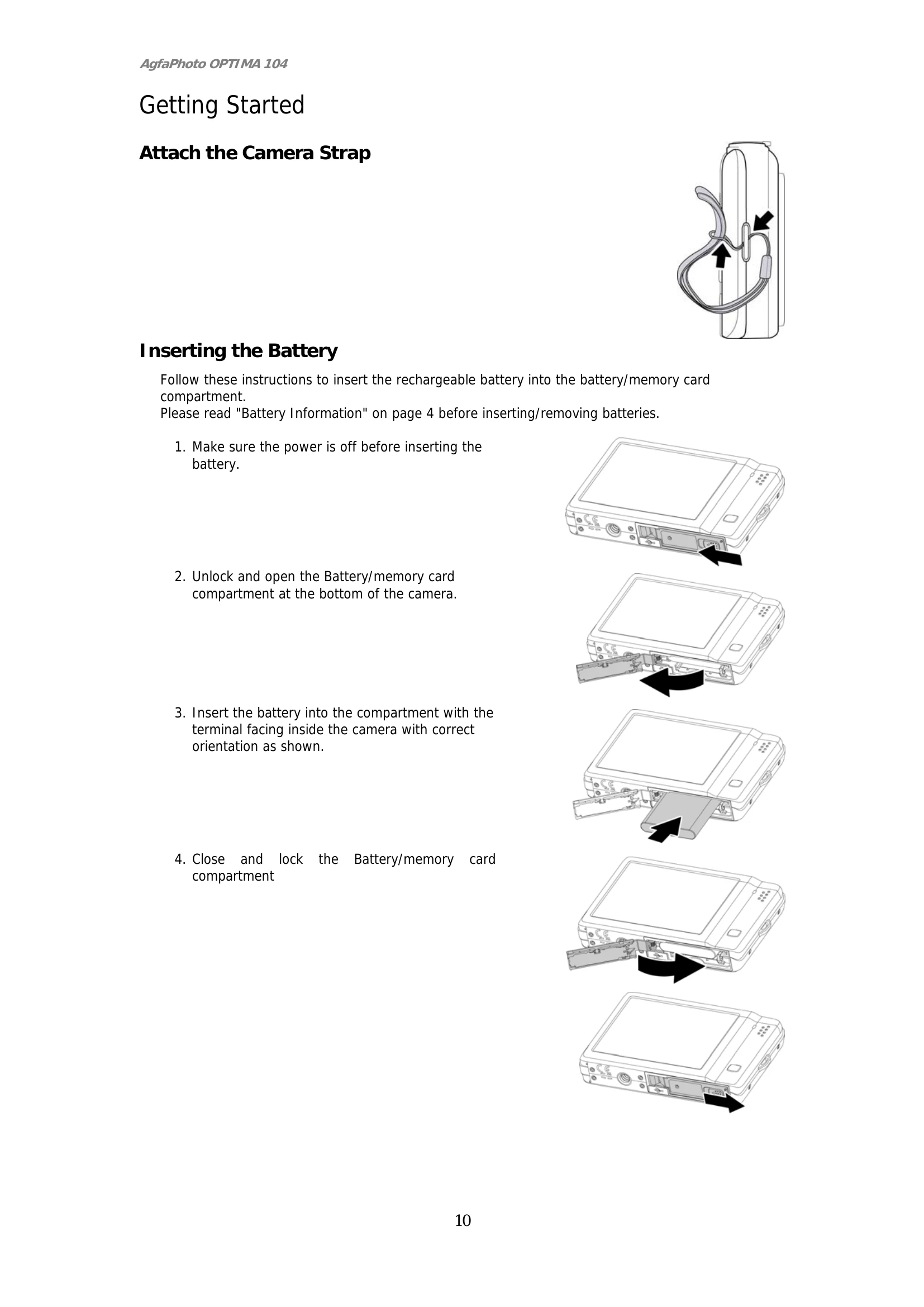
Getting Started: * Attach Camera Strap: Connect the strap to the designated loop on the camera. * Insert Battery: Ensure the camera is off, unlock and open the battery compartment, insert the battery with the correct orientation, and lock the compartment. * Insert Memory Card: Unlock and open the compartment, insert the SD/SDHC card with the metallic part facing the front, push until it clicks, and close the compartment. * Charge Battery: Place the battery in the charger, plug it into a power outlet. The LED indicator shows charging status (orange for charging, green for complete). * Turn On/Off: Press the Power button. The camera starts in Record mode by default (zoom lens extends). Press again to turn off. Taking Images: 1. Turn on the camera. 2. Frame the shot using the focus bracket on the LCD. 3. Press the Shutter button halfway to focus and adjust exposure; press fully to capture the image. * If the shake warning icon appears, stabilize the camera. Using Zoom: * Spin the Zoom dial clockwise to zoom in, counterclockwise to zoom out. * Optical zoom is 1X to 4X, digital zoom is 1X to 5X. Digital zoom may reduce image quality. Using Flash: * Tap the Flash button on the screen to select flash modes (Auto, Red-eye, Forced On, Slow Sync, Forced Off). * Flash is not available for video recording or burst shooting. Setting Focus Mode: * Tap the Macro button to access focus options. Changing LCD Display: * Tap the DISP button to cycle through display modes (Basic, Full, None, Guideline). Playback Mode: * Press the Playback button to view and edit images or play videos/audio. Connecting: * To TV: Connect via USB/AV cable, select NTSC/PAL in TV Out settings. * To PC: Connect via USB cable, select "Computer" in USB mode menu. * To Printer: Connect via USB cable, select "Printer" in USB mode menu, then follow print settings. Setup Menu: * Access via the Menu button to configure Sounds, Power Save, LCD Save, Date & Time, Language, File Numbering, TV Out, LCD Brightness, Memory Kit, and Reset. Troubleshooting: * Addresses issues like camera not turning on, LCD dark, memory full, file errors, lens stuck, and no image on TV.

Troubleshooting and error codes

Problem Cause and/or Action
Camera does not turn on. The batteries may be exhausted. Charge or replace the batteries.
Camera turns off automatically. Press Power button and playback button to turn on the camera.
LCD turns dark. Press any button except the Power button to turn on the LCD.
Empty battery icon is displayed on the LCD, then the camera turns off. Batteries are exhausted, please replace or recharge.
LCD monitor displays 'No image'. There are no files in current used memory, or the format of the file may not be supported.
LCD monitor displays 'Not available for this file'. Function is only available for specific file types. File format is not supported.
LCD monitor displays 'Memory full'. Memory card is full. Replace the memory card with a new one or delete unnecessary images.
LCD monitor displays 'File locked' This file is locked. Unlock the file. See "Protect" on page 52.
LCD monitor displays 'Card locked'. The memory card is protected. Remove the card and slide the write-protect switch to its unlock position.
LCD monitor displays 'Format error'. The card may be damaged. You can either change the card or wipe to clean the connected points.
LCD monitor displays 'Copy error'. The memory card is protected. Remove the card and slide the write-protect switch to its unlock position. The memory card is full. Replace card or delete unnecessary files.
No image displays on the TV screen. Incorrect TV-out type was selected. Set the correct TV-out type to match your TV system.
The lens got stuck up. Do not force the lens to go back. The type of the battery used may be incorrect or the battery power level is too low. Change the battery or charge the battery before using the camera.
Privacy Policy