Manual for PA279CRV

Manual for PA279CRV

Brand: ASUS

Category: Monitor

Document Type: Manual

Language: EN
Uploaded: April 20, 2026, 7:58 p.m.

Manual Publish Date: 2022-12-01

Warranty Information

Refer to the warranty card for detailed information on your product's warranty.

Quick Setup Guide

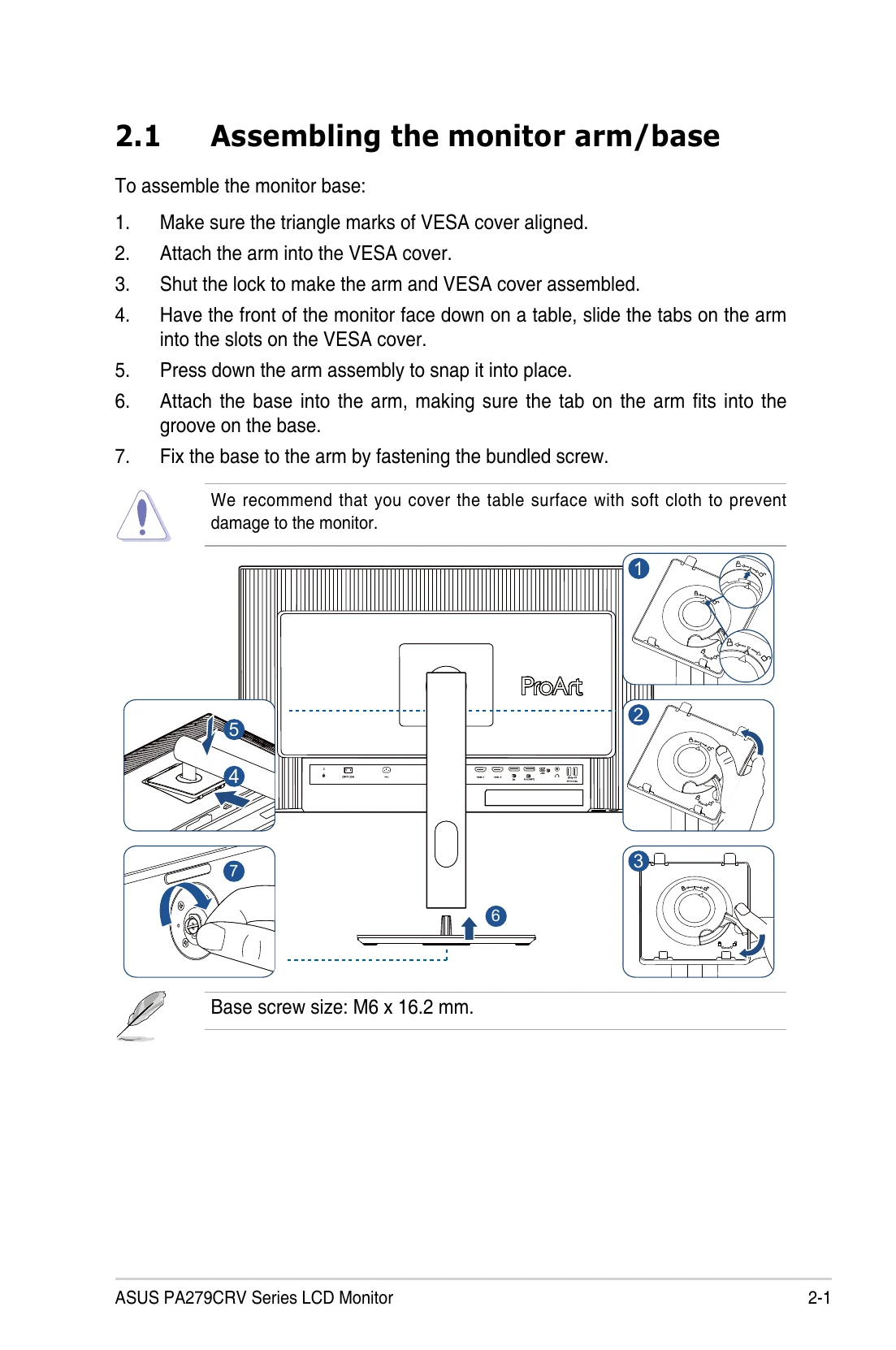
  1. Assemble the Monitor: Attach the monitor arm and base following the provided instructions and diagrams.
  2. Connect Cables: Connect the power cord to the monitor and power outlet. Connect your computer to the monitor using HDMI, DisplayPort, or USB Type-C cables. Connect other peripherals like earphones or USB devices as needed.
  3. Turn On Monitor: Press the power button. The power indicator will light up white when the monitor is on.
  4. Adjust Settings: Use the OSD (On-Screen Display) menu to configure various settings such as preset modes, image adjustments, PIP/PBP, quick fit patterns, signal input, and system settings.

Key Features

  • OSD Menu: Navigate and customize display settings using the intuitive OSD menu.
  • Multiple Inputs: Supports HDMI, DisplayPort, and USB Type-C for versatile connectivity.
  • Ergonomic Adjustments: Features tilt, swivel, pivot, and height adjustment for comfortable viewing.
  • Low Blue Light & Flicker-Free: Technologies designed to reduce eye strain during prolonged use.

Troubleshooting and error codes

Problem Possible Solution
Power LED is not ON
  • Press the ⌁ button to check if the monitor is in the ON mode.
  • Check if the power cord is properly connected to the monitor and the power outlet.
The power LED lights amber and there is no screen image
  • Check if the power switch is ON.
  • Check if the monitor and the computer are in the ON mode.
  • Make sure the signal cable is properly connected the monitor and the computer.
  • Inspect the signal cable and make sure none of the pins are bent.
  • Connect the computer with another available monitor to check if the computer is properly working.
Screen image is too light or dark
  • Adjust the Contrast and Brightness settings via OSD.
Screen image bounces or a wave pattern is present in the image
  • Make sure the signal cable is properly connected to the monitor and the computer.
  • Move electrical devices that may cause electrical interference.
Screen image has color defects (white does not look white)
  • Inspect the signal cable and make sure that none of the pins are bent.
  • Perform All Reset via OSD.
  • Adjust the R/G/B color settings or select the Color Temperature via OSD.
No sound or sound is low
  • Ensure that the HDMI/DisplayPort/USB Type C cable is properly connected to the monitor and the computer.
  • Adjust the volume settings of both your monitor and HDMI/DisplayPort/USB Type C device.
  • Ensure that the computer sound card driver is properly installed and activated.
Privacy Policy