Installation Guide for H4 HD Dome Camera

Installation Guide for H4 HD Dome Camera

Brand: Avigilon

Category: Surveillance Camera

Document Type: Installation Guide

Language: EN
Uploaded: Nov. 21, 2025, 7:44 p.m.

Manual Publish Date: 2019-12-24

Warranty Information

Warranty service and technical support can be obtained via the Avigilon website.

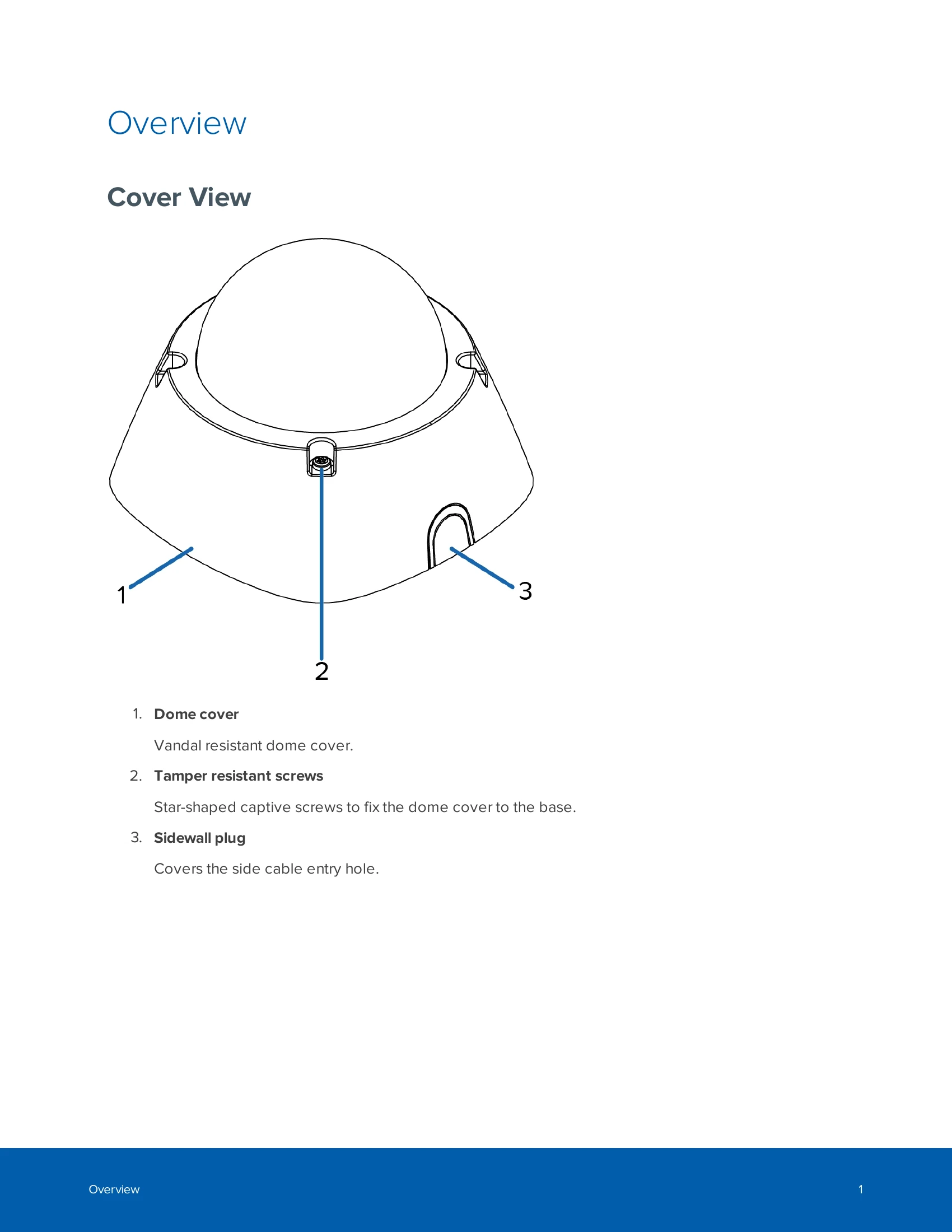
Overview: This section details the external views of the camera, identifying components like the dome cover, tamper-resistant screws, and sidewall plug. It also shows the bottom view with cable entry and mounting holes, and the wall plate view with mounting options for electrical boxes. The base view highlights the lanyard, while the front and rear views illustrate various ports and controls, including power, Ethernet, USB, and audio/video connectors, as well as azimuth, tilt, and pan controls. The IR view shows the illuminator ring.
Installation: This guide provides a step-by-step process for installing the camera. It covers required tools, package contents, and detailed instructions for removing the dome cover, mounting the camera using different entry methods (bottom, side, electrical box), and connecting necessary cables. It also includes steps for initializing the camera's username and password, and optional Wi-Fi adapter usage.
Configuration: The manual explains how to assign an IP address, access the live video stream, aim the camera, and configure its settings. It also covers optional SD card storage and the process of installing the dome cover.
Connections & Maintenance: This section details how to connect external power, external devices, microphones, speakers, and video monitors. It also describes the connection status LED indicator, how to reset the camera to factory defaults, and cleaning procedures for the dome bubble and body.
Support: Finally, it provides information on limited warranty and technical support resources.

Troubleshooting and error codes

Connection State Connection Status LED Indicator Description
Obtaining IP Address One short flash every second Attempting to obtain an IP address.
Discoverable Two short flashes every second Obtained an IP address but not connected to the Network Video Management software.
Upgrading Firmware Two short flashes and one long flash every second Updating the firmware.
Connected On Connected to the Network Video Management software or an ACCâ„¢ Server. The default connected setting can be changed to Off using the camera's web user interface. For more information see the Avigilon High Definition H4 and H5 IP Camera Web Interface User Guide.
Privacy Policy