Manual for BBD100-6

Manual for BBD100-6

Brand: BlackBerry

Category: Mobile Phone

Document Type:

Language: EN
Uploaded: Aug. 10, 2025, 12:07 a.m.

Warranty Information

Warranty information is not detailed in this section of the manual.

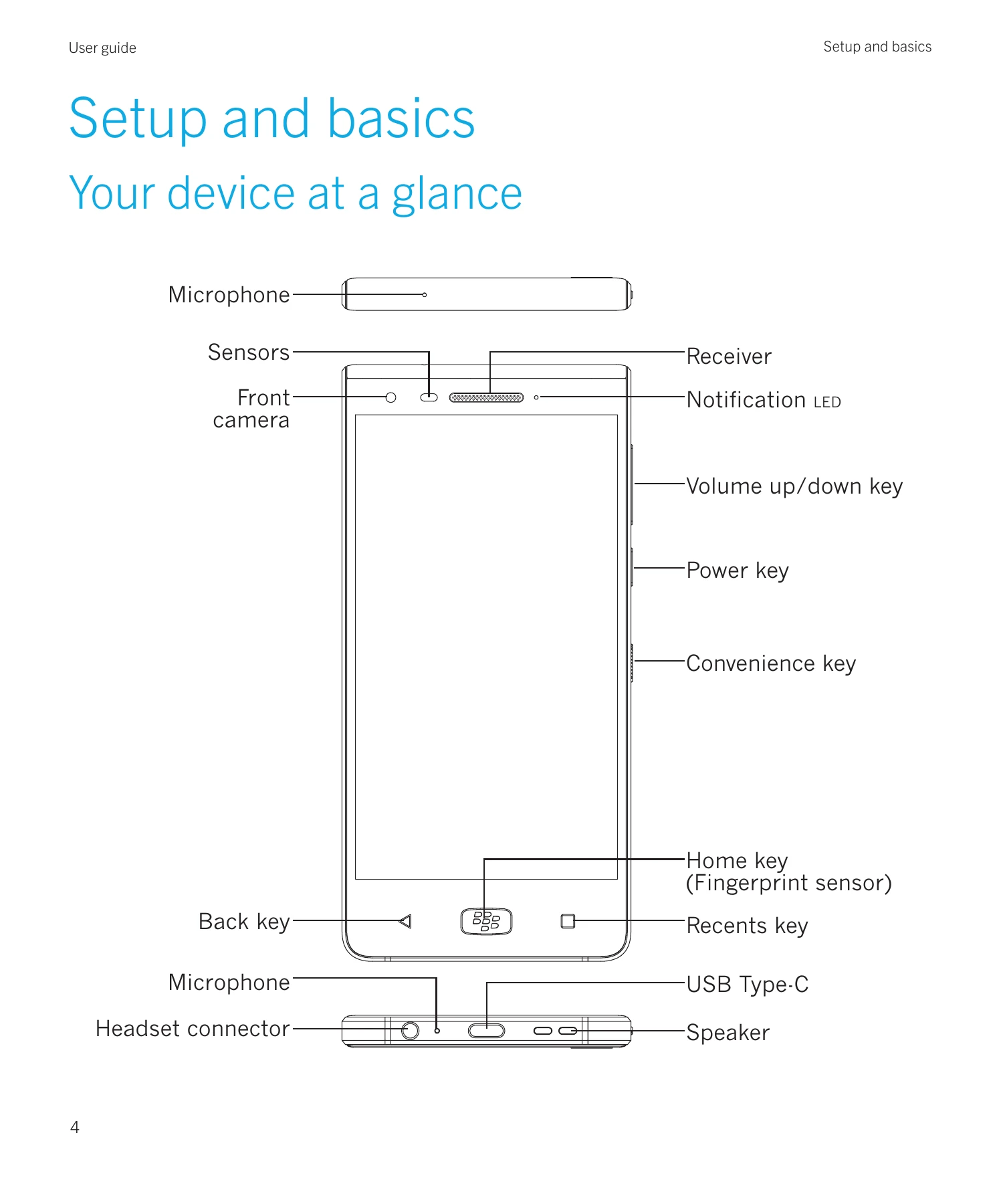
  • Device Overview: Familiarize yourself with the location of keys, sensors, and ports (Microphone, Sensors, Front camera, Back key, Microphone, Headset connector, Speaker, USB Type-C, Recents key, Home key (Fingerprint sensor), Convenience key, Power key, Volume up/down key, Notification LED, Receiver, Microphone).
  • SIM Card and Media Card: Learn how to insert a nano SIM card and a microSD card into the designated tray.
  • Basic Operations: Understand how to turn the device on/off, manage screen display, and navigate between home screens using gestures.
  • Navigation and Gestures: Explore the use of navigation buttons (Back, Home, Recents) and touch screen gestures like tapping, swiping, and zooming.
  • Apps, Widgets, and Shortcuts: Discover how to access, organize, and add apps, widgets, and shortcuts to your home screen.
  • Phone and Voice: Learn about making and receiving calls, using phone icons, managing call history, and using features like call waiting and forwarding.
  • Security: Understand how to set up screen locks (password, PIN, pattern), use Smart Lock features, and protect your device and data.

Troubleshooting and error codes

Troubleshooting Possible Solutions
Troubleshooting: How to properly care for my phone for water resistance
  • Make sure the SIM/microSD tray is tightly closed.
  • Do not immerse the device in water deeper than 1 meter and keep it submerged for more than 30 minutes.
  • Do not immerse the device to water moving with force, such as ocean waves, or waterfalls.
  • Do not open the SIM/microSD tray when the device is in water or in very humid places, such as swimming pools or bathrooms.
  • The touch screen, and other functions may not work properly if the device is used in water.
  • If the device is immersed in corrosive liquid, rinse it with clean water as soon as possible.
Troubleshooting: The sound quality of the calls is poor Make sure that the microphone, receiver or speaker is clean and dry, if the device has been immersed in water.
Troubleshooting: Locks, passwords, and protecting your data I forgot my password, PIN, or pattern
For security reasons, the only way that you can reset your screen lock without knowing the password, PIN, or pattern is to delete all of your device data and set up the device again. You can typically do this by entering your password, PIN, or pattern incorrectly ten times. Or, if you have a remote device management app installed on your device, such as the Android™™ Device Manager, you can log in to the website and delete your device data.
Smart Lock doesn't unlock my device as expected
  • If your device doesn't unlock when you scan your face, try to improve the image Smart Lock uses to recognise your face. Tap > Security > Smart Lock > Trusted face > Improve face matching.
  • Adjust the distance between your BlackBerry device and a trusted Bluetooth enabled device. The distance of a Bluetooth connection can vary depending on your BlackBerry device model and the Bluetooth enabled device.
  • If your device remains unlocked when it is close to a trusted location instead of when you are at the trusted location, try improving the accuracy of the trusted location. Delete the trusted location. Tap ✡ > Location > Mode. Tap High accuracy or Battery saving, and then add the trusted location again.
  • You might need to unlock your device using your screen lock the first time you connect to a trusted device or arrive at a trusted location.
Privacy Policy