Brand: Braun
Category: Camera
Document Type:
Language: EN
Brand: Braun
Category: Camera
Document Type:
Language: EN
Uploaded: Aug. 9, 2025, 11:46 p.m.
Manual Publish Date: 2018-09-07
null
You must use a Class 4 (or higher) speed rate micro SD card. Please use Class 10 micro SD card or higher when recording videos in 4K/1080p @60fps.
\nFormat the micro SD before use. Ensure that the camcorder is turned off before inserting or removing the memory card.
\nUsing a poor quality or counterfeit memory card will lead to many problems such as crashing, not being able to take photos or videos, damaging the files, etc. We recommend using a branded high-quality memory card for improved stability of the camcorder. Micro SD card requirements are higher when capturing footage on the move or for continuous shooting.
\nIt is important to keep the micro SD card clean.
\nProtect the memory card from liquids, dust and particles.
\nThe battery can only be installed in one direction, please take care.
\nPlease use the included micro USB cable with a computer or wall adapter to charge the camera. Do not leave charging overnight. The camera can record video while charging. The camera can be charged while powered off.
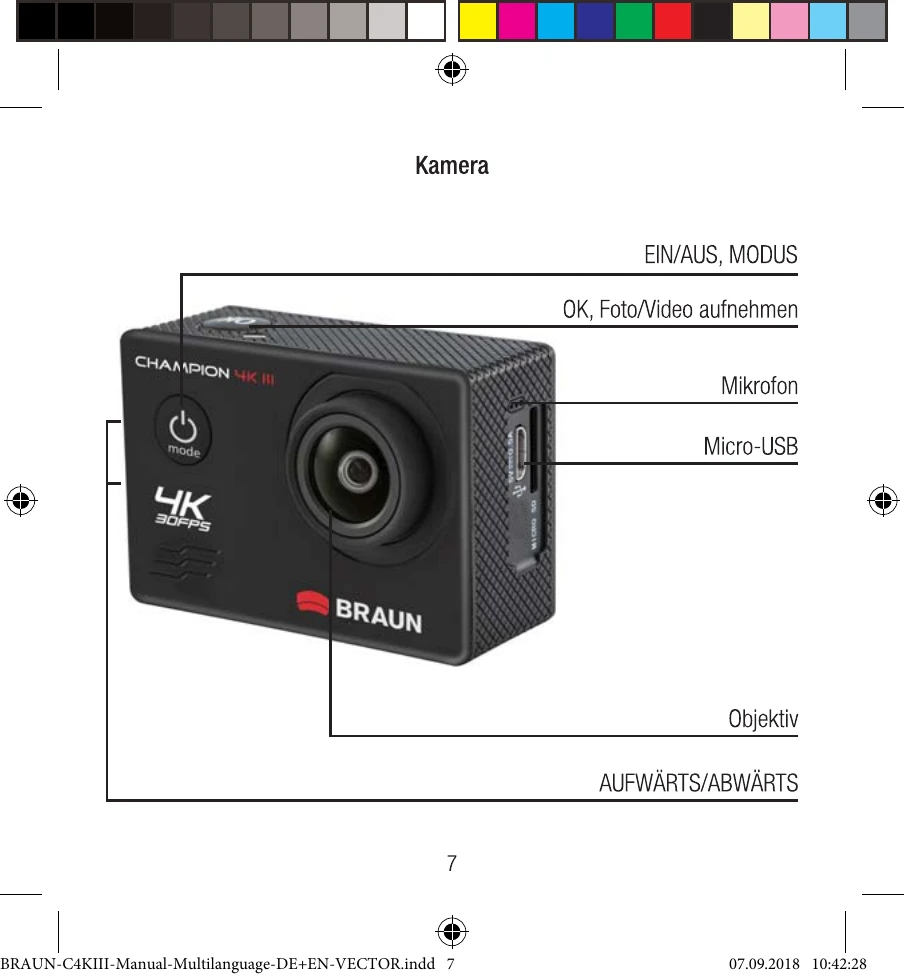
\nPress the „Power/Mode“-button for 2-4 seconds.
\nTo power off hold the „Power/Mode“-button for 2-4 seconds.
\nTo open the Wi-Fi menu, press the „UP“-button for 1 second, until the Wi-Fi logo is displayed. The top LED light will flash yellow when Wi-Fi is enabled.
\nTo deactivate Wi-Fi, press the „UP\"-button for 1 second.
\nPower on the camera, then shortly press the „Power/Mode“-button to change modes. 5 options are available: 1) record video 2) photography 3) slow motion 4) file display 5) settings
\nPlug the camera onto a computer, using the provided Micro USB cable. Then select USB mode on the camera. Your Micro SD card will be mounted in Windows or Mac to copy off the media. Remove the Micro SD card and plug into a computer using an adapter to copy off the media.
\nWhile in playback mode hold the „OK/Record“-button for 3-5 seconds to delete the selected media. To delete all media on the micro SD card select format from the settings menu, then confirm that you want to delete everything.
\nPlease install the XDV app from the Apple App-Store or the Google Play Store, if you are using an Android or IOS smartphone. Make sure Wi-Fi is enabled and the connection information is displayed on the camera screen. Open the XDV app. From here you can watch a live real time preview of your camera, remote record and photo, change camera settings, playback media, copy media to your smartphone, share to social media and delete media. NOTE: This app requires Android 4.1 or more and iOS 7 or more.
\n