Brand: Braun
Category: Trail Camera
Document Type:
Language: EN
Brand: Braun
Category: Trail Camera
Document Type:
Language: EN
Uploaded: Aug. 9, 2025, 11:46 p.m.
The manufacturer is not responsible for misuse or unauthorized disassembly.
| FAQ (Questions) | Problem Analysis | Solutions |
|---|---|---|
| Camera does not take photos correctly | 1. Protective film on PIR sensor not removed. 2. Installation is in an invalid range. |
1. Check if the protective film on the PIR sensor has been removed. 2. Check the installation position. |
| Does not turn on | Batteries may be inserted incorrectly or are used up. | Check and reverse the batteries or replace them with new ones. |
| No image on SD/TF card | 1. Defective SD/TF card. 2. Check if the card is locked and format the SD/TF card. |
Replace and format the SD/TF card, and check if the card can then take photos and record correctly. |
| No photos or videos at night | Battery voltage is too low. | Replace with new batteries. |
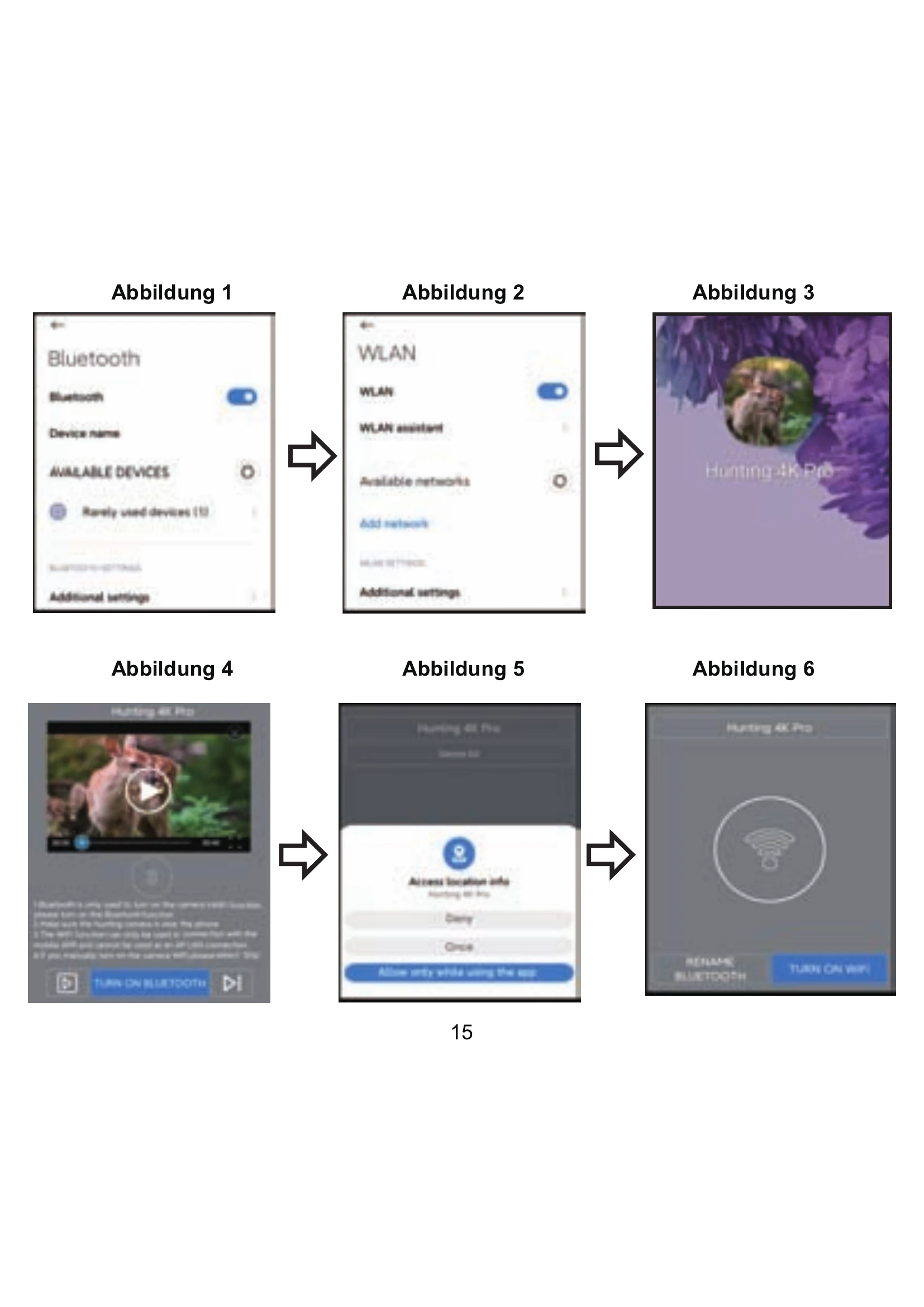
| Application cannot connect | 1. Application is not compatible with the portable phone. 2. Phone does not open Bluetooth. 3. Wi-Fi does not connect correctly. |
1. Check the application version or update your smartphone's operating system. 2. Ensure Bluetooth is enabled. 3. Ensure Wi-Fi is connected properly. |