Quick Start Guide for LEGRIAM52

Quick Start Guide for LEGRIAM52

Brand: CANON

Category: Camera

Document Type: Quick Start Guide

Language: EN
Uploaded: Aug. 10, 2025, 12:29 a.m.

Manual Publish Date: 2012-01-01

Warranty Information

Offers 12 months warranty for other Products and standard Canon accessories from the date of purchase.

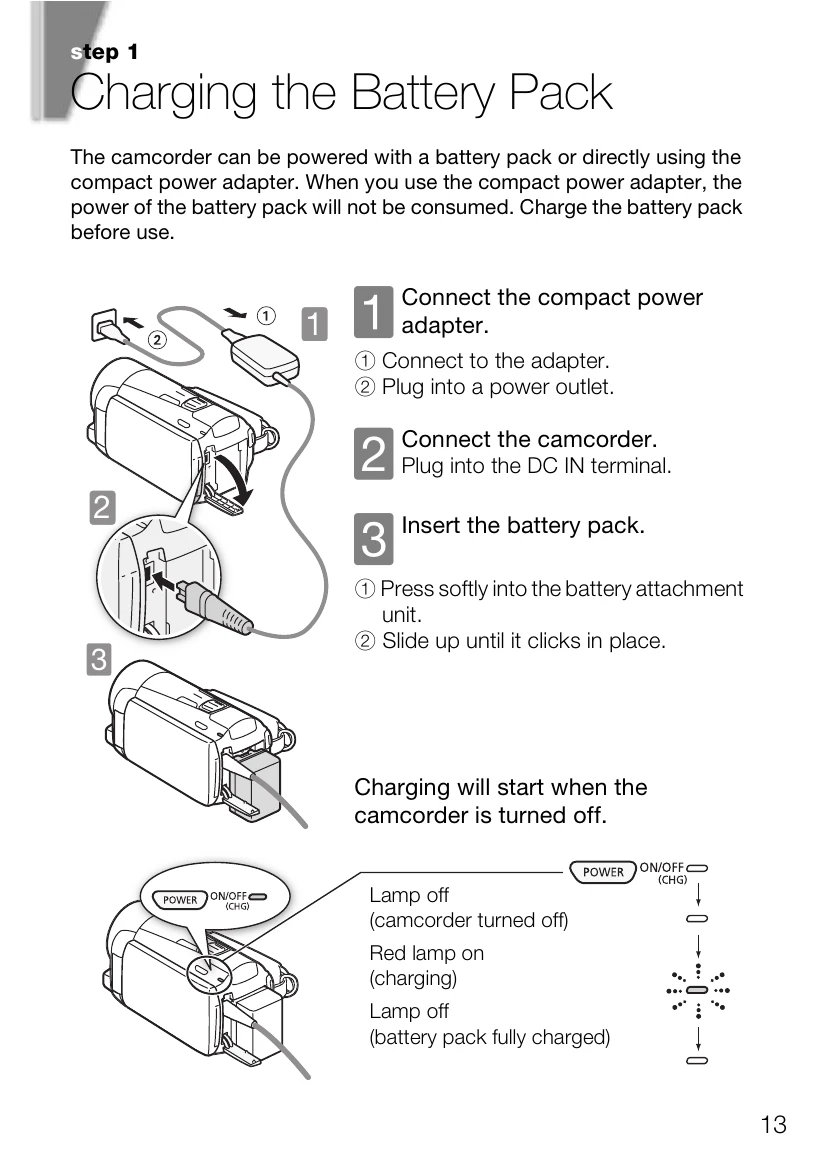
  • Charging the Battery Pack: Connect the compact power adapter to the camcorder and a power outlet, then insert the battery pack. Charging starts when the camcorder is off.
  • Basic Preparations: Fasten the grip belt for comfortable handling. Adjust the LCD screen angle for optimal viewing. Familiarize yourself with the touch screen operations, including pressing firmly and using the stylus. Set the camera mode (AUTO, M, or a cinematic mode) and recording standard (AVCHD or MP4).
  • Setting Date/Time and Language: Press POWER to set the internal clock. Change the date/time fields using the on-screen controls. Select your preferred date/time format and confirm. Press HOME to access menus, navigate to Other Settings, then Language to select your desired language for menus and displays.
  • Using a Memory Card: Turn off the camcorder, open the memory card slot cover, and insert the memory card straight. Close the cover securely. You can select to record on the built-in memory or a memory card. Initialize new memory cards.
  • Selecting the Quality of Video: Press HOME, navigate to Other Settings > Recording Mode to choose the video quality (e.g., MXP, FXP, LP for AVCHD; 4 Mbps for MP4), which affects recording time.
  • Shooting Video and Taking Photos: Use AUTO mode for automatic settings or M mode for manual control. Explore Smart AUTO and Intelligent IS for optimized shooting. Use Story Creator for guided video stories. Zoom in using the 10x optical zoom or 200x digital zoom. Ensure proper focus distance and close the LCD panel to enter standby mode.
  • Playing Back Movies and Viewing Photos: Press the playback mode button. Change the index screen if needed. Navigate through scenes/photos using W/T controls or by dragging your finger. Touch the desired scene or photo to play back. Use playback controls for AVCHD movies (next scene, fast playback, stop, volume, pause). For photos, drag left/right to browse and touch to display controls.
  • Playback on a TV Screen: Connect the camcorder to a TV using an HDMI or composite video cable. Turn on the camcorder in playback mode and play back your recordings. Ensure both devices are off before connecting.
  • Saving and Sharing Your Recordings: Periodically save recordings using PIXELA's software (Windows) or ImageBrowser EX (Windows/Mac OS). Utilize Wi-Fi functions for wireless transfers. Memory Save allows direct saving to an external hard drive without a computer.
Privacy Policy