Manual for LX-MU700

Manual for LX-MU700

Brand: CANON

Category: Projector

Document Type: Manual

Language: EN
Uploaded: Sept. 12, 2025, 4:25 a.m.

Warranty Information

None

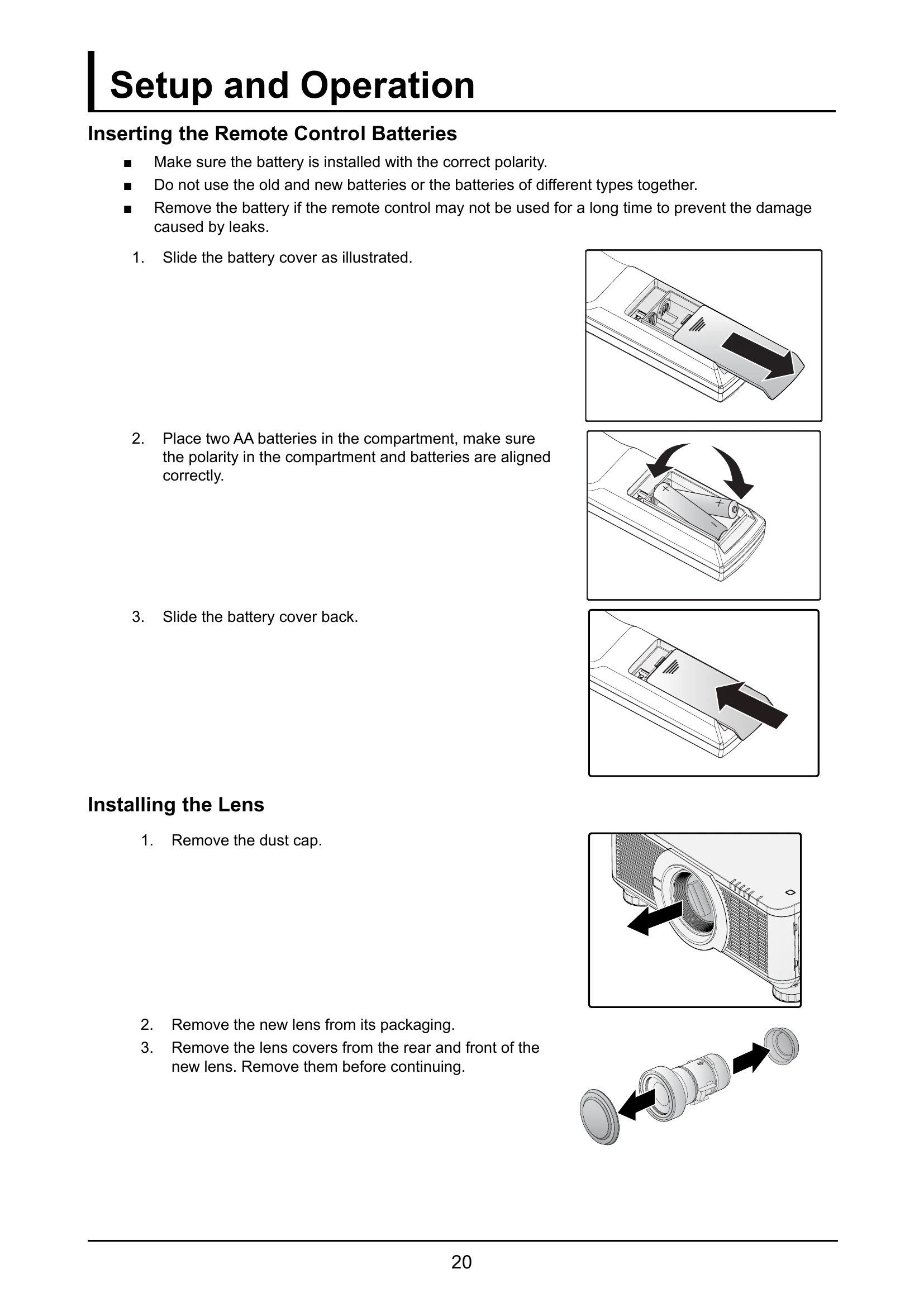
Inserting the Remote Control Batteries

  1. Slide the battery cover as illustrated.
  2. Place two AA batteries in the compartment, make sure the polarity in the compartment and batteries are aligned correctly.
  3. Slide the battery cover back.

Installing the Lens

  1. Remove the dust cap.
  2. Remove the new lens from its packaging.
  3. Remove the lens covers from the rear and front of the new lens. Remove them before continuing.
  4. Clean the new lens before installing. Take care when cleaning to prevent scratching the surface of the new lens.
  5. Make sure the connector is facing up and new lens is pushed into the holder.
  6. Turn the new lens clockwise until and audible Click is heard signifying the new lens is secured and seated correctly.
  7. Gently pull on the new lens to ensure it is locked in place. If the new lens does not come off, it is seated correctly.

Note: The projector supports the lens memory function. Perform the memory function every time when you install the lens.

Be sure to execute “Center Lens” after the lens is changed.

Refer to User's Manual attached to optional lens as well.

Using the Anti-theft Screw for Lens

To prevent the accidental removal of the lens, fasten the Anti-theft screw for lens included with the projector to the bottom of the projector.

Troubleshooting and error codes

Problem Troubleshooting Steps
No image appears on the screen.
  1. Verify the settings on your notebook or desktop PC.
  2. Turn off all equipment and power up again in the correct order.
The image is blurred.
  1. Adjust the Focus on the projector.
  2. Press the AUTO PC button on the remote control.
  3. Ensure the projector-to-screen distance is within the specified range.
  4. Check that the projector lens is clean.
The image is wider at the top or bottom (keystone distortion).
  1. Position the projector so it is as perpendicular to the screen as possible.
  2. Use the Keystone button on the ALIGNMENT menu of the OSD.
The image is reversed. Check the Projector Mode settings on the ALIGNMENT menu of the OSD.
The image is streaked.
  1. Adjust the VGA Setup settings on the PICTURE menu of the OSD to the default settings.
  2. To ensure the problem is not caused by a connected PC's video card, connect to another computer.
The image is flat with no contrast. Adjust the Contrast setting on the PICTURE menu of the OSD.
The color of the projected image does not match the source image.
  1. Adjust the Gamma settings on the PICTURE menu of the OSD.
  2. Adjust the Color Temperature settings on the PICTURE menu of the OSD.
There is no light from the projector.
  1. Check that the power cable is securely connected.
  2. Ensure the power source is good by testing with another electrical device.
  3. Restart the projector in the correct order and check that the Power LED is on.
  4. If you have replaced the lamp recently, try resetting the lamp connections.
  5. Replace the lamp.
  6. Put the old lamp back in the projector and have the projector serviced.
The lamp goes off.
  1. Power surges can cause the lamp to turn off. Re-plug power cord. When the Power LED is on, press the power button.
  2. Replace the lamp.
  3. Put the old lamp back in the projector and have the projector serviced.
The projector does not respond to the remote control.
  1. Direct the remote control towards remote sensor on the projector.
  2. Ensure the path between remote and sensor is not obstructed.
  3. Turn off any fluorescent lights in the room.
  4. Check the battery polarity.
  5. Replace the battery.
  6. Turn off other Infrared-enabled devices in the vicinity.
  7. Have the remote control serviced.
Privacy Policy