Quick Start Guide for CanoScan LiDE 100

Quick Start Guide for CanoScan LiDE 100

Brand: CANON

Category: Scanner

Document Type: Quick Start Guide

Language: EN
Uploaded: Sept. 12, 2025, 4:29 a.m.

Warranty Information

FCC Notice for U.S.A. regarding interference and compliance with Part 15 of FCC Rules.

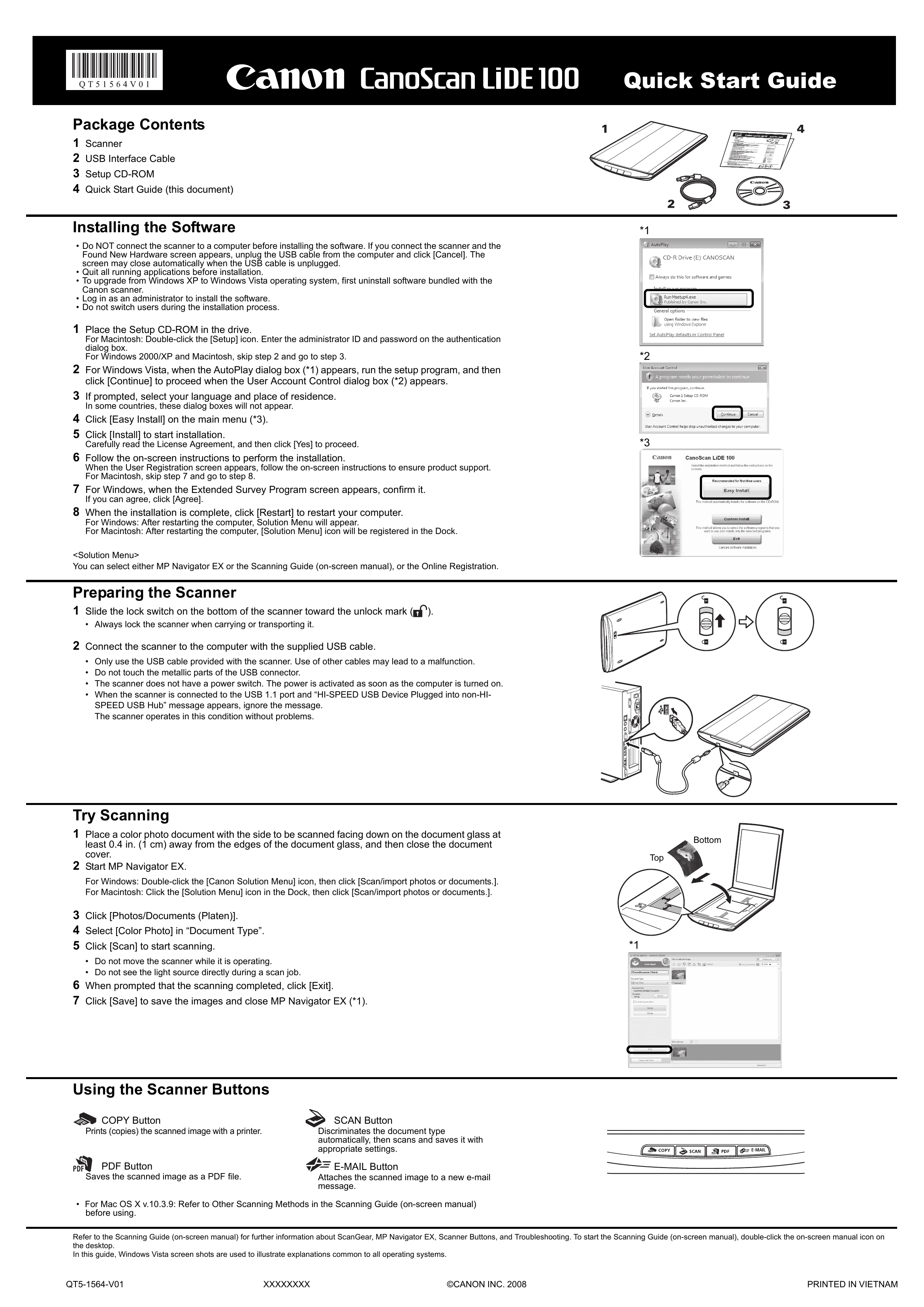
Installing the Software

  1. Insert the Setup CD-ROM.
  2. Run the setup program and follow on-screen instructions.
  3. Select language and residence if prompted.
  4. Choose "Easy Install" and click "Install".
  5. Read and accept the license agreement.
  6. Complete registration if prompted.
  7. Restart your computer when installation is complete.

Preparing the Scanner

  1. Slide the lock switch on the bottom to unlock.
  2. Connect the scanner to the computer using the supplied USB cable.
  3. The scanner has no power switch; power is supplied via USB.

Try Scanning

  1. Place document face down on the glass.
  2. Start MP Navigator EX (double-click "Canon Solution Menu" icon).
  3. Click "Scan/import photos or documents.".
  4. Select "Photos/Documents (Platen)".
  5. Choose "Color Photo" in "Document Type".
  6. Click "Scan".
  7. Click "Exit" when scanning is complete.
  8. Click "Save" to save the images.

Using the Scanner Buttons

  • COPY Button: Prints scanned images.
  • PDF Button: Saves scanned images as PDF.
  • SCAN Button: Automatically detects document type and scans.
  • E-MAIL Button: Attaches scanned image to a new email.
Privacy Policy