Brand: Canon
Category: Scanner
Document Type: Manual
Language: EN
Brand: Canon
Category: Scanner
Document Type: Manual
Language: EN
Uploaded: Sept. 12, 2025, 4:23 a.m.
Manual Publish Date: 2019
The maximum liability of Canon Electronics Inc. under this warranty is limited to the purchase price of the product.
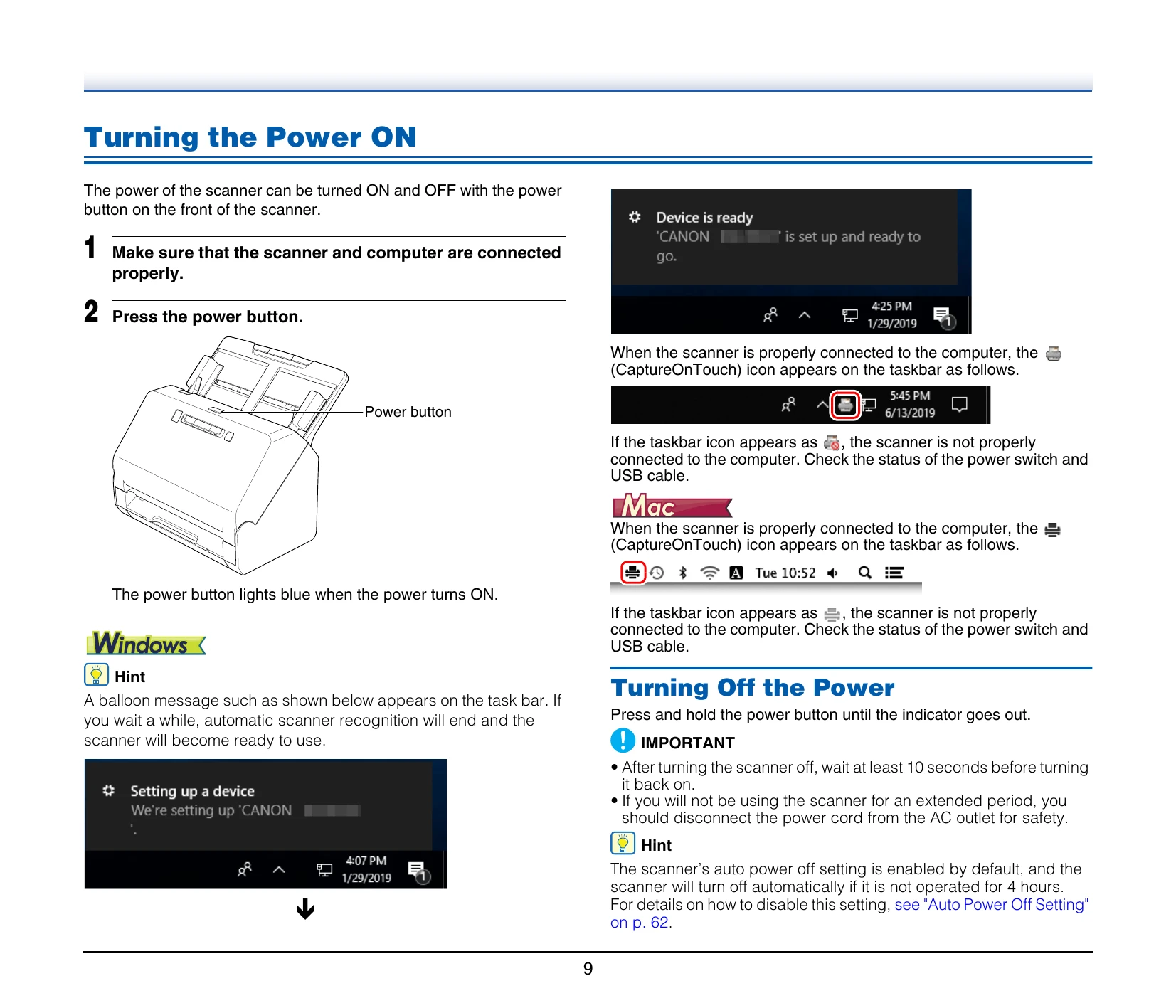
Turning the Power ON
Turning Off the Power
Press and hold the power button until the indicator goes out.
Basic Operation - Documents
Placing Cards
| Problem | Solutions | ||||||||
|---|---|---|---|---|---|---|---|---|---|
| Problem 1 The scanner will not turn on. | Confirm that the AC adapter is plugged firmly into a power outlet. | ||||||||
| Problem 2 The scanner is not recognized. | (1) Confirm that the scanner is properly connected to the computer with a USB cable. (2) Confirm that the scanner is turned on. See the previous problem (1) if the scanner does not turn on. (3) The computer's USB interface may not support the scanner. The scanner cannot be guaranteed to work with all USB interfaces. (4) Confirm that the supplied USB cable is used to connect the scanner to the computer. The scanner cannot be guaranteed to work with all available USB cables. (5) If the scanner is connected to the computer via a USB hub, try removing the hub and connecting directly to the computer. |
||||||||
| Problem 3 Documents feed askew (scanned images are slanted). | (1) Align the document guides to fit the documents as closely as possible, and load the documents so that they feed straightly. (2) Open the document feed extension support and place the document. (3) Enable [Automatically straightens skewed] in the scanner driver settings. (4) If many pages have been scanned since roller cleaning, clean the rollers. If documents still feed askew, roller replacement or other maintenance may be needed. See "Maintenance" on p. 53 for roller replacement procedures. |
||||||||
| Problem 4 Documents are not scanned according to the settings configured in the scanner driver. | When you scan using [Select document] panel registered with CaptureOnTouch, the CaptureOnTouch settings have priority over the scanner driver settings. Edit settings in the [Select document] panel, or create a new [Select document] panel using the desired scanning conditions. | ||||||||
| Problem 5 If white lines or streaks appear in scanned images. | Clean both sides of the scanner glass, and the rollers. If a sticky substance such as glue or correction fluid is found, carefully wipe with just enough pressure to clean the area where the lines appear. If the problem cannot be solved by cleaning, the internal glass may be scratched. Contact your local authorized Canon dealer. | ||||||||
| Problem 6 Pages are missing. | When the scanner driver's [Scanning Side] setting is [Skip Blank Page], documents with very little black may be unintentionally skipped. Decrease the Set the likelihood of skipping blank page value ("When you want to delete the images of the blank pages in two-sided documents" on p. 37) or set the [Scanning Side] to another mode, such as simplex or duplex. If pages are skipped due to the document double feeding, see "Problem 7 Documents jam (or double-feed)." |
||||||||
| Problem 7 Documents jam (or double-feed). | (1) If the roller has been installed correctly, clean it if necessary. (2) Proper scanning may not be possible when document pages stick together due to static electricity. Fan the documents before you load them. (3) Manually feed the scanner one page at a time. |
||||||||
| Problem 8 Multiple pages of scanned images cannot be saved to a single file. |
|
||||||||
| Problem 9 All of the placed documents have been scanned, but the scanned image does not appear on the application. | When [Panel-Feeding] or [Automatic Feeding] is selected as the feeding method on the scanner driver's Detail Settings screen, a scanning operation will not continue after all of the documents are fed, as the scanner awaits additional documents to be fed. You can finish the operation and send the scanned images to the application by pressing the Stop button on the operating panel. | ||||||||
| Problem 10 Memory becomes insufficient and scanning stops. | If you configure scanning conditions that use a large amount of the computer's memory, scanning may stop because of insufficient memory. Although this depends on the computer's memory size, the possibility of insufficient memory increases if any of the following scanning conditions overlap. • [Color Mode] is set to [24-bit Color] • A large page size (e.g. Legal) is specified as the [Page Size]. Alternatively, the page size is set to [Scanner's Maximum]. • A high resolution (600dpi etc.) is specified for [Dots per inch]. If an error message appears due to insufficient memory while scanning is in progress, exit the application, change the scanning conditions (e.g. reduce the resolution or page size) and then try scanning again. In addition, the amount of memory used can be contained by turning off [Moire Reduction] and [Prevent Bleed Through/Remove Background] if they are set to on. |
||||||||
| Problem 11 Double-feeding occurs when scanning a document with multiple pages. | Press the scanner's DFR button to continue the scan, or clear the [Detect by Ultrasonic] check box on the scanner driver settings screen. (See p. 26) | ||||||||
| Problem 12 The size detection and deskew functions fail. | When [Carrier sheet] is set to [Carrier sheet] in the [Feeding] tab of the scanner driver settings screen and you scan a document with black edges without inserting it in a carrier sheet, the size detection and deskew functions may fail. In such cases, disable the size detection and deskew functions, or set [Carrier sheet] to [None] in the [Feeding] tab. |