Brand: CASIO
Category: Digital Camera
Document Type:
Language: EN
Brand: CASIO
Category: Digital Camera
Document Type:
Language: EN
Uploaded: Aug. 9, 2025, 11:42 p.m.
| Symptom | Possible Cause | Action |
|---|---|---|
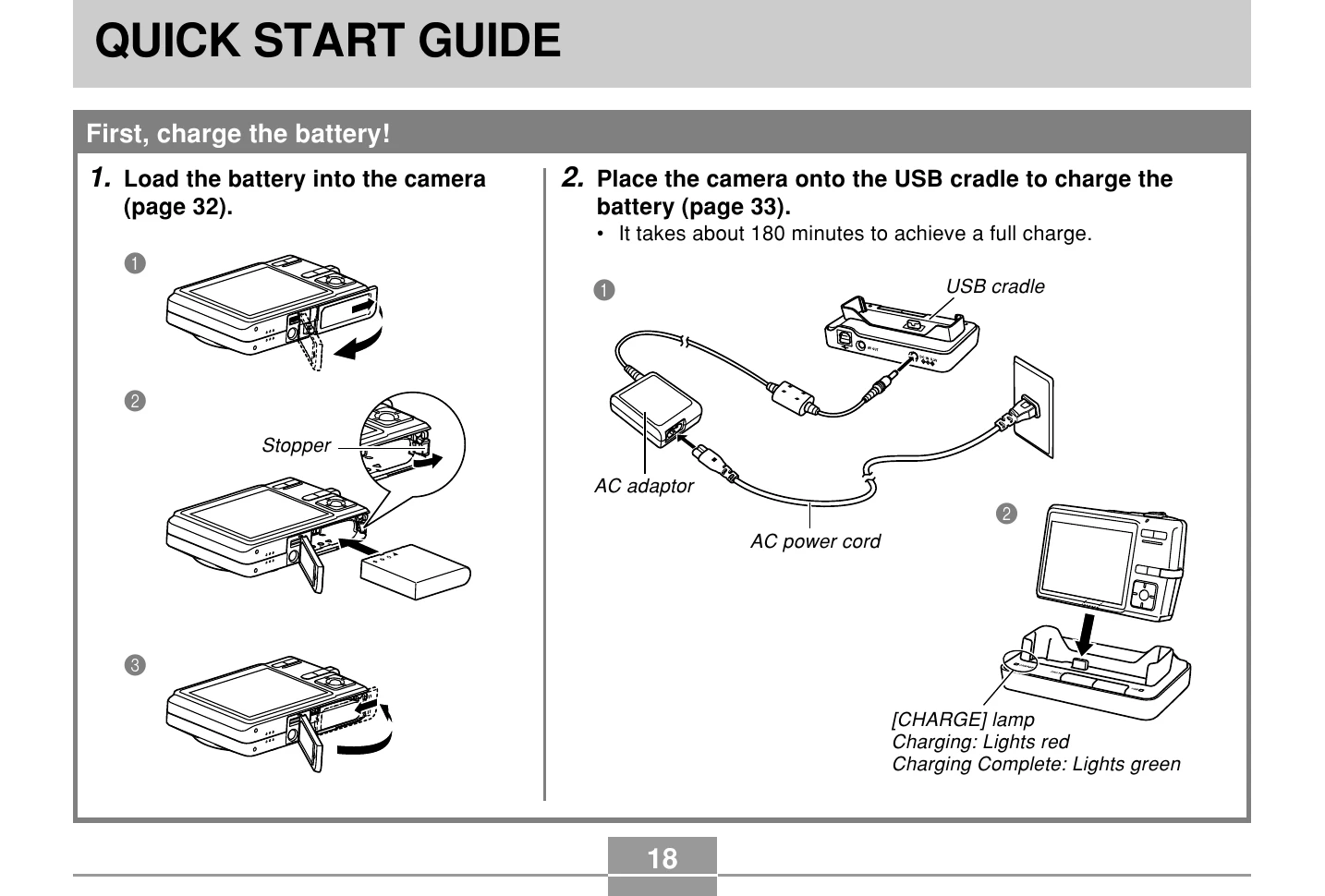
| Camera powers down during self-timer countdown. | The battery is dead. | Charge the battery (page 33). |
| Monitor screen image is out of focus. |
1) You are using the Manual Focus mode and have not focused the image. 2) You are trying to use the Macro mode when shooting a scenery or portrait shot. 3) You are trying to use Auto Focus or the Infinity mode (∞) when shooting a close-up shot. |
1) Focus the image (page 80). 2) Use Auto Focus for scenery and portrait shots. 3) Use the Macro mode |
| Recorded images are not saved in memory. |
1) Camera powers down before the save operation is complete. 2) Removing the memory card before the save operation is complete. |
1) When the battery indicator shows " 2) Do not remove the memory card before the save operation is complete. |
| Though available lighting is bright, the faces of human subjects appear dark. | Not enough light is reaching the subjects. | • Change the flash mode setting to " • Increase the EV shift value (page 83). |
| Subjects are too dark when recording images on a seashore or at a ski area. | Sunlight reflected by water, sand, or snow, can cause underexposure of images. | • Change the flash mode setting to " • Increase the EV shift value (page 83). |
| Digital zoom does not work. The zoom bar indicates zoom only up to a zoom factor of 3.0. |
1) The digital zoom setting is turned off. 2) Date stamping is turned on. |
1) Turn on the digital zoom setting (page 62). 2) Turn off date stamping (page 124). Digital zoom is disabled while date stamping is turned on. |
| Vertical lines on the monitor screen. | Recording a very brightly lit subject can cause a vertical band to appear in the monitor screen image. | This is a CCD phenomenon known as “vertical smear”, and does not indicate malfunction of the camera. Note that vertical smear is not recorded with the image in the case of a snapshot, but it is recorded in the case of a movie. |
| Out of focus images. | The subject is outside the shooting range of the camera. | Record within the allowable shooting range. |
| Digital noise in images. | Sensitivity is increased automatically for dark subjects. Greater sensitivity increases the chance of digital noise. | Use a light or some other means to illuminate the subject. |
| Color of the playback image is different from the image on the monitor screen during recording. | Sunlight or light from another source is shining directly into the lens during recording. | Position the camera so sunlight does not shine directly into the lens. |
| Images are not displayed. | A memory card with non-DCF images recorded with another camera is loaded in the camera. | This camera cannot display non-DCF images recorded onto a memory card using another digital camera. |
| All buttons and switches are disabled. | Circuit problem caused by electrostatic charge, impact, etc. while the camera was connected to another device. | Remove the battery from the camera, reinsert it, and then try again. |
| Monitor screen is off. | USB communication is in progress. | After confirming that the computer is not accessing camera memory, disconnect the USB cable. |
| Cannot transfer files over a USB connection. |
1) Camera is not set securely on the USB cradle. 2) USB cable is not connected securely. 3) USB driver is not installed. 4) Camera is turned off. |
1) Check the connection between the camera and USB cradle. 2) Check all connections. 3) Install the USB driver on your computer (page 192). 4) Press the [USB] button on the USB cradle. |
| Display language setting screen appears when the camera is turned on. |
1) Camera's display language, Home city, date style, date and time, and other settings have not been configured. 2) A problem with the camera's built-in memory management area. |
1) Check the settings (page 47). 2) Perform the reset operation to initialize the camera's setup (page 125). After that, configure each setting. If the language selection screen does not re-appear when you turn the camera on, it means that the camera's built-in memory management area has been restored. If the same message appears after you turn power back on, contact your retailer or a CASIO service center. |