Getting Started
The new battery is shipped partially charged. Before you can use your phone, you need to install and charge the battery.
- Make sure the battery is installed properly.
- There are two ways to charge the battery:
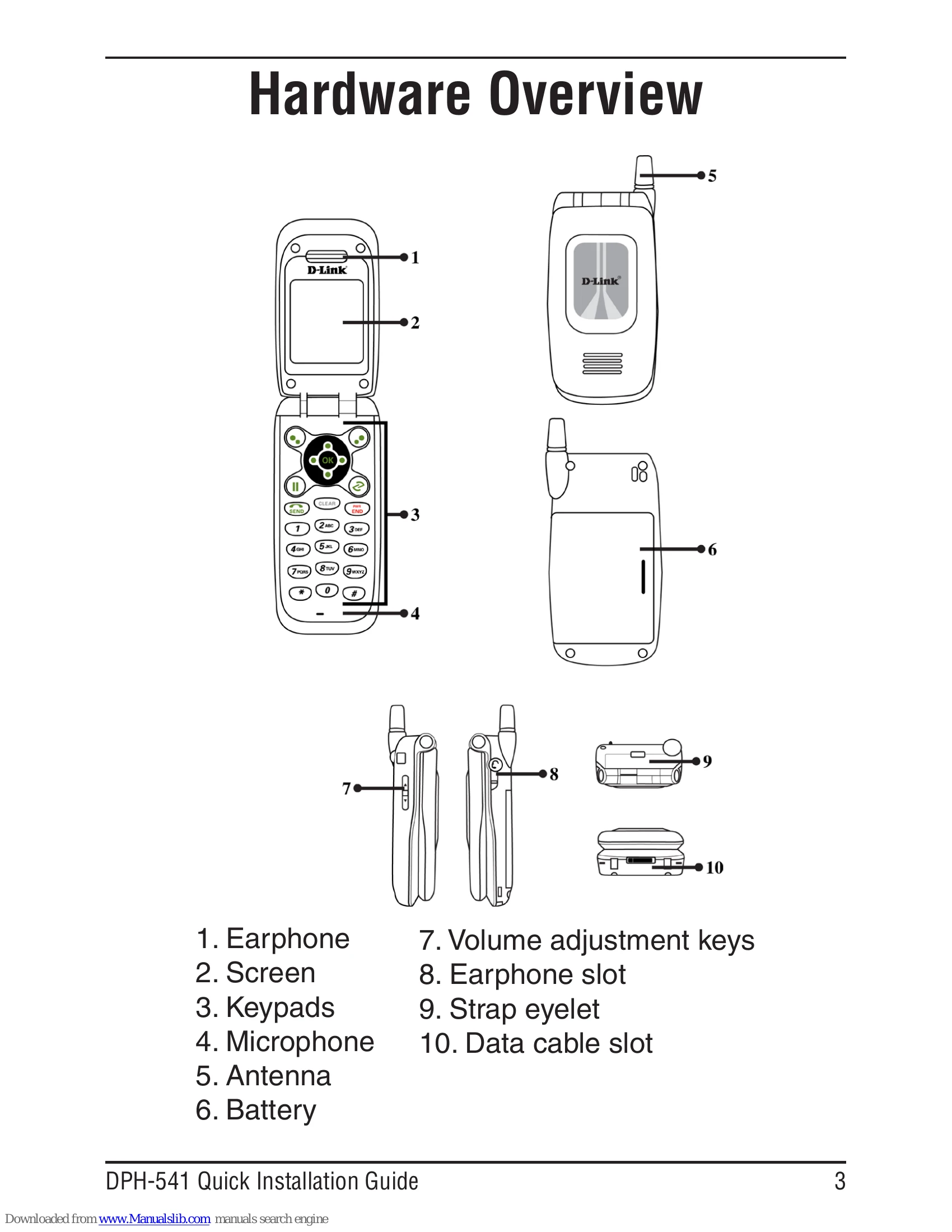
- You can either plug the power adapter between the data cable slot on the bottom of the phone and the socket.
- Or use mini-USB cable to charge through your notebook or related device.
- While charging, you can still do operations according to your preference with the phone.
Note: For the first time usage, it is recommended to charge the battery for at least 8 hours. The battery charging status is properly performed only after uninterrupted charging/discharging.
The battery heats up a bit during charging. This is not a malfunction. If the battery is completely exhausted, to be fully charged requires approximately three hours (with the phone powered off).
Setting Up Your Phone
To turn on your phone, press and hold the END power key.
It is required to set a password for the default profile. After the profile's password is set, you need to input the configured password to enter the profile menu.
- Press Menu, scroll to Profile by pressing the direction pad and then press OK.
- When setting up the phone for the first time, it will prompt you by saying, No Password! Please Create a New Password. Press OK, set a password, then press OK.
- Select Network Profile and then press OK. The first available profile will be labeled Default. You have 6 profiles to choose from.
- Highlight a profile and press Option.
- Select Rename and press Select. Rename the profile then press OK.
- Select Edit then press Select. Select Wireless Setting and then press Select.
- Select ESSID and then press Select.
- Select Site Survey and then press Select.
- Select a wireless network you want to connect to and then press Set. The SSID that you set is now configured for the profile you created.
- If the network you are connecting to requires encryption, press Back, select Security, and then press Select.
- Select the type of encryption and then press Set.
- Select the type or level of security and press Set.
- Enter the security key and then press OK.
- Press Back until you get to the main screen.
Enter VoIP Settings
Account Information
To add a VoIP account to the profile that you created you must do the following:
- Press Menu, scroll to Profile by pressing the direction pad and press OK.
- Input the profile's password and press OK.
- Press and select SIP Account. Press Select.
- Select a SIP account and press Options. Scroll down to Rename and press Select. Name the SIP account and press OK.
- Scroll up to Edit and push Select.
- Six profiles can be set in this feature. Only one profile can be activated at a time. The following information will be provided to you by your service provider. Below is an example:
Preview: Detailed information is listed.
Phone Number: 1-555-567-8910
Auth. ID: dlinkwins
Auth. Passwd.: (Your Password)
SIP Domain: wifiphone.com
Proxy Addr.: The Address of your SIP Proxy IP: xxx.xXXX.XXX. XXX
Advance: The following options are indicated on the next page:
- Proxy Port: 5060
- Outbound Addr.: 127.3.2.1
- Outbound Port: 9090
- Local Port: 5060
- Reg. Timer (sec): 3600
- Codec: G.711a
- PKT Time (ms): Default
- OutofBand DTMF: On
- Once your SIP account is set, you must assign it to your profile.
- Press Back three times until you are at the Profile menu. Select Network Profile and press OK.
- Select the profile you want to assign the SIP settings to and press Option.
- Select Edit and press Select. Select Account Choice and press Select.
- Select the SIP account you created and press Set.
- Press Back until you are at the main screen. Your Wi-Fi connection should be activated. After activation and IP has been received the phone should register with your ITSP Provider.
LED Indicators
| LED Indicator | Status | Description |
|---|
| Lighting Seven Colors | Continuously Rotating | When receiving an incoming call. |
| Blue | Blinking | When there is an unanswered call or when a new e-mail is received. |
| Red | Blinking | When the phone is powered on and the battery is charging. |
| Red | Solid | When the phone is powered off and the battery is charging. |
| Green | Blinking | When the phone is powered on and the battery is fully charged. |
| Green | Solid | When the phone is powered off and the battery is fully charged. |
| Magenta | Blinking | Indicates low battery level. |