Brand: D-Link
Category: Networking
Document Type: Manual
Language: EN
Brand: D-Link
Category: Networking
Document Type: Manual
Language: EN
Uploaded: Sept. 12, 2025, 4:21 a.m.
Manual Publish Date: 2023-03-10
Refer to the product manual for warranty information.
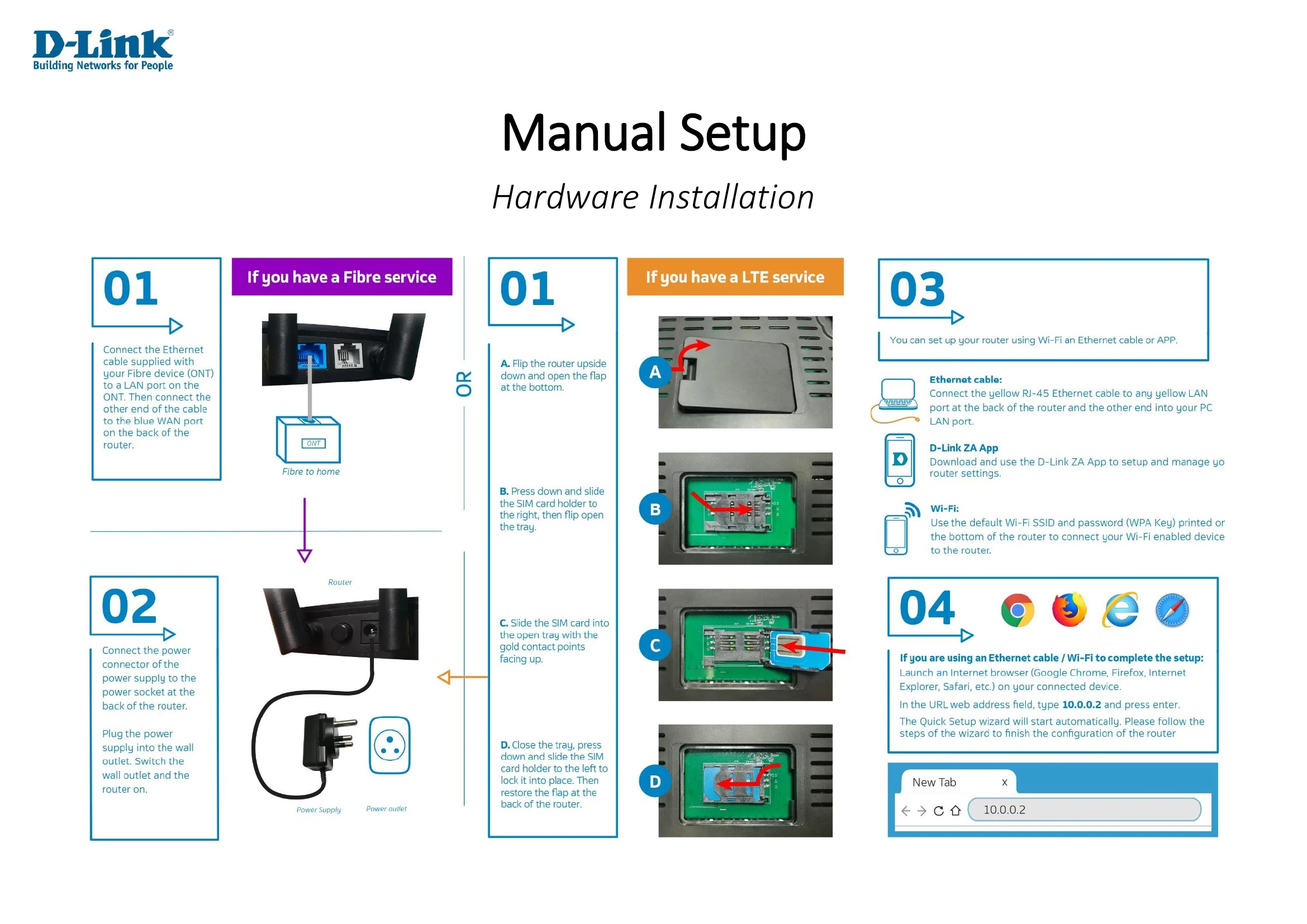
Follow the Quick Setup wizard to configure your Internet connection. This involves selecting the WAN interface (3G/4G or ETH), detecting the connection type (DHCP or PPPoE), entering ISP credentials if required, and setting Wi-Fi SSID and password.
Explore various settings including Wireless, LAN, WAN, Routing, QoS, Firewall, and VPN for detailed network management.
If you encounter issues, consult the troubleshooting section for solutions related to accessing the web utility, forgotten passwords, and connectivity problems.
Understand the fundamentals of wireless networking, including how it works, different types of wireless networks (WLAN, WPAN), and their applications.
| Problem | Solution |
|---|---|
| Why can't I access the web-based configuration utility? |
|
| What can I do if I forgot my password? | Reset the router by pressing and holding the reset button for 20-25 seconds. The default IP address is 10.0.0.2, username is 'admin', and password is 'admin'. |
| Why can't I connect to certain sites or send and receive emails when connecting through my router? |
|