Brand: D-Link
Category: Video Conferencing
Document Type: Manual
Language: EN
Brand: D-Link
Category: Video Conferencing
Document Type: Manual
Language: EN
Uploaded: Sept. 12, 2025, 4:20 a.m.
Manual Publish Date: 2007-04-30
D-Link warrants the hardware for 1 year and software for 90 days from the date of original retail purchase.
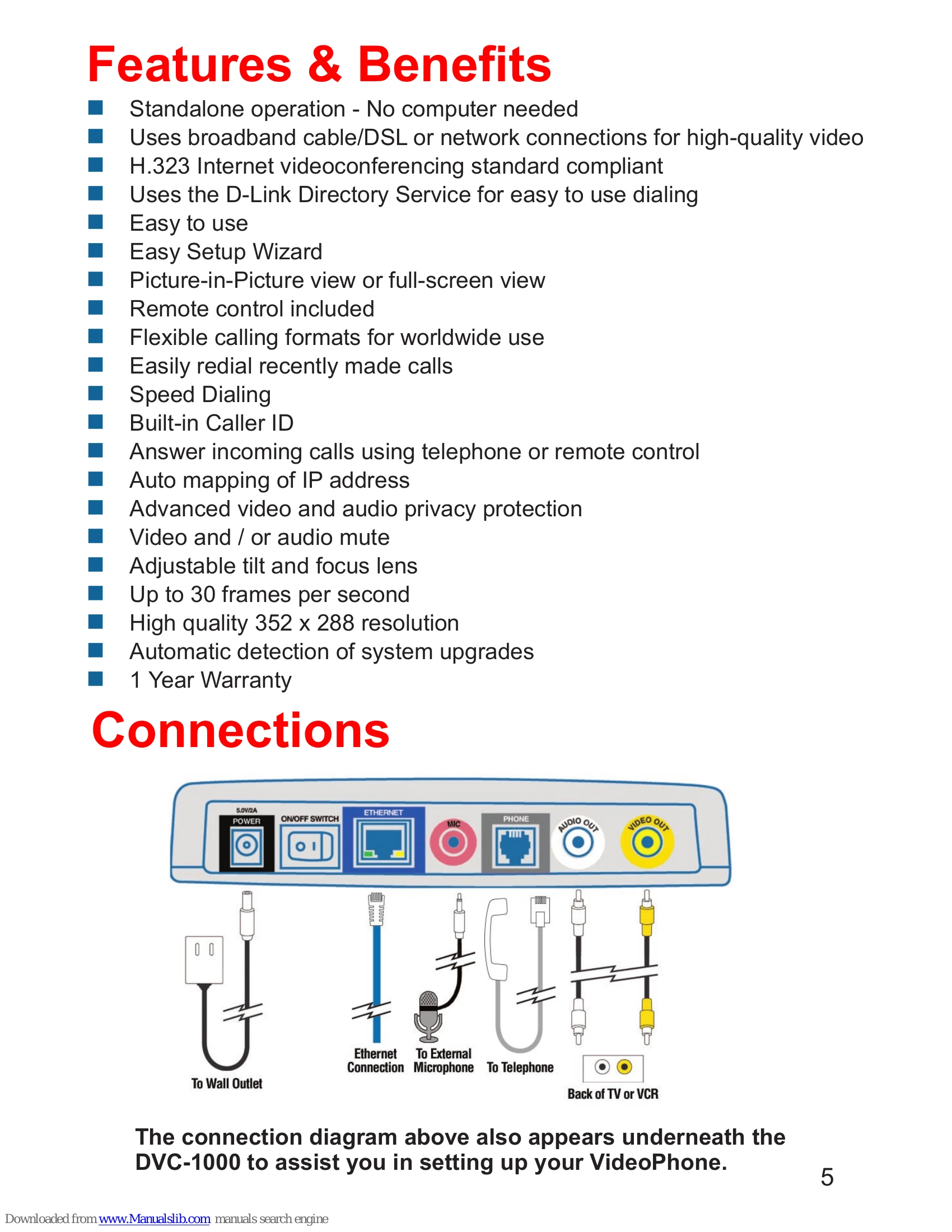
The D-Link i2eye DVC-1000 is a standalone Broadband VideoPhone that allows high-quality, low-cost videoconferencing over the Internet without requiring a computer. It connects to a television for viewing and can use an optional standard telephone for private calls.
Refer to the Troubleshooting section for solutions to common issues, including status icon interpretations.
| Status Icon | Meaning | Action |
|---|---|---|
 |
Checking for i2eye updates | Operation in progress. Disappears upon completion. |
 |
Obtaining the Public IP address (Router's Address) | Operation in progress. Disappears upon completion. |
 |
DVC-1000 is registering with the Directory Service | Operation in progress. Disappears upon completion. |
 |
Cannot connect to update server (Internet connection issue) | Operation unsuccessful. Icon appears with a yellow "X". |
 |
Cannot connect to the Internet | Operation unsuccessful. Icon appears with a yellow "X". May still be used on an internal network. |
 |
Directory Service cannot be reached | Operation unsuccessful. Icon appears with a yellow "X". Cannot use phone numbers for dialing; use IP addresses. |