Brand: Dell
Category: Laptop
Document Type: Manual
Language: EN
Brand: Dell
Category: Laptop
Document Type: Manual
Language: EN
Uploaded: Sept. 12, 2025, 4:29 a.m.
Manual Publish Date: 2023-03-01
None
1. Connect the power adapter and press the power button.
2. Follow the on-screen instructions to complete the operating system setup (Windows or Ubuntu).
3. Connect to a network for updates and sign in with or create a Microsoft account if using Windows.
4. Locate and use Dell apps from the Windows Start menu.
Right Side: Features an SD-card slot, USB 2.0 port, and a global headset jack.
Left Side: Includes a power-adapter port, power-status light, HDMI 1.4 port, USB 3.2 Gen 1 port, and a USB 3.2 Gen 1 (Type-C) port.
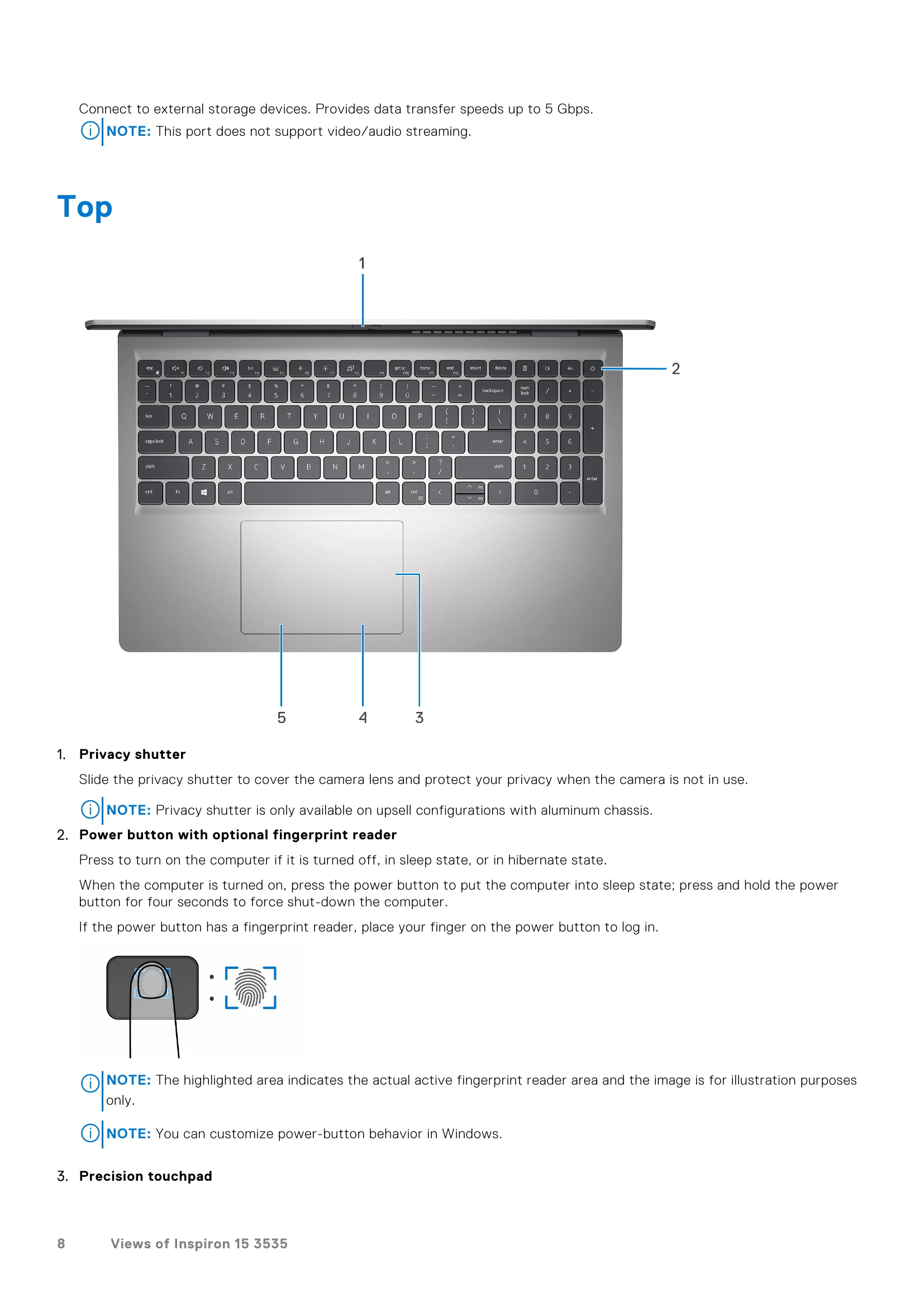
Top: Houses the keyboard, precision touchpad, and the power button (with optional fingerprint reader). The privacy shutter for the camera is also located here.
Front: Displays the LCD panel. Depending on the chassis design, it may include a camera, camera-status light, and microphone(s).
Bottom: Contains the speakers and air vents. The Service Tag and regulatory labels are also found here.
Access BIOS by pressing F12 during startup. Options include system setup, security settings, boot options, and exit configurations.
Refer to the troubleshooting section for issues related to swollen batteries, system diagnostics (SupportAssist, BIST, L-BIST), system-diagnostic lights, operating system recovery, RTC reset, backup, Wi-Fi power cycle, and draining residual flea power.
| Blinking Pattern | Possible Problem | Suggested Resolution |
|---|---|---|
| Amber 2, White 1 | CPU Failure | Run the Dell SupportAssist/Dell Diagnostics tool. If problem persists, replace the system board. |
| Amber 2, White 2 | System board failure (included BIOS corruption or ROM error) | Flash latest BIOS version. If problem persists, replace the system board. |
| Amber 2, White 3 | No memory/RAM detected | Confirm that the memory module is installed properly. If problem persists, replace the memory module. |
| Amber 2, White 4 | Memory/RAM failure | Reset and swap memory modules among the slots. If problem persists, replace the memory module. |
| Amber 2, White 5 | Invalid memory installed | Reset and swap memory modules among the slots. If problem persists, replace the memory module. |
| Amber 2, White 6 | System board/Chipset Error | Replace the system board. |
| Amber 2, White 7 | LCD failure (SBIOS message) | Replace the LCD module. |
| Amber 2, White 8 | LCD failure (EC detection of power rail failure) | Replace the system board. |
| Amber 3, White 1 | CMOS battery failure | Reset the main battery connection. If problem persists, replace the main battery. |
| Amber 3, White 2 | PCI or Video card/chip failure | Replace the system board. |
| Amber 3, White 3 | BIOS Recovery image not found | Flash latest BIOS version. If problem persists, replace the system board. |
| Amber 3, White 4 | BIOS Recovery image found but invalid | Flash latest BIOS version. If problem persists, replace the system board. |
| Amber 3, White 5 | Power rail failure | Replace the system board. |
| Amber 3, White 6 | Flash corruption detected by SBios. | Press power button for over 25 seconds to do RTC reset. If problem persists, replace the system board. Disconnect all power source (AC, battery, coin cell) and drain flea power by pressing and holding down power button 3~5 seconds to ensure all power are drained. Run "BIOS recovery from USB", and the instructions are in the website Dell Support. If problem persists, replace the system board. |