Brand: Dell
Category: Other
Document Type: Manual
Language: EN
Brand: Dell
Category: Other
Document Type: Manual
Language: EN
Uploaded: Sept. 12, 2025, 4:27 a.m.
Manual Publish Date: 2014-12
Dell-branded products carry a 1-year limited hardware warranty.
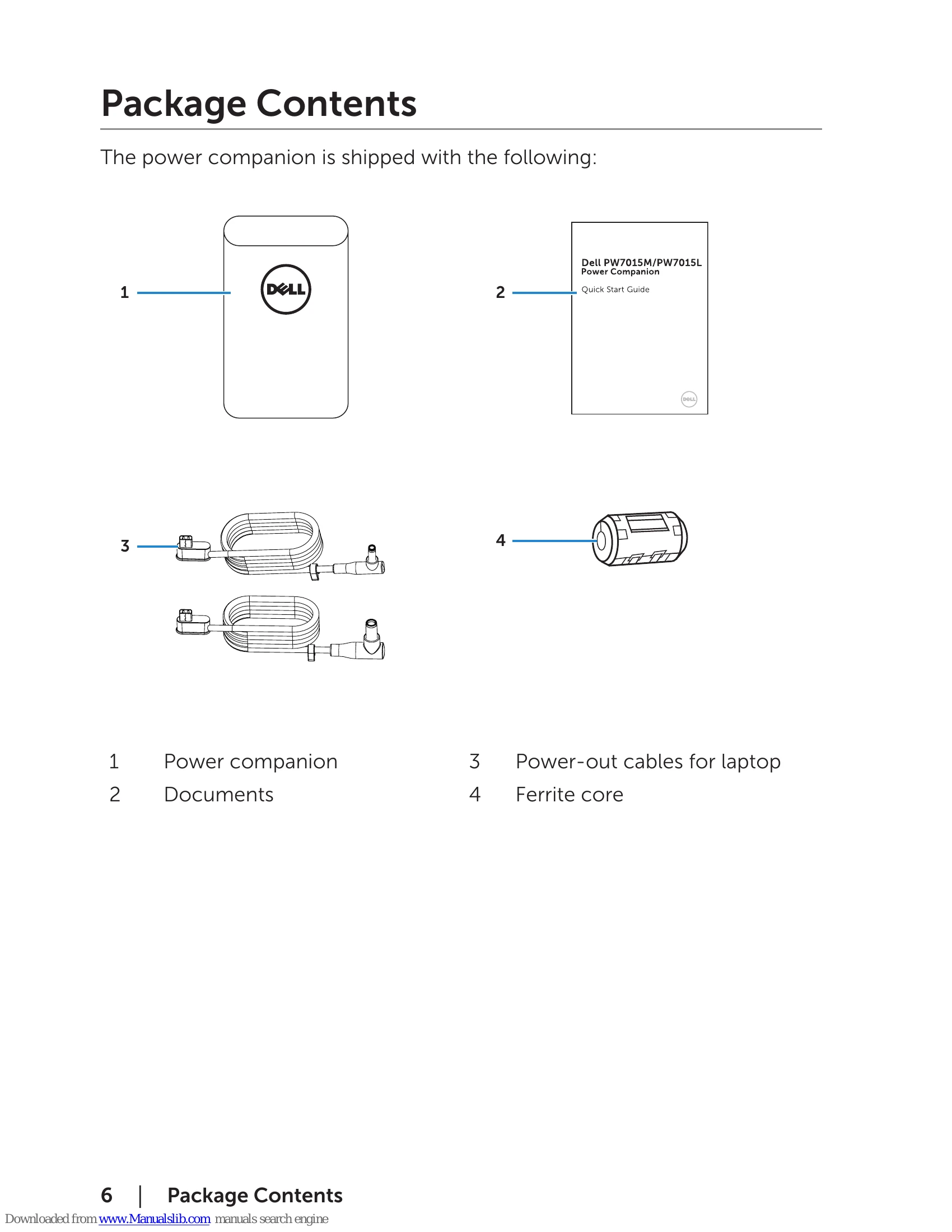
The Dell Power Companion PW7015M/PW7015L offers portability, allowing you to charge your Dell laptop or mobile devices on the go. It supports Dell's PSID protocol and select Dell power adapters, complying with USB battery charging specification revision 1.2. Its compact design makes it ideal for pockets and bags.
Connect your Dell computer's power adapter to the power-in port. It takes approximately 3 hours to fully charge. The battery-status lights indicate charging status.
Laptop: Use the power-out cable to connect the power companion to your laptop's power adapter port. Press the power button to begin charging.
Mobile Devices: Use a USB cable to connect your mobile device to one of the USB ports on the power companion. You can charge up to two devices simultaneously.
Press the power button to check the battery-charge status. The battery-status lights will illuminate for 5 seconds, indicating the charge level and health.
To reduce electromagnetic interference, clamp the supplied ferrite core onto the power-output cable connected to your laptop.
| Common Symptoms | Possible Solutions |
|---|---|
| The power companion gets unusually hot when placed inside the pocket/bag. |
|
| The power companion battery power gets drained too fast. | When connecting to a mobile device, close applications you are not using or set the device to airplane mode. |
| The battery-status light does not turn on. |
|