Manual for Perfection V350 Photo

Manual for Perfection V350 Photo

Brand: EPSON

Category: Computer

Document Type: Manual

Language: EN
Uploaded: Sept. 12, 2025, 4:13 a.m.

Manual Publish Date: 2006-08-01

Warranty Information

Refer to the Notices booklet (CPD-21604) for warranty information.

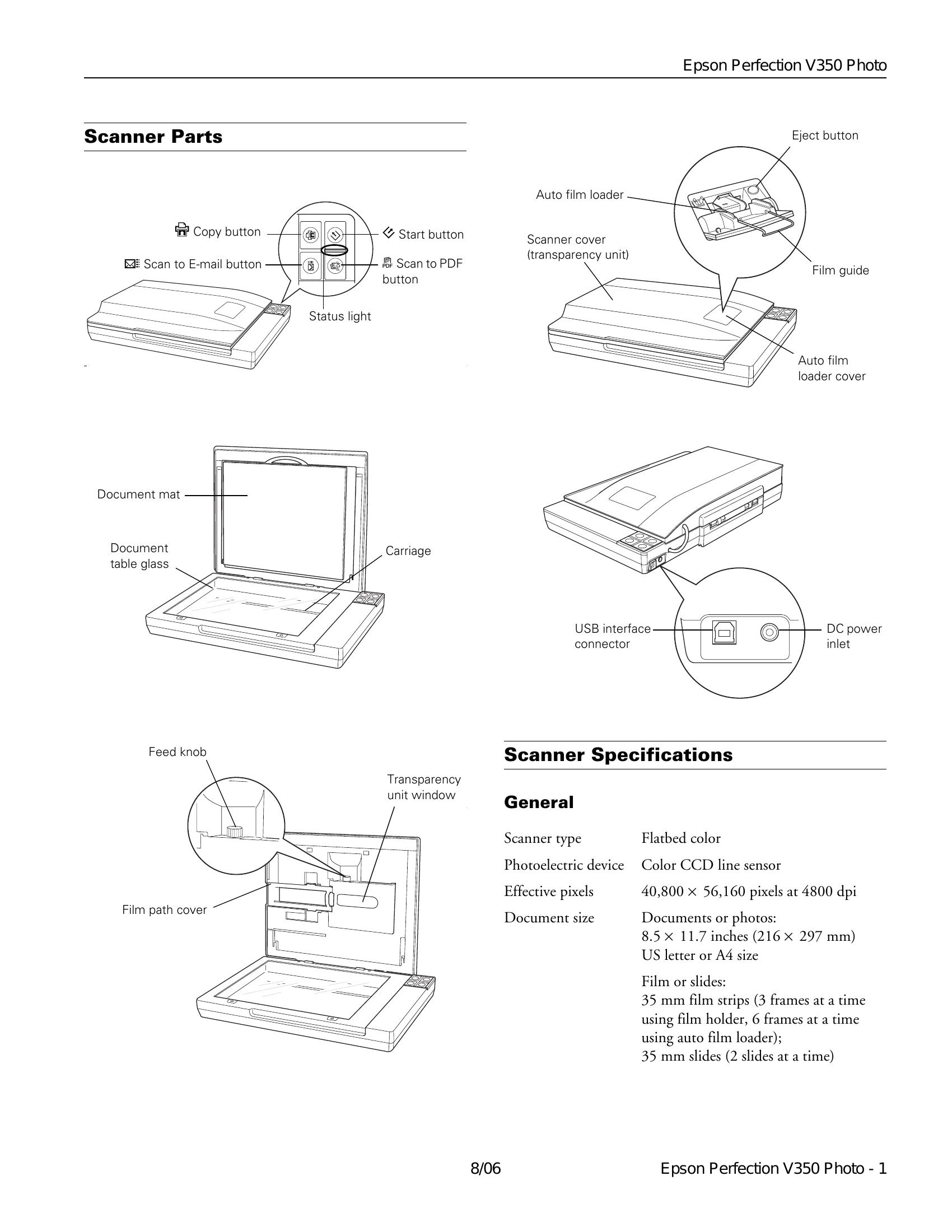
  • Scanner Parts: Familiarize yourself with the scanner's components like the copy button, document mat, auto film loader, and connectors.
  • Placing Documents or Photos: Open the scanner cover, place your item face down on the glass, aligning it with the corner. Be aware of the unreadable edges. For multiple items, space them 0.8 inch apart.
  • Placing Large or Thick Documents: Open the scanner cover fully and lay it flat next to the scanner. Press down gently on the document during scanning.
  • Placing Film or Slides: Remove the document mat. For film strips, use the film holder or auto film loader. For slides, use the film holder. Ensure correct orientation and that film meets specific requirements for auto loading.
  • Scanning and Restoring Photos: Utilize Epson Scan's features like Color Restoration and Dust Removal to enhance scanned images. Backlight Correction is available in Home or Professional Mode.
  • Transporting the Scanner: Ensure the carriage is centered before moving or storing the scanner by plugging it in and connecting to the computer, or manually moving it if the scanner is off.

Troubleshooting and error codes

Status Light Possible Cause and Solution
Flashing red The scanner is not connected to your computer properly or your software is not fully installed. See the Start Here sheet. Try unplugging and replugging the scanner. If the light remains flashing, the scanner may be malfunctioning or the lamp may need replacement. Contact Epson.
Privacy Policy