Brand: EPSON
Category: Document Camera
Document Type: Manual
Language: EN
Brand: EPSON
Category: Document Camera
Document Type: Manual
Language: EN
Uploaded: Sept. 12, 2025, 4:19 a.m.
No warranty information is provided in the extracted pages.
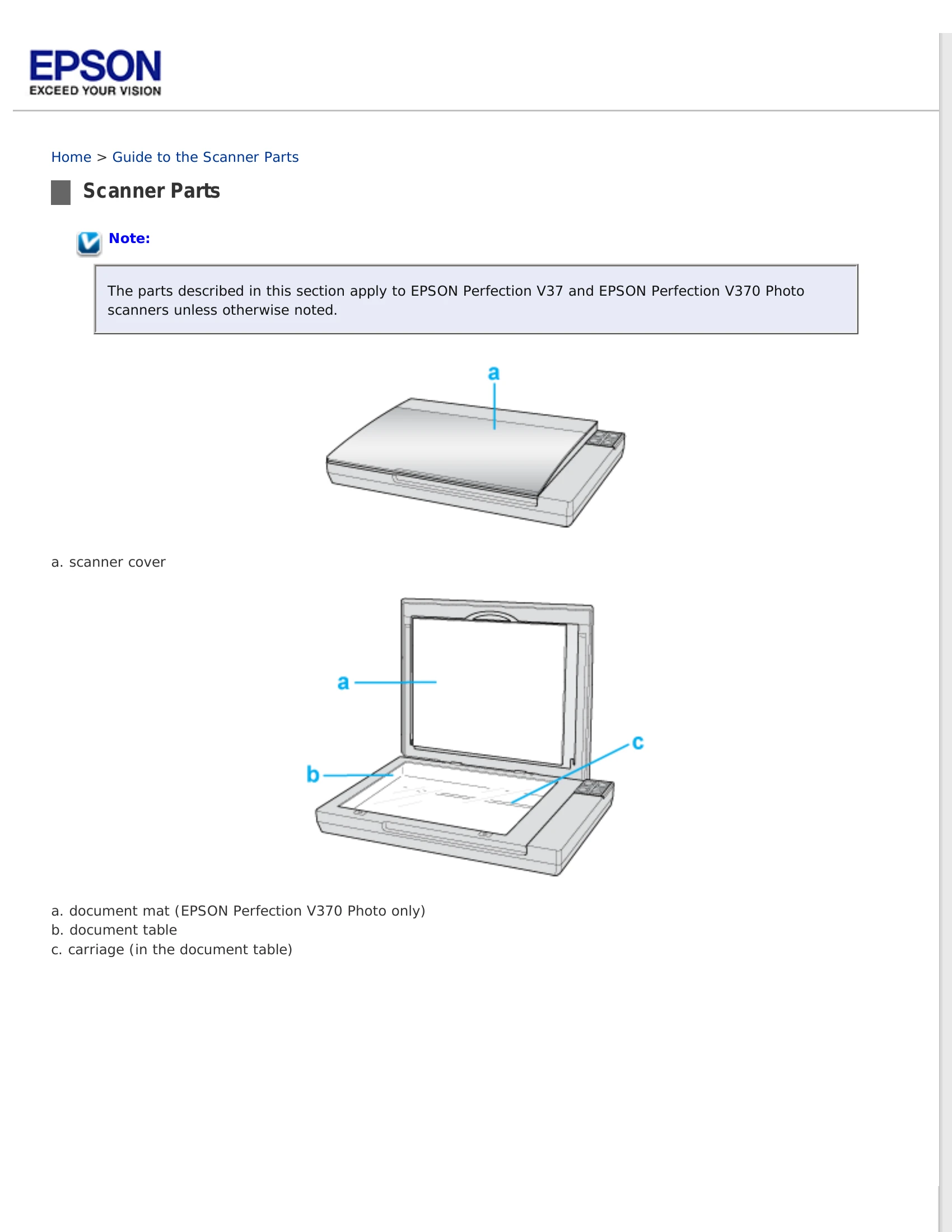
Scanner Parts: Identifies the various components of the scanner.
Light and Buttons: Explains the function of scanner buttons and the status light.
Placing Documents or Photos on the Document Table: Step-by-step instructions for placing documents and photos.
Placing Large or Thick Documents: Guidance on scanning oversized or thick items.
Placing Film or Slides: Instructions for scanning film and slides using the transparency unit.
Using the Scanner Buttons: How to initiate scans using physical buttons.
Using Document Capture Pro / Document Capture: Instructions for using specific software for scanning.
Using Another Scanning Program: Guidance on using alternative scanning software.
EPSON Scan Mode: Information about the primary scanning software.
Details on specialized scanning tasks like scanning to cloud services, PDF, or using the scanner as a copier.
Cleaning the Scanner: Instructions for keeping the scanner clean.
Transporting the Scanner: Guidelines for safely moving the scanner.
Power Off Timer Setting: Information about power management features.
Troubleshooting: Sections for scanner issues, scanning problems, and scan quality.
Uninstalling Your Scanning Software: Steps for removing scanner software.
System Requirements: Details on compatible operating systems and hardware.
Scanner Specifications: Technical details about the scanner's performance and features.
Warnings, cautions, and notes related to safe operation and handling of the scanner.
Information regarding intellectual property and software licenses.
| Problem | Solution |
|---|---|
| Your Scanned Image Is Too Dark | Try the Backlight Correction feature, adjust Brightness, Display Gamma, Color Control, or Continuous auto exposure settings. Check monitor brightness and contrast. |
| An Image on the Back of Your Original Appears in Your Scanned Image | Scan with a piece of black paper on the back of the original. Check software settings for image type and adjustment. |
| Ripple Patterns Appear in Your Scanned Image | Select the Descreening checkbox, possibly deselect Unsharp Mask. Select a lower resolution setting. Note: Cannot remove ripple patterns when scanning film or monochrome images, or at resolutions higher than 600 dpi. |
| Characters Are Not Recognized Well When Converted into Editable Text (OCR) | Ensure the document is straight on the document table. Try skew correction. Check OCR software settings. |
| Scanned Colors Differ From the Original Colors | Improve scan quality by adjusting settings or the scanned image. Check computer color matching capabilities. Use your computer's color management system (ICM for Windows, ColorSync for Macintosh). Understand RGB vs CMYK color systems. |
| Striped Rings Appear in Your Scanned Image of Film or Slides Images | Ensure film is flat. This may occur if the film is curled. |
| Images are Rotated Incorrectly | Place documents or photos correctly on the document table. Ensure film/slides are correctly placed in the film holder and the holder is positioned properly. Rotate the images using scanning software. |