Brand: EPSON
Category: Printer
Document Type: Manual
Language: EN
Brand: EPSON
Category: Printer
Document Type: Manual
Language: EN
Uploaded: Sept. 12, 2025, 4:29 a.m.
This manual provides comprehensive information and instructions for using the printer, including network settings and troubleshooting. It is available in digital and paper formats. You can obtain the latest versions from the Epson website or via the EPSON Software Updater.
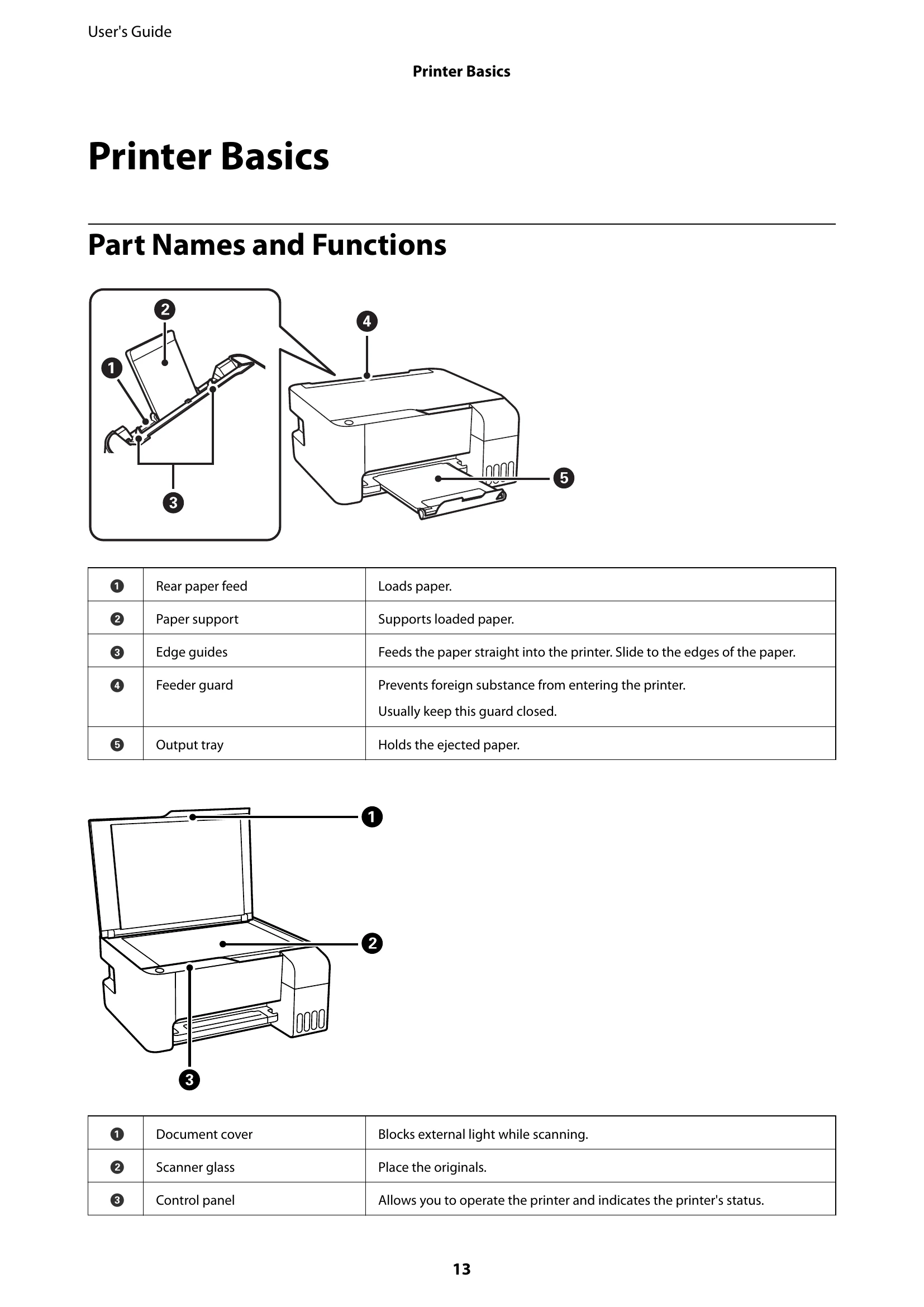
This section covers part names and functions, control panel buttons and lights, and printer status indicators. It details how to identify different parts of the printer, understand button operations, and interpret the status lights for normal and error conditions.
Learn about various network connection types, including Wi-Fi and Wi-Fi Direct (Simple AP). This section guides you through connecting your printer to a wireless router, computer, or smart device, and explains different setup methods like push button and PIN code (WPS).
| Light | Status | Solutions |
|---|---|---|
| Wi-Fi connection error has occurred. | Press the Wi-Fi button to clear the error and try again. | |
| Initial ink charging may not be complete. | See the Start Here poster to complete initial ink charging. | |
| No paper is loaded or more than one sheet has been fed at a time. | Load paper and press the |
|
| A paper jam has occurred. | Remove the paper and press the |
|
| If the error cannot be cleared, contact Epson support. | ||
| The printer was not turned off correctly. | After clearing the error by pressing the |
|
| To turn off the printer, make sure you press the |
||
| An ink pad is nearing or at the end of its service life. | The ink pads need to be replaced. Contact Epson or an authorised Epson service provider to replace the ink pad. | |
| When a message saying that you can continue printing is displayed on the computer, press the |
||
| A borderless printing ink pad is nearing or at the end of its service life. | The borderless printing ink pad need to be replaced. Contact Epson or an authorised Epson service provider to replace the ink pad. | |
| When a message saying that you can continue printing is displayed on the computer, press the |
||
| The printer has started in recovery mode because the firmware update failed. | Follow the steps below to try to update the firmware again. 1. Connect the computer and the printer with a USB cable. 2. Visit your local Epson website for further instructions. | |
| Borderless printing is not available, but printing with a border is available. |