Brand: EPSON
Category: Printer
Document Type: Manual
Language: EN
Brand: EPSON
Category: Printer
Document Type: Manual
Language: EN
Uploaded: Sept. 12, 2025, 4:23 a.m.
| Problem | Possible Cause | Solution |
|---|---|---|
| The printer does not work as expected. | The printer does not turn on or off. | Ensure the power cord is securely connected to the printer and the electrical outlet. Check if the outlet is working. |
| Power turns off automatically. | Check power saving settings. Ensure the printer is not being turned off by an external timer. | |
| Paper does not feed properly. | Check paper loading. Ensure the paper is correctly aligned and within the supported types and sizes. Clean the paper feed rollers. | |
| Cannot Print. | The printer is not connected to the computer or network. | Verify cable connections (USB/LAN) or Wi-Fi settings. Check network status on the printer and computer. |
| Printer driver issues. | Reinstall the printer driver. Ensure the correct driver is installed for your operating system. | |
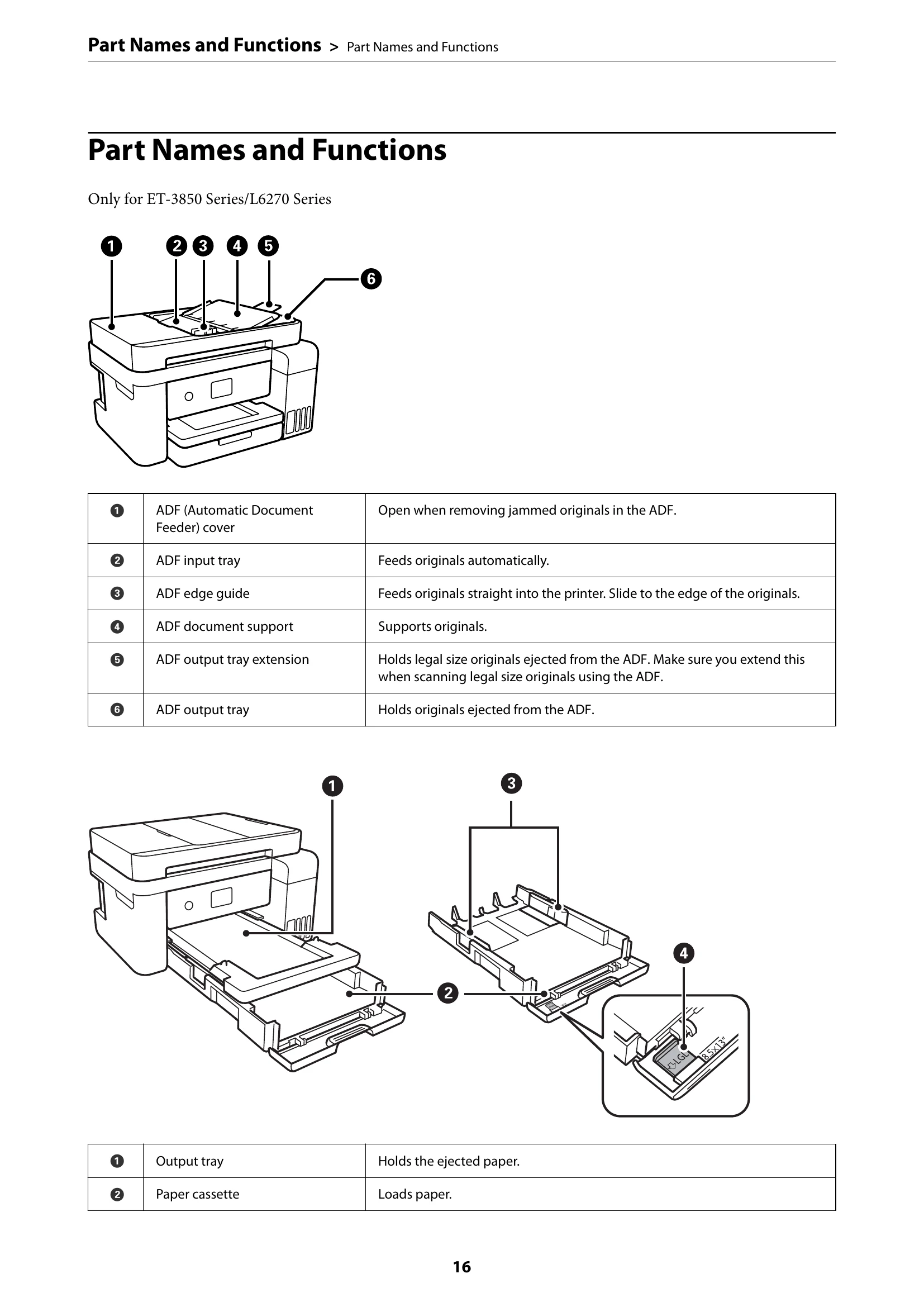
| Paper gets jammed. | Originals are not loaded correctly in the ADF. | Remove jammed originals from the ADF. Reload originals correctly, ensuring they are not creased or torn. |
| Printouts are jammed inside the printer. | Carefully remove jammed paper from the indicated areas. Refer to the manual for specific jam removal instructions. | |
| Ink Bottle Handling Precautions | It is time to refill the ink. | Prepare new ink bottles. Open the ink tank cover, remove the bottle cap, and fill the tank to the upper line. Reset the ink level. |
| Maintenance Box Handling Precautions | It is time to replace the maintenance box. | Purchase a genuine Epson maintenance box. Follow on-screen or manual instructions to replace the maintenance box. |
| Printing, Copying, and Scanning Quality is Poor. | Print Quality is Poor. | Perform nozzle check and head cleaning. Align the print head. Check ink levels. Use genuine Epson ink and paper. |
| Copy Quality is Poor. | Clean the scanner glass. Ensure originals are placed correctly. Adjust copy settings for quality. | |
| Scanned Image Problems. | Clean the scanner glass. Ensure originals are placed correctly. Adjust scanning settings. |