Manual for XP-2205

Manual for XP-2205

Brand: EPSON

Category: Printer

Document Type: Manual

Language: EN
Uploaded: Sept. 12, 2025, 4:19 a.m.

Manual Publish Date: 2014-01-01

Warranty Information

None

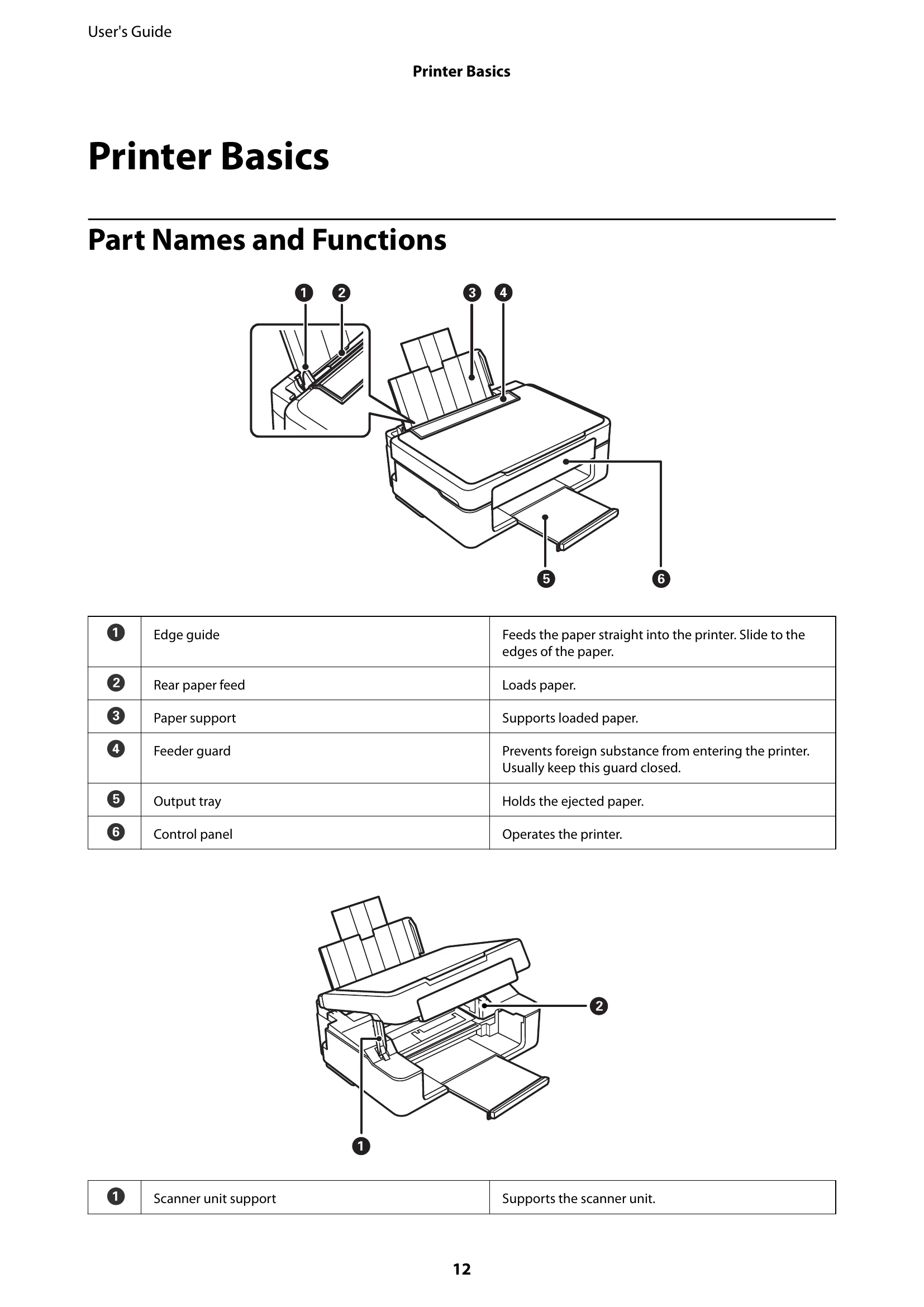
Printer Basics

Part Names and Functions

  • Edge guide: Feeds paper straight into the printer.
  • Rear paper feed: Loads paper.
  • Paper support: Supports loaded paper.
  • Feeder guard: Prevents foreign substance from entering the printer.
  • Output tray: Holds the ejected paper.
  • Control panel: Operates the printer.
  • Scanner unit support: Supports the scanner unit.
  • Ink cartridge holder: Install ink cartridges; ink is ejected from print head nozzles underneath.
  • Document cover: Blocks external light while scanning.
  • Scanner glass: Place originals on it.
  • Scanner unit: Scans placed originals.
  • AC inlet: Connects the power cord.
  • USB port: Connects a USB cable.

Control Panel

  • Wi-Fi lights: Indicate network status (green for connecting/communicating, orange for errors).
  • Power button: Turns the printer on or off.
  • Wi-Fi button: Cancels network errors or initiates Wi-Fi auto setup (WPS).
  • Network status sheet button: Prints network settings and status.
  • Monochrome copy button: Starts monochrome copying.
  • Color copy button: Starts color copying.
  • Stop button: Stops the current operation.
  • Print head cleaning button: Runs print head cleaning.
  • Ink cartridge replacement button: Indicates when to replace ink cartridges.
  • Paper out/jam indicator: Lights up for paper out or jam.
  • Ink cartridge error indicator: Lights up for ink cartridge errors, flashes for low ink.

Troubleshooting and error codes

Problem Troubleshooting Steps
Scanning Stops when Scanning to PDF/Multi-TIFF - Scan in grayscale for large volumes.
- Increase free space on the computer's hard disk.
- Scan at a lower resolution.
Slight Electric Shock when Touching the Printer Install a ground wire to the computer connected to the printer.
Operation Sounds Are Loud Enable quiet mode in the printer driver (Windows) or printer utility (Mac OS X).
Application Is Blocked by a Firewall (for Windows Only) Add the application to the Windows Firewall allowed programs.
Privacy Policy