Brand: EPSON
Category: Scanner
Document Type: Manual
Language: EN
Brand: EPSON
Category: Scanner
Document Type: Manual
Language: EN
Uploaded: Sept. 12, 2025, 4:30 a.m.
None
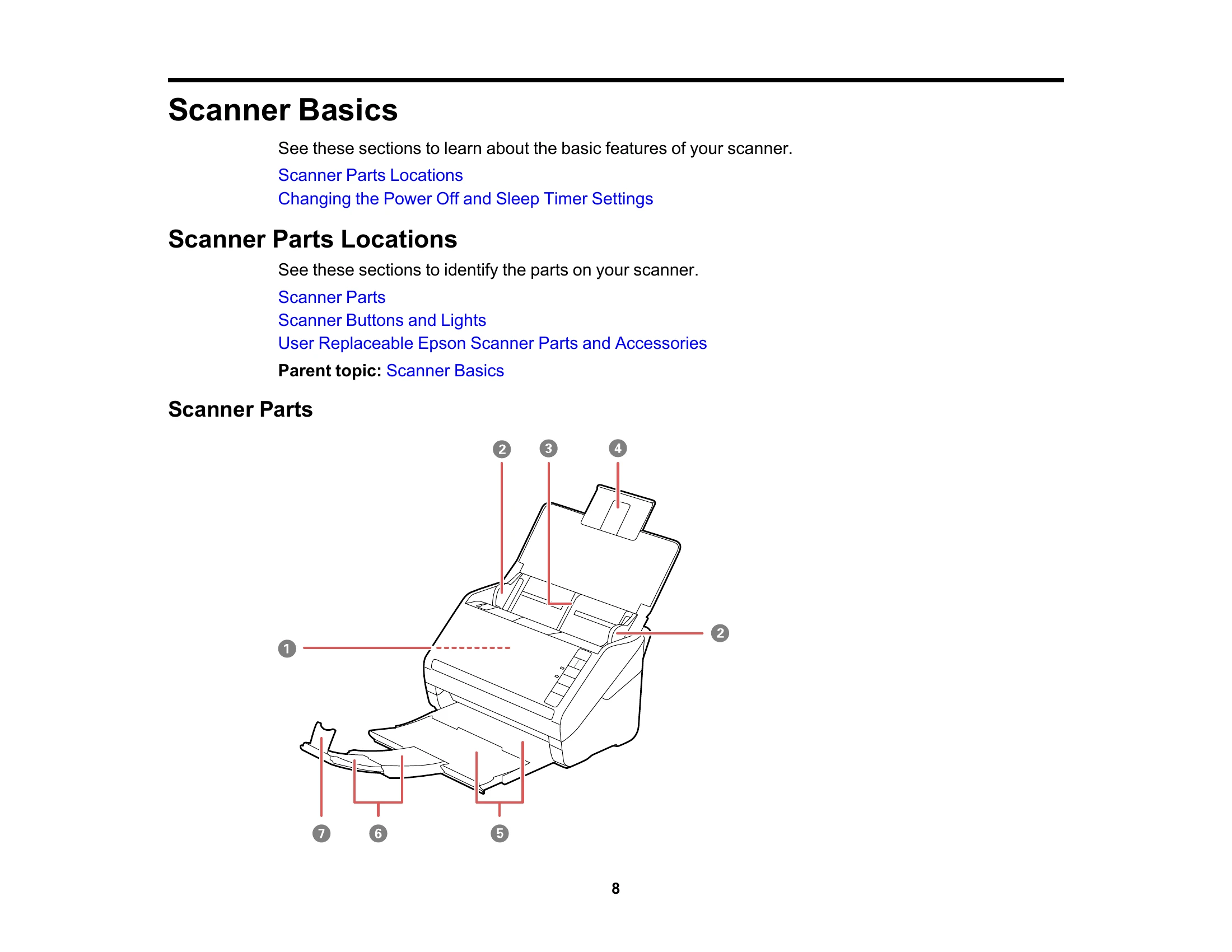
Learn about the scanner's features, including parts, buttons, lights, and user-replaceable components.
Follow instructions for loading various types of originals into the input tray, including documents, plastic cards, and special items. Ensure correct orientation and size handling.
Configure Wi-Fi settings, connect to networks using WPS or manually, and set up network scanning to computers.
Start scans from the scanner button, Epson Scan 2 icon, or other applications. Explore various scanning settings, image formats, and resolutions. Learn to scan to network computers and cloud services.
Instructions for using the flatbed scanner dock with the ADF, including setup and cleaning.
Guides on cleaning the scanner's interior and exterior, checking roller counters, and safe transportation.
Troubleshoot common issues such as scanner light status, scanning problems, network connectivity, and image quality issues.
Details on system requirements, general specifications, dimensions, electrical, environmental, network, and flatbed scanner dock specifications.
Important safety instructions, restrictions on copying, power management settings, arbitration information, trademarks, and copyright notices.
| Problem | Possible Cause | Solution |
|---|---|---|
| Scanner Does Not Turn On or Turns Off Unexpectedly | The AC adapter is not plugged in or is loose. | Plug the AC adapter into a working electrical outlet. Ensure the power cord is securely connected to the scanner and the AC adapter. |
| Scanner Button Does Not Work as Expected | Scanner is in sleep mode or powered off. | Press the power button to wake the scanner or turn it on. |
| Scanning Software Does Not Operate Correctly | Software is not installed correctly or is outdated. | Reinstall the Epson Scan 2 software or update to the latest version from the Epson website. |
| Cannot Start Epson Scan 2 | Scanner is not connected or recognized. | Check the USB connection. Ensure the scanner is powered on and recognized by the computer. Restart the computer and scanner. |
| Original Feeds Incorrectly in Scanner | Original is not loaded correctly or is creased/torn. | Reload the original, ensuring it is flat and properly aligned in the input tray. Remove any creases or tears. |
| Original Jams in Scanner | Foreign object in the scanner path or overloaded input tray. | Open the scanner cover and carefully remove the jammed original. Ensure the input tray is not overloaded. |
| Scanning is Slow | Low resolution or complex scan settings. | Reduce the scan resolution or simplify scan settings. Ensure your computer meets the system requirements. |
| Cannot Scan Over a Network | Network connection issues or incorrect network settings. | Verify the scanner is connected to the Wi-Fi network. Check network security settings and IP address. Refer to the Wi-Fi Networking section. |
| Scanner Cannot Connect to a Wireless Router | Incorrect Wi-Fi password or router issues. | Double-check the Wi-Fi password. Restart the router and the scanner. Ensure the scanner is within range of the router. |
| Scanned Image is Cropped | Incorrect scan area or size settings. | Adjust the scan area or document size settings in the scanning software. |