Brand: EPSON
Category: Scanner
Document Type: Manual
Language: EN
Brand: EPSON
Category: Scanner
Document Type: Manual
Language: EN
Uploaded: Sept. 12, 2025, 4:30 a.m.
None
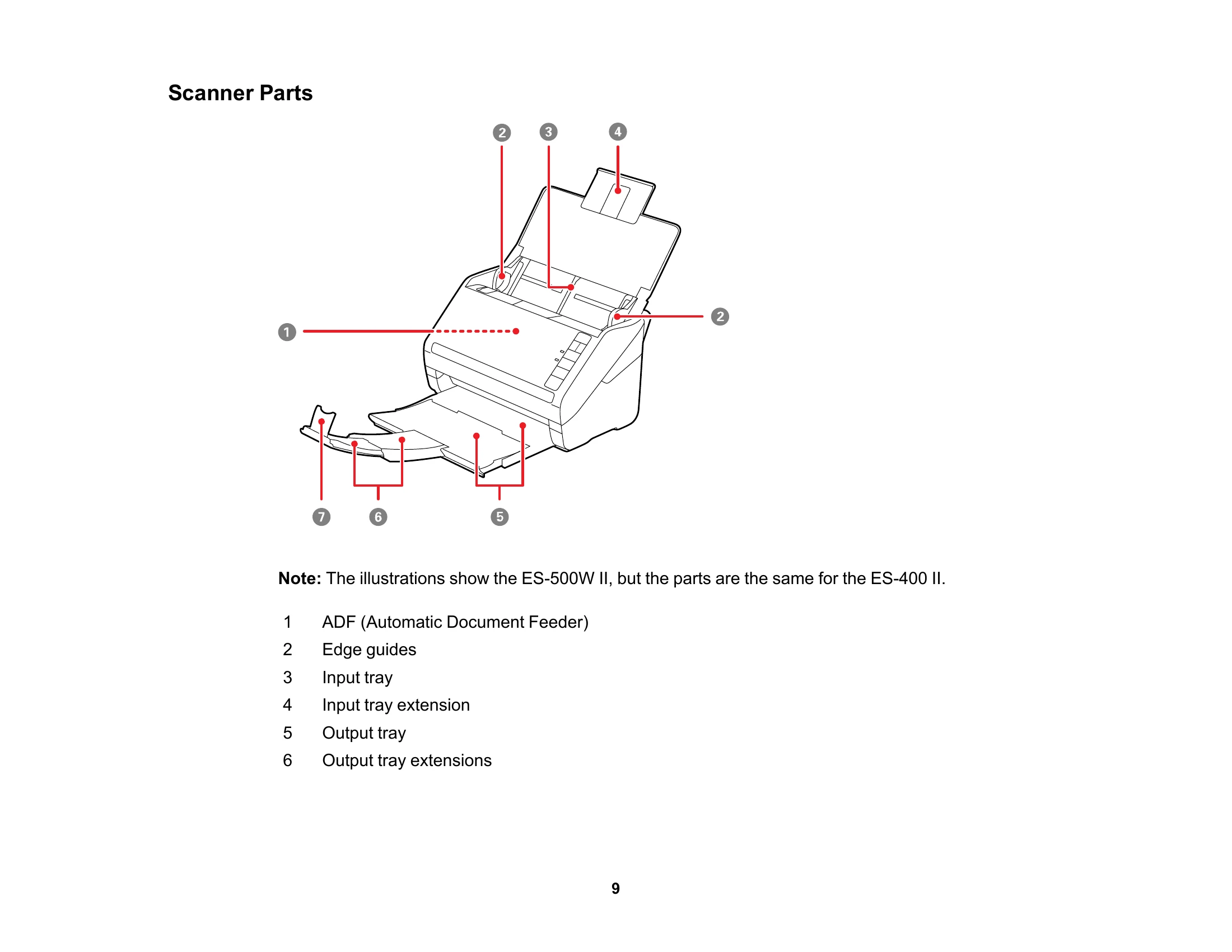
This manual provides comprehensive instructions for operating the Epson ES-400 II/ES-500W II scanner. It covers scanner basics, including parts identification and button functions. The guide details how to load various types of originals, such as standard documents, plastic cards, and special items, into the input tray. Network configuration is explained, with steps for connecting to Wi-Fi networks and setting up wireless scanning using the Epson Smart Panel mobile app. The manual outlines the scanning process, including starting scans from the scanner buttons or a smart device, saving scans in different formats, and sending them to cloud services or email. It also provides instructions for using the optional flatbed scanner dock and for cleaning and transporting the scanner. Extensive troubleshooting sections are included to help resolve common scanning issues, image quality problems, and network connectivity problems.
| Problem | Possible Cause | Solution |
| Scanner Does Not Turn On or Turns Off Unexpectedly | Scanner is not powered on. | Press the power button. |
| Power cord is not plugged in. | Plug the power cord into the scanner and a working outlet. | |
| AC adapter is not connected. | Connect the AC adapter to the scanner and a working outlet. | |
| Scanner Button Does Not Work as Expected | Button is not functioning correctly. | Restart the scanner and computer. If the problem persists, contact Epson support. |
| Scanning Software Does Not Operate Correctly | Software is not installed or is corrupted. | Reinstall the Epson ScanSmart software. |
| Driver is not installed or is outdated. | Install or update the scanner driver. | |
| Cannot Start Epson Scan 2 | Epson Scan 2 is not installed. | Install Epson Scan 2 from the Epson website. |
| Original Feeds Incorrectly in Scanner | Original is not loaded properly. | Reload the original according to the instructions. |
| Input tray guides are not set correctly. | Adjust the input tray edge guides to match the original size. | |
| Original Jams in Scanner | Original is too thick or too thin. | Use originals within the specified weight range. |
| Foreign object in the scanner. | Remove any foreign objects from the scanner path. | |
| Paper Protection Does Not Work Correctly | Paper protection feature is disabled. | Enable the paper protection feature in the scanner settings. |
| Scanning is Slow | Scanner is set to a high resolution or complex settings. | Lower the scan resolution or simplify scan settings. |
| Computer performance is low. | Close other applications and ensure the computer meets system requirements. | |
| Solving Network Scanning Problems | Scanner is not connected to the network. | Check Wi-Fi connection status and router settings. |
| Network settings are incorrect. | Reconfigure network settings or use WPS to connect. | |
| Scanner Cannot Connect to a Wireless Router | Incorrect Wi-Fi password. | Enter the correct Wi-Fi password. |
| Router is too far from the scanner. | Move the scanner closer to the router or use a Wi-Fi extender. | |
| Solving Scanned Image Quality Problems | Original is dirty or damaged. | Clean the original or use a carrier sheet. |
| Scanner glass is dirty. | Clean the scanner glass with a soft, lint-free cloth. | |
| Scan settings are incorrect. | Adjust brightness, contrast, or other image settings. | |
| Scanned Image Edges are Cropped | Scanning area is not set correctly. | Adjust the scanning area in the software settings. |
| Line of Dots Appears in All Scanned Images | Scanner glass is dirty. | Clean the scanner glass. |