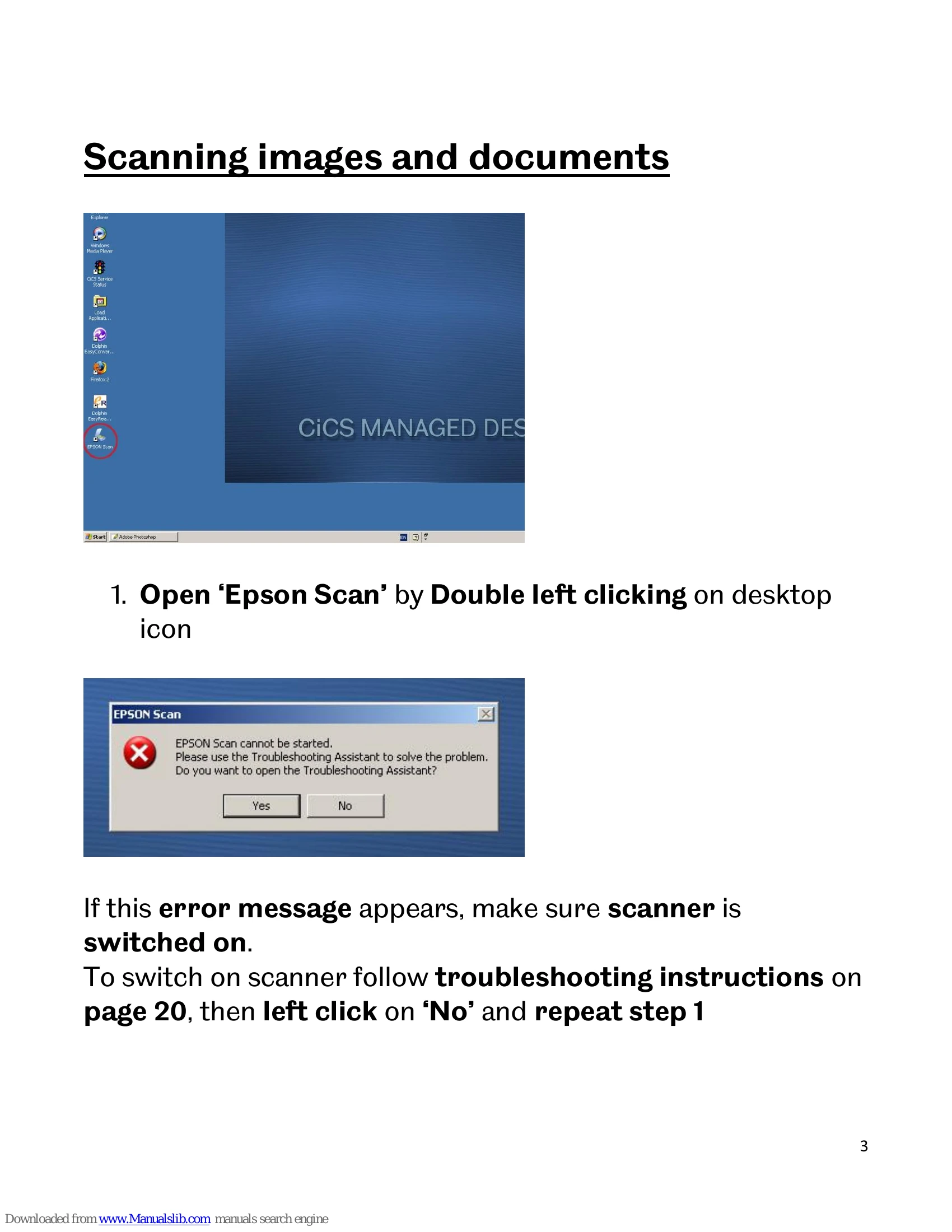
1. Open 'Epson Scan' by double-clicking the desktop icon. If an error message appears, ensure the scanner is switched on, then click 'No'.
2. Select 'Professional Mode' from the mode drop-down.
3. Click on 'Scan'.
4. Choose 'File Save Settings': select location, create a file name, and choose an image format (JPEG recommended).
5. Click 'OK'.
6. A 'Progress' window will appear during scanning.
7. Once complete, the file location folder will open. To scan more, repeat steps 2-4. To finish, close 'Epson Scan'.
To scan direct to PDF:
1. Follow steps 1-2 for scanning images/documents.
2. Choose 'File Save Settings', selecting location and creating a file name.
3. Select 'PDF (*.pdf)' as the Image Format.
4. Click on 'Options'.
5. Ensure 'Paper Size' is A4 and select desired 'Orientation'.
6. Click 'OK' twice.
7. A 'Progress' window will appear during scanning.
8. Once scanning is complete, choose from 'Add page', 'Edit page', or 'Save File'.
To scan and edit text:
1. Open 'Abbyy FineReader' from the Start menu.
2. Click 'Scan & Read'.
3. In 'Epson Scan', select 'Professional Mode' and click 'Scan'.
4. After scanning, text will be displayed in both image and text format.
5. Click 'Save' and select 'Send to Microsoft Word', then click 'OK'.
6. Microsoft Word will launch to edit text and formatting.
7. Save your file and close 'Abbyy FineReader'.