Brand: EPSON
Category: Scanner
Document Type: Manual
Language: EN
Brand: EPSON
Category: Scanner
Document Type: Manual
Language: EN
Uploaded: Nov. 21, 2025, 6:10 p.m.
None
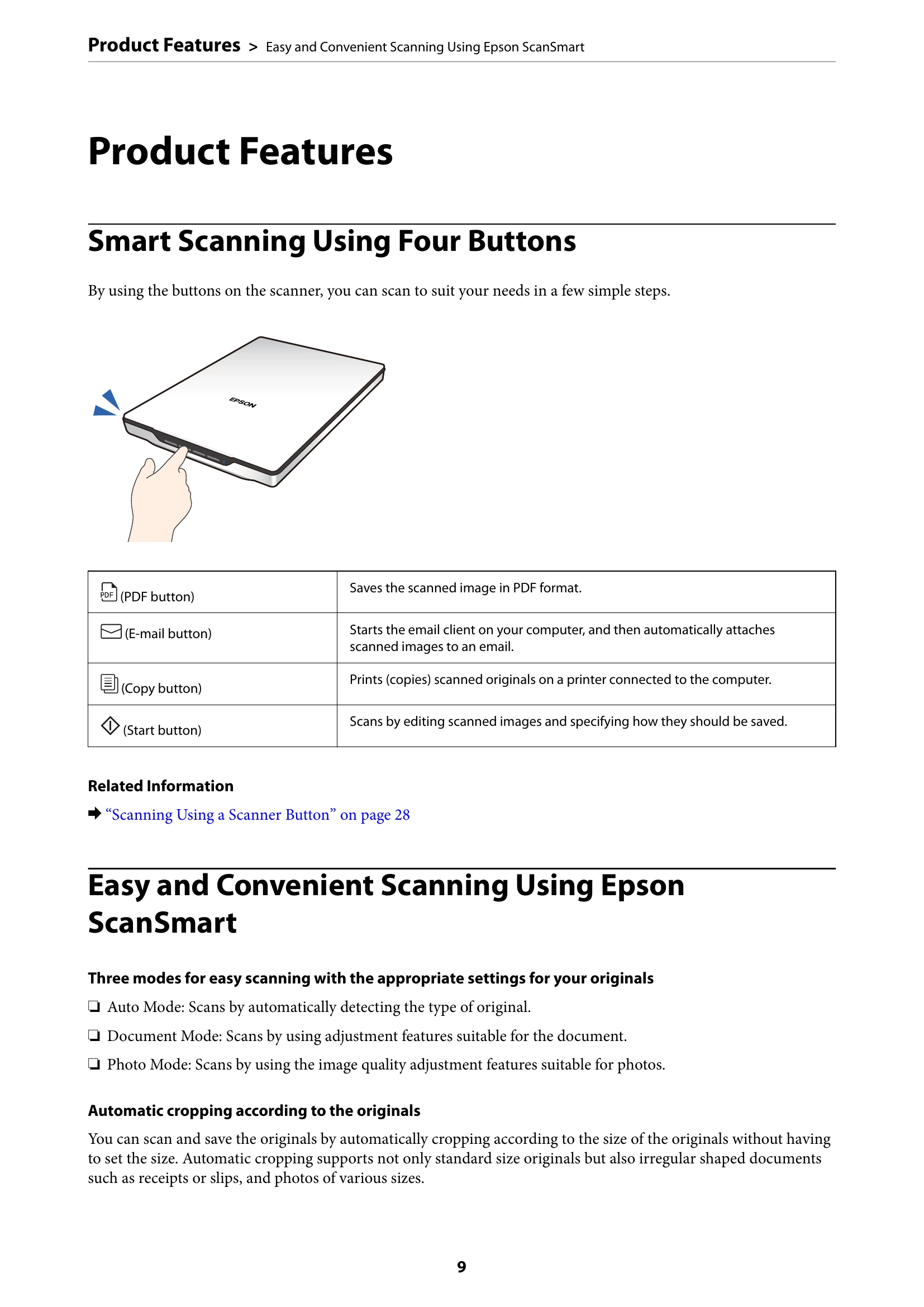
By using the buttons on the scanner, you can scan to suit your needs in a few simple steps.
Three modes for easy scanning with the appropriate settings for your originals:
Automatic cropping according to the originals
You can scan and save the originals by automatically cropping according to the size of the originals without having to set the size. Automatic cropping supports not only standard size originals but also irregular shaped documents such as receipts or slips, and photos of various sizes.
Document cover: Blocks external light while pressing down the document onto the scanner glass. Remove when scanning a thick document or a large document.
Document mat: Secures documents while scanning.
Scanner glass: Place documents here.
Carriage: Sensor that scans documents.
USB port: Connects a USB cable.
Scanner stand: Used when scanning in a standing position.
| Scanner Problems | Indicator Status | Scanner Status |
| Status light | On | Ready to scan images |
| Flashing | Initializing or scanning | |
| Flashing rapidly | Error | |
| Off | The scanner is off |