Manual for 27M2N3500PF

Manual for 27M2N3500PF

Brand: Evnia

Category: Monitors

Document Type: Manual

Language: EN
Uploaded: Nov. 21, 2025, 7:58 p.m.

Warranty Information

Contact Philips Customer Care for warranty coverage and support, or visit the support website.

Monitor Setup:

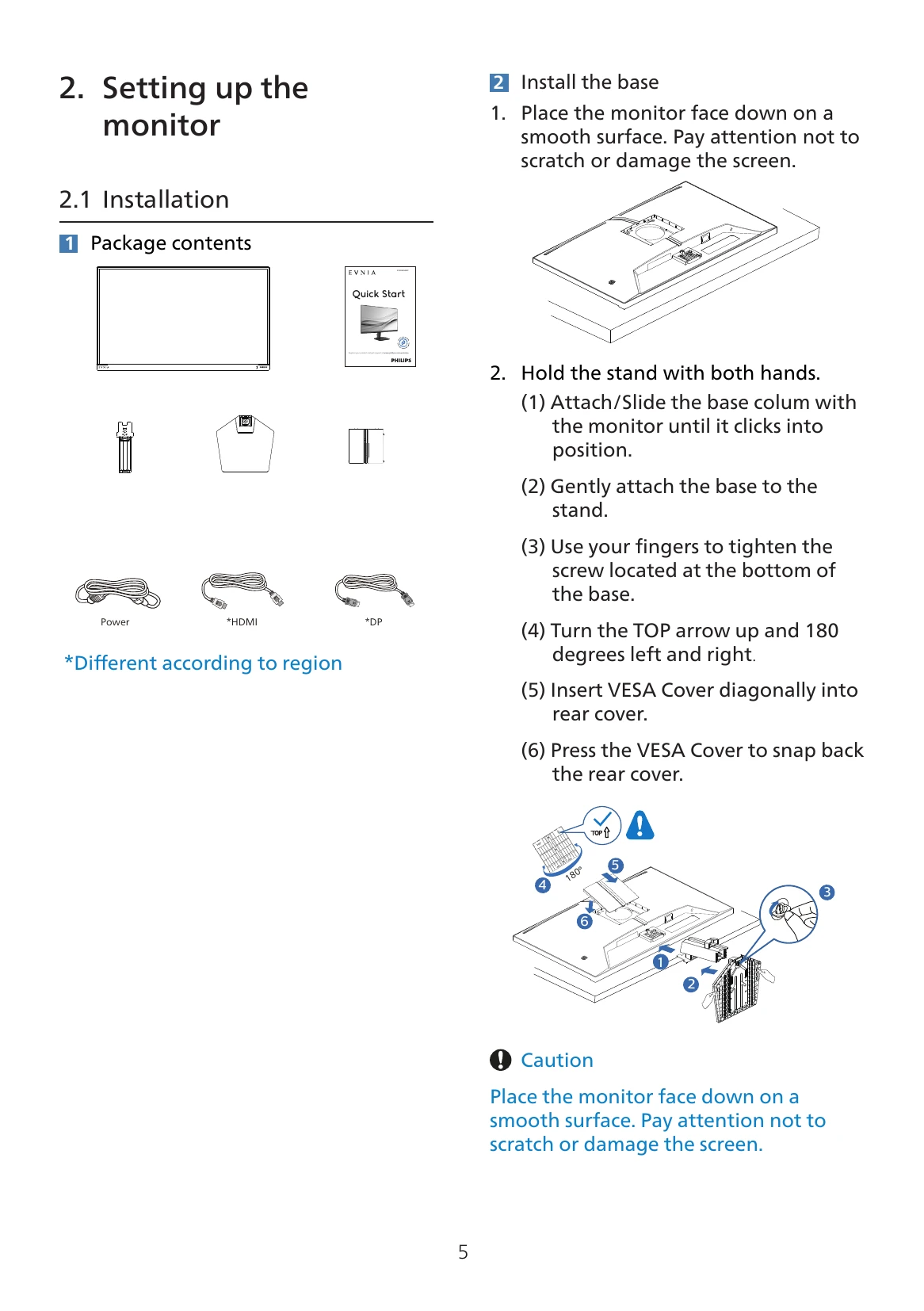
  1. Install the base by placing the monitor face down and attaching the stand, securing it with the finger-tightened screw.
  2. Connect the monitor to your PC using the provided cables (HDMI, DisplayPort). Ensure the power cord is securely connected.
  3. Turn on the computer and monitor.

Basic Operation:

  • Power Button: Press to switch on, press and hold for 3 seconds to switch off.
  • Navigation Button: Acts as a joystick for OSD menu navigation. Toggle in four directions to move the cursor, press to select.
  • OSD Menu: Access through the navigation button. Adjust settings like Brightness, Contrast, Game Settings, Input Source, SmartImage, etc.
  • SmartImage: Optimize display presets for different content types (Standard, FPS, Racing, Movie, etc.).
  • Adaptive Sync: Enables smooth, responsive, tearing-free gaming by synchronizing GPU and monitor refresh rates.
  • HDR: Configure HDR settings in Windows 10 for enhanced picture quality.

Maintenance:

  • Keep the monitor away from direct sunlight and oil.
  • Do not block ventilation holes.
  • Clean with a soft, dry cloth; use isopropyl alcohol for extensive cleaning.
  • Avoid excessive pressure on the LCD panel.

Troubleshooting and error codes

Problem Solution
No Picture (Power LED not lit)
  • Ensure power cord is plugged in.
  • Turn the power button ON.
No Picture (Power LED is White)
  • Ensure computer is turned ON.
  • Check signal cable connection.
  • Check for bent pins on the monitor cable.
  • Check if Energy Saving feature is activated.
Image vibrates on the screen
  • Check signal cable connection to graphics board/PC.
Image blurred, indistinct or too dark
  • Adjust contrast and brightness in OSD.
"After-image", "burn-in", or "ghost image"
  • Activate screen saver or periodic screen refresh.
Visible signs of smoke or sparks
  • Disconnect from power immediately.
  • Contact customer service.
Privacy Policy