Brand: Fujitsu
Category: Scanners
Document Type: Manual
Language: EN
Brand: Fujitsu
Category: Scanners
Document Type: Manual
Language: EN
Uploaded: Nov. 21, 2025, 7:17 p.m.
Manual Publish Date: 2012-03-01
This manual details troubleshooting for software installation and uninstallation.
This manual provides information about resolutions for troubles that you may have upon installing the software bundled with the ScanSnap, and how to install and uninstall the software.
Lists various trademarks including Microsoft, Apple, Adobe, Intel, IBM, I.R.I.S., ABBYY, Evernote, and Salesforce.
PFU LIMITED
International Sales Dept., Imaging Business Division, Products Group
Solid Square East Tower
580 Horikawa-cho, Saiwai-ku, Kawasaki-shi, Kanagawa 212-8563, Japan
Phone: (81-44) 540-4538
Read the following manuals as needed when using the ScanSnap.
Structure of This Manual includes: Troubles and Resolutions in Windows, Troubles and Resolutions in Mac OS, Installing the Software, Uninstalling the Software.
Right-arrow symbols (→) are used to connect icons or menu options selected in succession.
Screenshots are according to Microsoft guidelines, primarily Windows 7 and Mac OS X v10.7. Actual screens may differ.
Lists abbreviations for operating systems (Windows, Mac OS) and software (Microsoft Office, Internet Explorer, Adobe Acrobat, ABBYY FineReader, etc.).
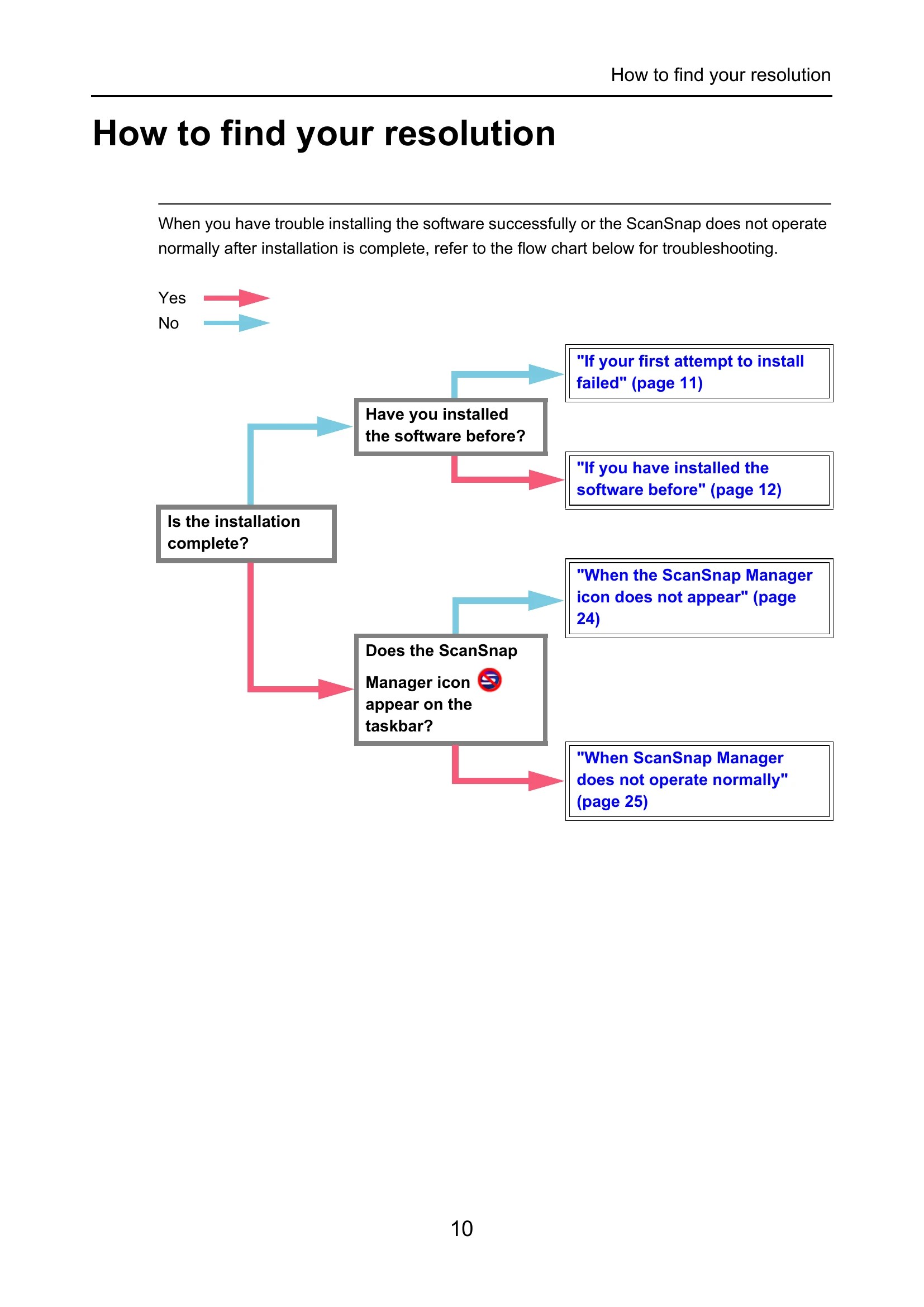
| Problem | Solution | Page |
|---|---|---|
| If your first attempt to install failed | 1. Restart the computer and log on as a user with Administrator privileges. 2. Reinstall the software. |
11 |
| If you have installed the software before | Uninstall the software following the procedure. 1. Unplug the USB cable if ScanSnap is connected. 2. Log on as Administrator. 3. Disable anti-virus software temporarily. |
12 |
| When the ScanSnap Manager icon does not appear | Follow the steps in "Troubles and Resolutions in Windows" section. | 24 |
| When ScanSnap Manager does not operate normally | 1. Remove unnecessary icons from the taskbar. 2. Check the connection between ScanSnap and the computer. 3. Check if ScanSnap Manager is operating normally. 4. Remove the ScanSnap's connection information. |
25 |
| When you cannot uninstall the software | Follow the steps in "Troubles and Resolutions in Windows" section. | 31 |
| Troubles and Resolutions in Mac OS | If you have installed the software before If you failed to install Evernote for Mac |
32 33 |
| Installing the Software | Installing in Windows Installing in Mac OS |
36 56 |
| Uninstalling the Software | Uninstalling in Windows Uninstalling in Mac OS |
73 75 |