Brand: GE
Category: Digital Camera
Document Type:
Language: EN
Brand: GE
Category: Digital Camera
Document Type:
Language: EN
Uploaded: Aug. 9, 2025, 11:57 p.m.
Manual Publish Date: 2012-01-01
Warranty does not cover any type of data loss or corruption.
This manual provides instructions on how to use your GE digital camera. It covers safety precautions, basic operation, and various modes. Ensure you read the safety information before using the product.
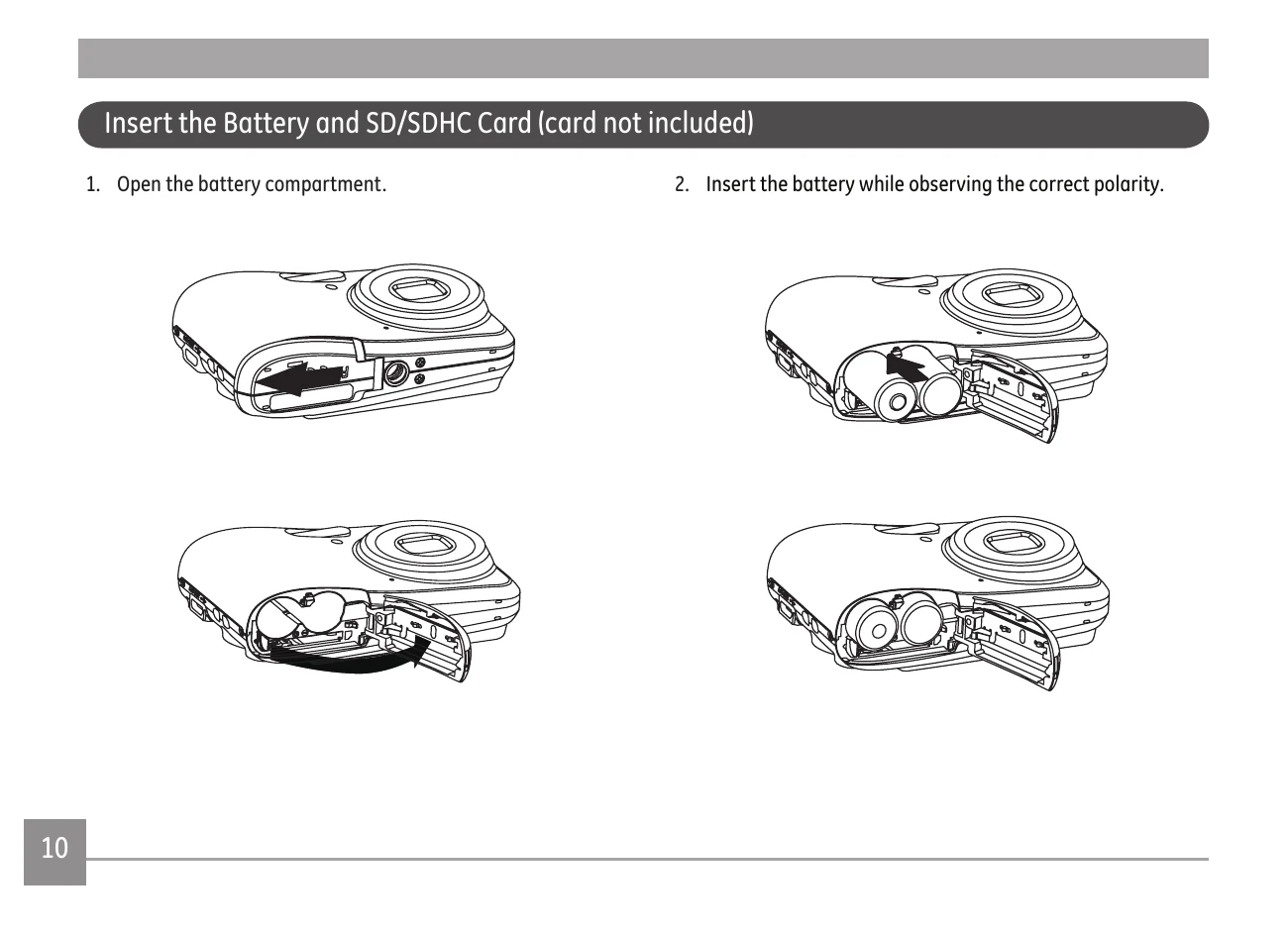
The camera can be turned on by pressing the Power button. It defaults to the last used shooting mode. You can switch between modes using the Mode button. The manual details various settings like language, date/time, and display settings. It also explains how to insert batteries and memory cards, and how to turn the camera on and off.
The camera offers various shooting modes including Auto, Manual, and Scene modes (like Landscape, Portrait, etc.). The manual explains how to use the Mode Selection Button and the functionalities of each mode. It also covers display settings like Default, Grid, and Clean views.
The manual guides on how to view photos and videos, zoom, and delete files. It also details playback menus for protecting files, DPOF settings, and slideshow options.
Instructions are provided for connecting the camera to a PC for file transfer, and connecting to a PictBridge compatible printer for direct printing. This includes setting the USB mode and using the PictBridge menu for various print options.
The appendices include specifications of the camera, a list of error messages with explanations, and a troubleshooting guide to help resolve common issues.
| Problem | Possible causes | Solution |
|---|---|---|
| Camera does not turn on. | • The battery has run out. • The battery is not inserted correctly. |
• Replace with a fully charged battery. |
| Camera turns off suddenly during operation. | • The battery has run out. | • Replace with a fully charged battery. |
| The picture is blurred. | • The lens is dirty. • appears when taking pictures. |
• Use a soft cloth to clean the lens on your camera. • Use the Image Stabilization mode. |
| Images and video files cannot be saved. | • The memory card is full. | • Replace the memory card with a new one. • Delete unwanted images. • Unlock the memory card. |
| No picture is taken when pressing the Shutter button. | • The memory card is full. • No available space to store the files. • The mode dial is in Playback mode. |
• Replace the memory card with a new one or format the current memory card. • Delete unwanted images. • The memory card is locked. |
| Images cannot print from the connected printer. | • The camera is not connected to the printer correctly. • The printer is not PictBridge compatible. • The printer is out of paper or out of ink. • The paper is jammed. |
• Check the connection between the camera and printer. • Use a PictBridge compatible printer. • Load some paper in the printer. • Replace the ink cartridge in the printer. • Remove the jammed paper. |
| Writing to memory card is slow | • A Class 4 memory card or below may inhibit recording of slow the process down. | • Please select HCSD or shoot after formatting this card. |
| Cannot write to the memory card | • Memory card is in write-protection state. • When shooting or recording, write-protection interruption in the memory card (like slower writing times) may not allow you to continue to shoot or record.. |
• Please replace a memory card. • Please shoot again. |