Brand: GE
Category: Digital Camera
Document Type: Manual
Language: EN
Brand: GE
Category: Digital Camera
Document Type: Manual
Language: EN
Uploaded: Nov. 21, 2025, 8:50 p.m.
No warranty information is explicitly stated in the provided pages.
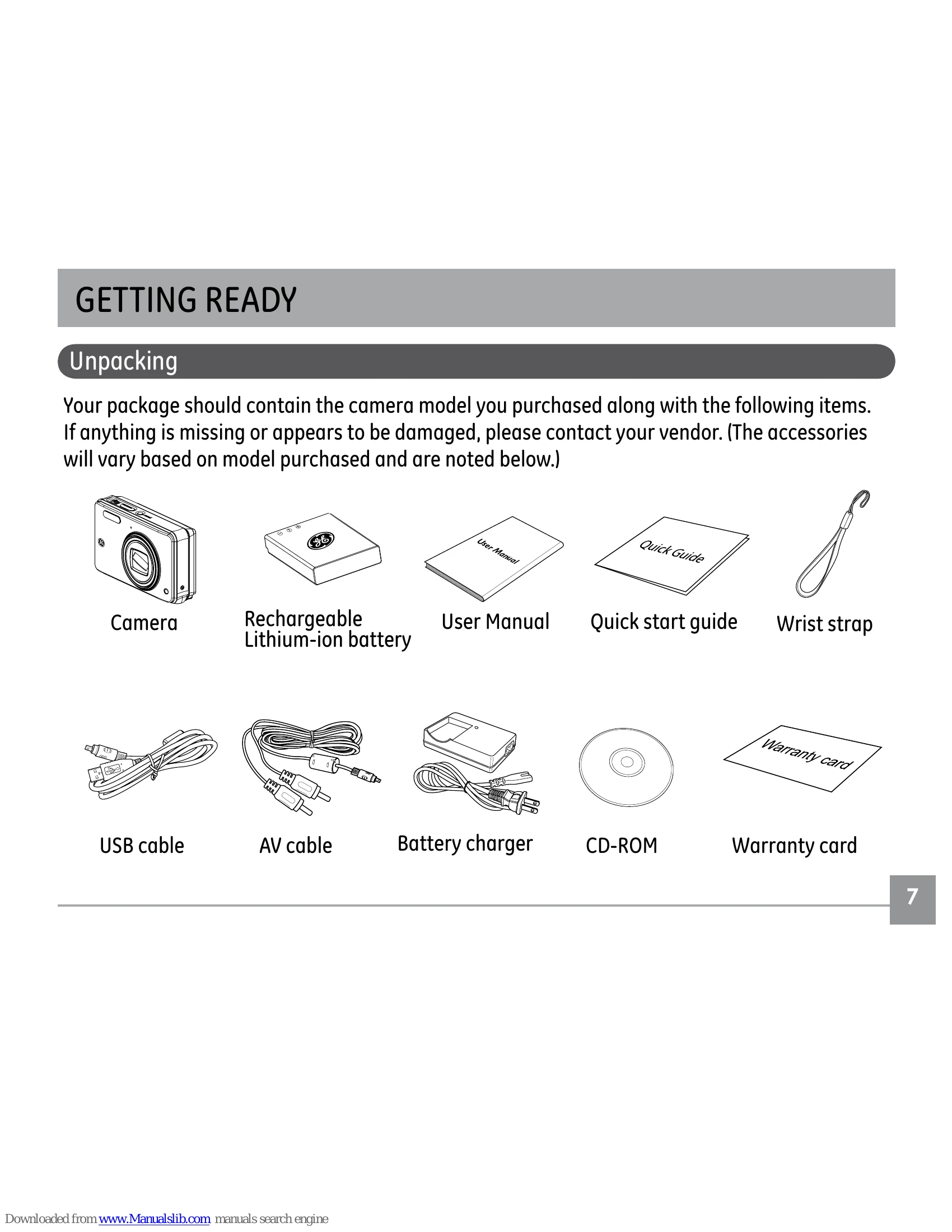
Unpack your camera and included accessories. Insert the rechargeable Lithium-ion battery and an optional SD/SDHC card. Connect the battery charger to a wall outlet and charge the battery until the light turns green (at least 4 hours for the first charge). Close the battery compartment.
Press the Power button to turn the camera on. Press it again to turn it off.
Set the mode dial to Auto mode. Compose your picture on the LCD screen and press the shutter button halfway to focus. Press fully to capture the image. Use the Zoom Scroll Wheel to zoom in or out.
The mode dial allows switching between Auto, Playback, Movie, Image Stabilization, Scene, Portrait, Panorama, and Manual modes.
| Problem | Possible causes | Solution |
|---|---|---|
| Camera does not turn on. | • The battery has run out. • The battery is not in- serted correctly. |
• Charge the battery or replace with a fully charged battery. • Re-insert the battery observing the correct polarity. |
| Camera turns off suddenly during operation. | • The battery has run out. | • Charge the battery or replace with a fully charged battery. |
| The picture is blurred. | • The lens is dirty. •  appears when tak- ing pictures. appears when tak- ing pictures. |
• Use a soft cloth to clean the lens on your camera • Use the Image Stabilization mode. |
| Images, video clips, and audio files cannot be saved. | • The memory card is full. | • Replace the memory card with a new one. • Delete unwanted images. • Unlock the memory card. |
| No picture is taken when pressing the shutter button. | • The memory card is full. • No available space to store the files. • The mode dial is in Playback mode. |
• Replace the memory card with a new one or clean off current memory card. • Delete unwanted images. • The memory card is locked. • Turn the mode dial to any still shooting mode. |
| Images cannot print from the connected printer. | • The camera is not connected to the printer correctly. • The printer is not PictBridge compatible. • The printer is out of paper or out of ink. • The paper is jammed. |
• Check the connection between the camera and printer. • Use a PictBridge compatible printer. • Load some paper in the printer. • Replace the ink cartridge in the printer. • Remove the jammed paper. |