Brand: GE
Category: Digital Camera
Document Type: Manual
Language: EN
Brand: GE
Category: Digital Camera
Document Type: Manual
Language: EN
Uploaded: Nov. 21, 2025, 8:25 p.m.
Warranty information is provided in the manual and on the warranty card.
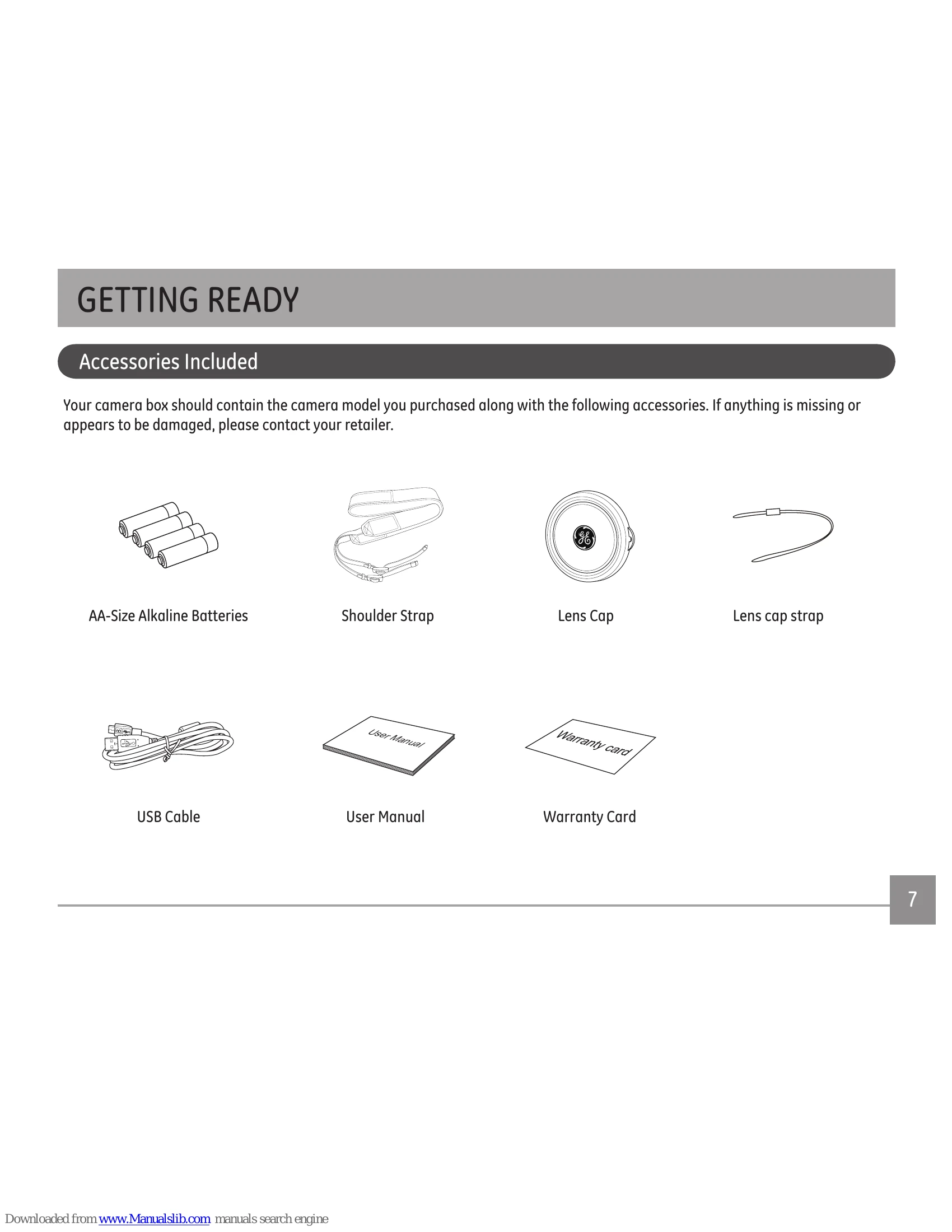
Accessories Included: Ensure your camera box contains AA-size alkaline batteries, shoulder strap, lens cap, lens cap strap, USB cable, user manual, and warranty card.
Setting Up Your Camera:
Turning On the Camera: Remove the lens cap and pull back on the ON/OFF switch.
Setting Language, Date/Time: Upon first power-on, follow prompts to select language and set date/time.
Attaching the Strap: Follow the diagram to securely attach the camera strap.
Smart Capture Mode: Ensure the mode dial is set to Smart Capture. Preview on LCD, press shutter halfway to focus, and press fully to capture.
Other Modes: Turn the Mode Dial to select various capture modes like Program (P), Manual (M), Scene (SCN), Sport, Landscape, Panorama, Portrait, etc.
Using the Zoom: Use the optical zoom to get closer to your subject before taking a picture or video.
| Problem | Possible Causes | Solution |
|---|---|---|
| Camera does not turn on |
• The battery has been depleted. • The battery is not inserted correctly. |
• Recharge the battery. • Correctly reinstall the battery. |
| Camera turns off suddenly during operation | • The batteries have been depleted. | • Recharge the battery. |
| Images and video files cannot be saved |
• The SD memory card is full. • The memory card is locked. |
• Use another memory card or delete unnecessary files. • Unlock the memory card. |
| Images will not print from the connected printer |
• The camera is not connected to the printer correctly. • The printer is not PictBridge compatible. • The printer is out of paper or ink. • The printer paper is jammed. |
• Check the connection between the camera and printer. • Use a PictBridge compatible printer. • Load paper into the printer or replace the ink cartridge in the printer. • Remove the jammed paper. |
| Saving data to memory card is slow | • Using a memory card below Class 4 may result in slower recording times. | • Use an SD card with write Class higher than 4 to improve performance. |
| Cannot write to the memory card |
• The SD memory card has been locked. • The camera may experience trouble recording HD movies to SD cards with a rating lower than Class 4. |
• Release the write lock of the memory card or replace with another card. • Use an SD card with write Class higher than 4 to improve performance. |
| Too many movies to process | • The number of pictures or folders in the SD memory card exceed the specifications, so the playback of data folder can not be displayed. | • Delete unwanted files. |