Brand: GE
Category: Television
Document Type: Manual
Language: EN
Brand: GE
Category: Television
Document Type: Manual
Language: EN
Uploaded: Nov. 21, 2025, 7:28 p.m.
Manual Publish Date: 2003
Covers defects in materials or workmanship for 90 days labor, 1 year parts, and 2 years picture tubes.
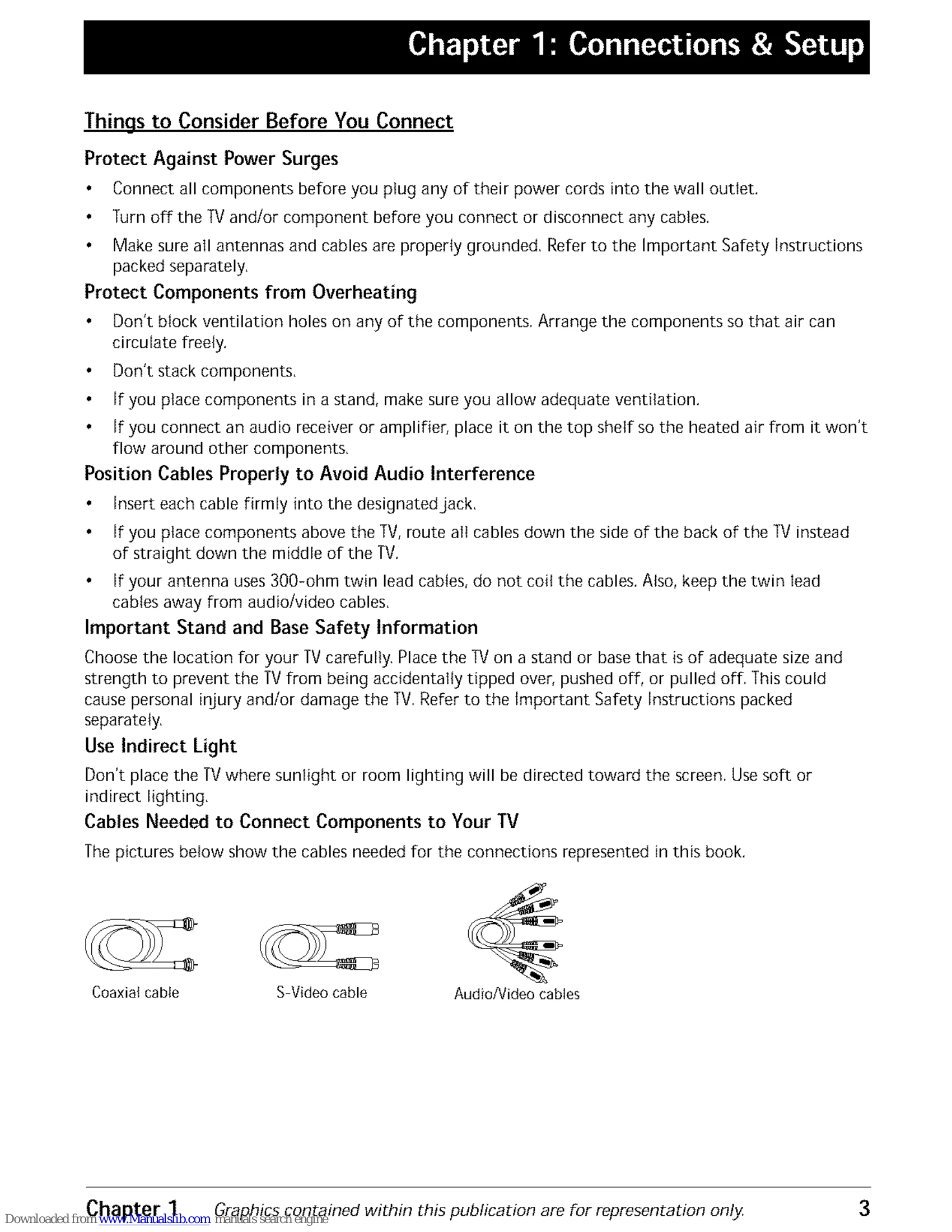
Connect antennas or cable boxes to the ANTENNA jack. Connect external devices like VCRs or DVD players using the AUDIO/VIDEO or S-VIDEO jacks on the back or front of the TV. Ensure cables are properly grounded and routed to avoid interference.
Plug in the TV and follow the on-screen prompts for language selection and auto channel search. The remote control is used for navigation by highlighting and selecting menu items.
Access the Channel Banner by pressing INFO. Utilize Auto Tuning to set specific channels for different inputs. Parental Controls and V-Chip allow blocking of programs based on ratings and content themes. The TV menu system offers Sound, Picture, Setup, Parental Control, and Time settings for customization.
| Problem | Solution |
|---|---|
| TV won't turn on | Ensure TV is plugged in, check wall receptacle, try front POWER button, unlock front panel controls if locked. |
| Buttons don't work | Unlock front panel controls if locked, unplug TV for two minutes and plug back in. |
| TV turns off unexpectedly | Check Sleep Timer, Wake-Up Timer, or electronic protection circuit due to power surge. Unplug and wait. |
| TV turns on unexpectedly | Check Wake-Up Timer, or accidental button press. |
| Blank screen | Ensure connected component is on, try another channel. |
| No sound, picture okay | Check mute, connect audio cables for S-Video. |
| Can't select certain channel | Check V-Chip blocks, VCR mode (TV/VCR button). |
| Noisy stereo reception | Weak station, switch Sound Type to Mono. |
| No picture, no sound but TV is on | Check signal type, change channels, VCR connection (channel 3/4), TV/VCR button. |
| Sound okay, picture poor | Check antenna connections, adjust sharpness. |
| Black box appears on screen | Check Closed Caption settings. |
| Remote Control Doesn't Work | Ensure clear path to sensor, check/replace batteries, drain microprocessor by holding buttons. |
| Problems with V-Chip/Parental Controls | Activate V-Chip, reset password if forgotten, unlock NR rated programs. |