Manual for OTHER RECORDING FUNCTIONS

Manual for OTHER RECORDING FUNCTIONS

Brand: Generic

Category: Digital Camera

Document Type:

Language: EN
Uploaded: Aug. 9, 2025, 11:40 p.m.

Warranty Information

None

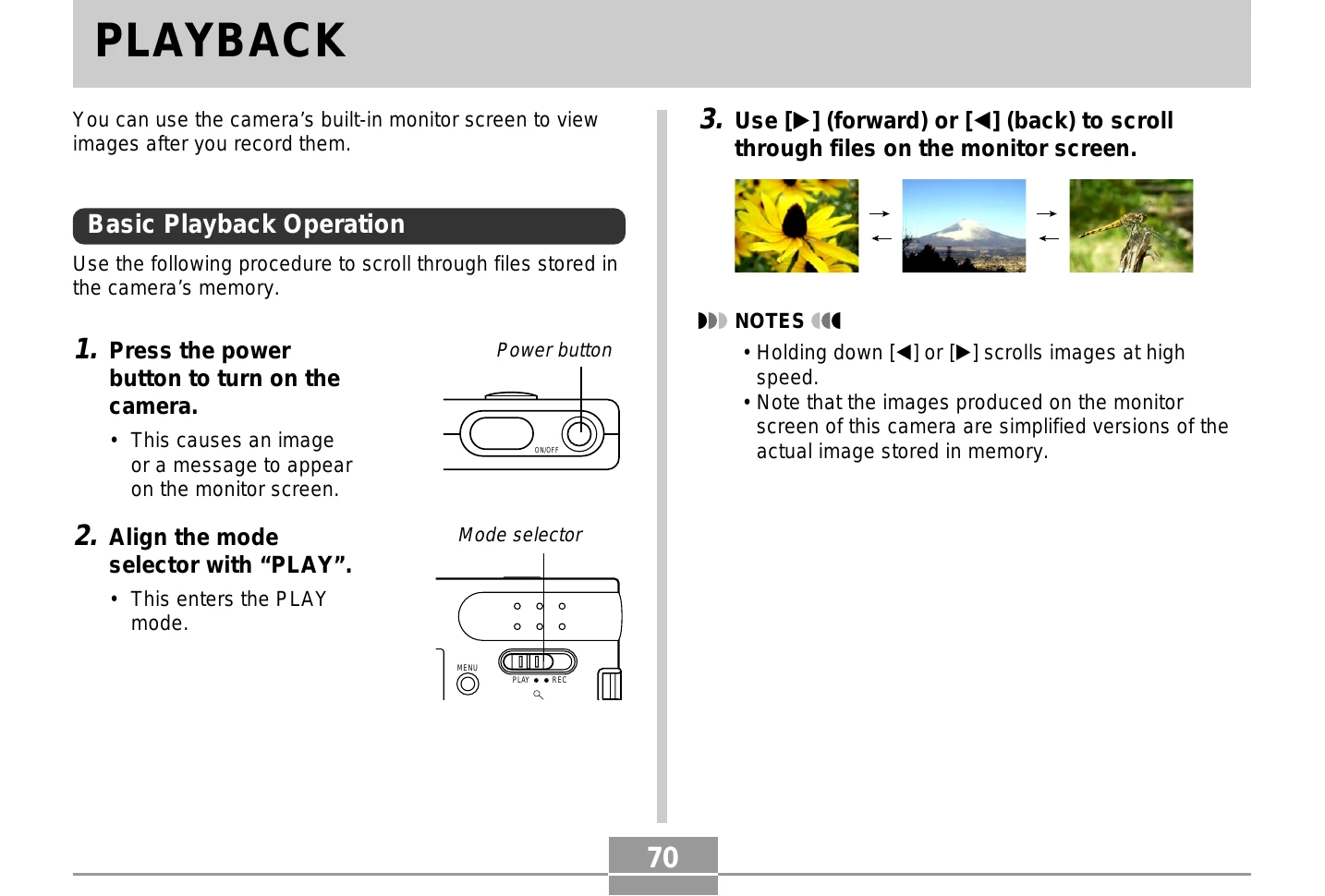
Basic Playback Operation

  1. Press the power button to turn on the camera.
  2. Align the mode selector with "PLAY".
  3. Use the directional buttons (forward/back) to scroll through images.

Flipping the Display

  1. In PLAY mode, scroll to the desired image.
  2. Press the shutter release button and [SET] simultaneously to flip the image 180 degrees.
  3. Press any button other than directional buttons to return to normal orientation.

Zooming the Display Image

  1. In PLAY mode, scroll to the desired image.
  2. Press [▲] to enlarge the image (up to 4x).
  3. Use directional buttons to scroll within the zoomed image.
  4. Press [MENU] to return to original size.

Resizing an Image

  1. In PLAY mode, press [MENU].
  2. Select "PLAY" tab, then "Resize", press [►].
  3. Scroll to the desired image and display it.
  4. Select the desired resolution (SXGA or VGA) and press [SET].

Cropping an Image

  1. In PLAY mode, scroll to the desired image.
  2. Press [MENU], select "PLAY" tab, then "Trimming", press [►].
  3. Adjust the cropping boundary using directional buttons.
  4. Press [DISP] to lock the boundary size.
  5. Move the boundary to select the desired area using directional buttons.
  6. Press [SET] to extract the cropped image.

Playing a Movie

  1. In PLAY mode, scroll to the movie.
  2. Press [SET] to play the movie.
  3. Use directional buttons for playback control (fast forward/reverse, pause, skip).

Displaying the Calendar Screen

  1. In PLAY mode, press [MENU].
  2. Select "PLAY" tab, then "Calendar", press [►].
  3. Use directional buttons to navigate the calendar.
  4. Move the cursor to a date and press [SET] to view the first image from that date.

Playing a Slide Show

  1. In PLAY mode, press [MENU].
  2. Select "PLAY" tab, then "Slideshow", press [►].
  3. Configure slideshow settings (images, time, interval).
  4. Select "Start" and press [SET] to begin.
  5. Press any button to stop the slideshow.

Using the Photo Stand Feature

  1. Set the camera on the USB cradle (ensure it's turned off first).
  2. Press the cradle's [PHOTO] button to start a slideshow.
  3. Press [PHOTO] again to stop.

Rotating the Display Image

  1. In PLAY mode, press [MENU].
  2. Select "PLAY" tab, then "Rotation", press [►].
  3. Scroll to the image you want to rotate.
  4. Select "Rotate" and press [SET] to rotate 90 degrees right.
  5. Press [MENU] to exit.

Troubleshooting and error codes

To do this: Do this:
Fast forward or fast reverse the movie Hold down [◀] or [►].
Pause and unpause movie playback Press [SET].
Skip forward or back one frame while paused Press [◀] or [►].
Cancel playback Press [MENU].
Privacy Policy