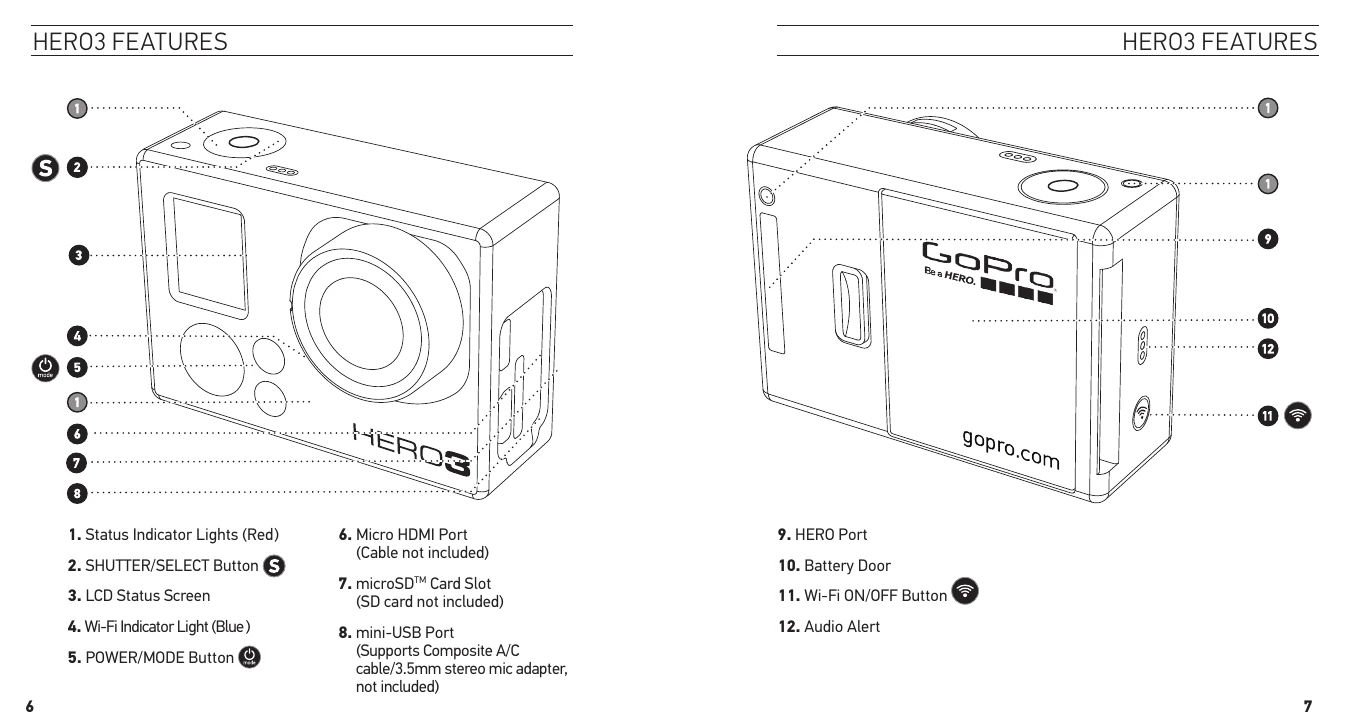
GoPro HERO3 White Edition Operation Summary
Powering On/Off: Press and release the Power/Mode button to turn the camera on. The Status Indicator Lights will flash three times and emit three beeps. Press and hold the Power/Mode button for two seconds to turn the camera off. The Status Indicator Lights will flash several times and emit seven beeps.
Camera Modes: Cycle through modes (Video, Photo, Photo Burst, Time Lapse, Playback) by pressing the Shutter/Select button. Each mode has a specific icon on the LCD screen.
Recording Video: In Video mode, press the Shutter/Select button to start recording. The red Status Indicator Lights will flash while recording. Press the Shutter/Select button again to stop recording.
Taking Photos: In Photo mode, press the Shutter/Select button to take a single photo. The camera beeps twice and the red Status Indicator Lights flash.
Photo Burst: In Photo Burst mode, press the Shutter/Select button to capture a series of photos at a rapid interval (e.g., 3 photos/second).
Time Lapse: In Time Lapse mode, press the Shutter/Select button to start capturing photos at set intervals (0.5, 1, 2, 5, 10, 30, or 60 seconds).
Settings Menu: Access the Settings menu by finding the Settings icon on the LCD screen and pressing the Power/Mode button. Use the buttons to navigate and select options, then press the Power/Mode button to confirm. Press and hold the Power/Mode button for two seconds to exit.
Wi-Fi: Turn Wi-Fi on/off using the Wi-Fi ON/OFF button. When Wi-Fi is on, the Wi-Fi Status Indicator Light blinks blue. Connect to the Wi-Fi Remote or smartphone/tablet via the GoPro App.
Transferring Files: Connect the camera to a computer using the USB cable to transfer photos and videos. Navigate to the camera's drive, then the DCIM and 100GOPRO folders.
Playback: View photos and videos on a TV/HDTV or the LCD Touch BacPac. Connect the camera to a TV/HDTV using an HDMI or composite cable. Cycle through media files on the camera's LCD and press the Shutter/Select button to view.
Charging: Connect the camera to a computer or USB power supply using the USB cable. The Red Status Indicator Light remains ON while charging and turns OFF when fully charged.
Removing Battery: Slide the battery door to the left, let it pop out, then grasp the battery pull-tab and remove the battery.
Housing: The camera housing is waterproof. Use the Skeleton Backdoor for better sound quality in non-water environments, and the Waterproof Backdoor for protection against water and environmental hazards. Ensure the rubber seal is clean and properly seated to prevent leaks.
Mounting: Use an attachment buckle, thumb screw, or other hardware to attach the camera to mounts. Apply adhesive mounts to clean, room-temperature surfaces for best adhesion. Use a locking plug for high-impact sports to prevent accidental housing release.
Customer Support: Visit gopro.com/support for assistance.