Brand: GoPro
Category: Electronics
Document Type: Manual
Language: EN
Brand: GoPro
Category: Electronics
Document Type: Manual
Language: EN
Uploaded: Aug. 10, 2025, 12:49 a.m.
None
The HERO5 Session camera allows users to capture video and photos. Key operations include:
| Issue | My GoPro won't power on |
|---|---|
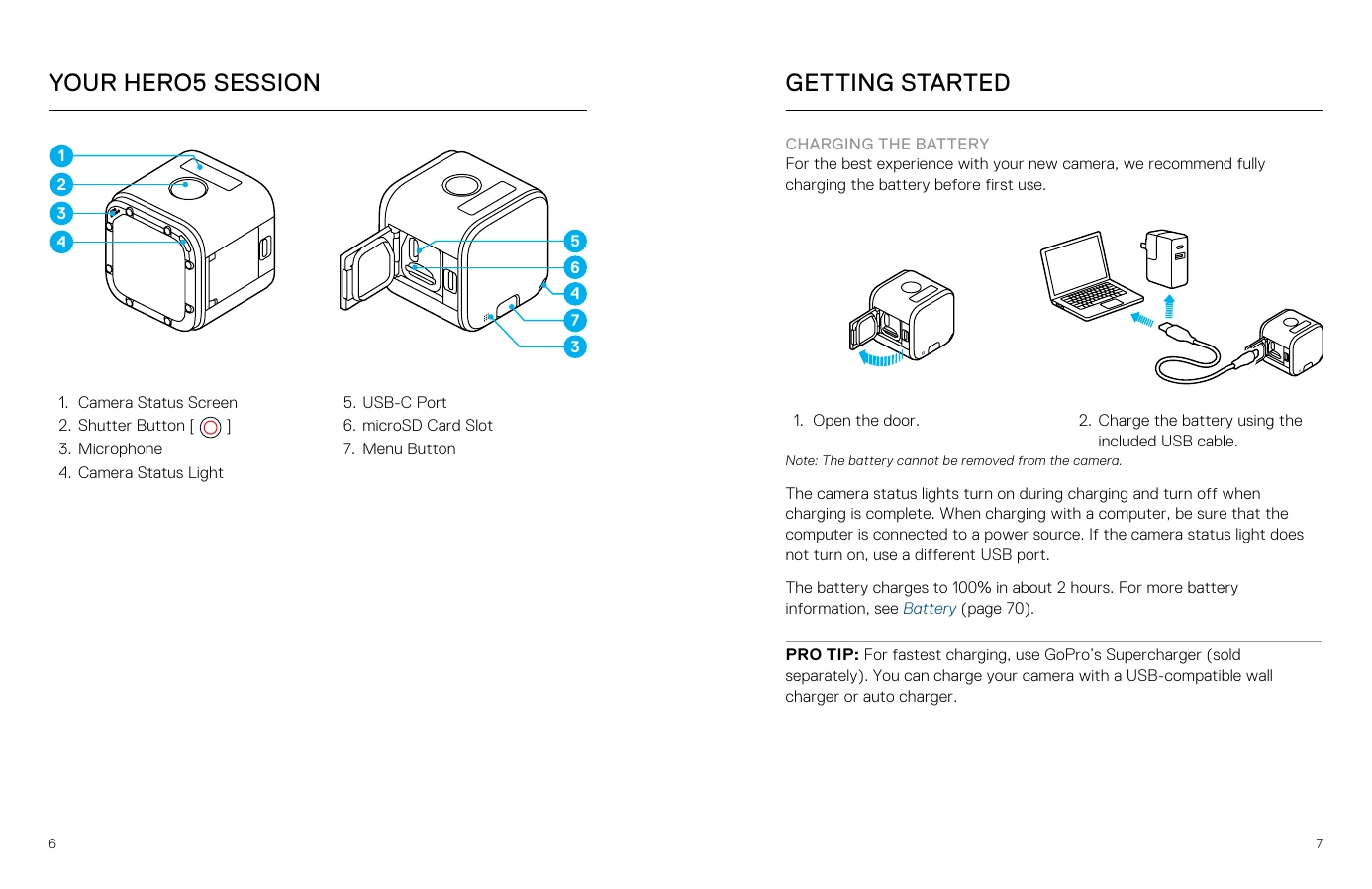
| Solution | Ensure the camera is charged. Use the included USB cable and a computer, or a GoPro-manufactured charging device. |
| Issue | My GoPro won't respond when I press a button |
| Solution | If the camera freezes, press and hold the Menu button for about eight seconds to power it off. This resets the camera without losing content or settings. |
| Issue | Forgot username or password |
| Solution | Navigate to Connection Settings > Camera Info to view your camera's username (ID) and password (pw). |
| Issue | How to turn off the camera |
| Solution | If not connected to an app or remote, it powers off automatically after recording stops. When connected, use the Power icon in the app or the Power/Mode button on the remote. If disconnected from the app/remote, navigate to Turn Camera Off via the Menu. To also turn off wireless, navigate to Turn WiFi Off. |
| Issue | Playback on computer is choppy |
| Solution | Ensure you are using an H.264 compatible video player (latest Quik for desktop recommended). Verify your computer meets HD playback requirements. If not, record at 1080p60 with Protune off, or try 720p30. |