\n
Phone Appearance
\nThis section illustrates the physical layout of the Haier D2100 phone, identifying key components such as the earpiece, display, soft keys, navigation keys, power/end key, keypad, and charging port.\n\n
Keys and Functions
\nDetails the function of each key on the phone. For example:\n
\n - Send Key: To dial or answer a call, and to switch the phone on/off.
\n - Fourways Navigation Key: To navigate menus, control cursor, and adjust volume.
\n - Numeric Keys (0-9): To enter numbers, characters, and for speed-dialing.
\n - \* and #: For special symbols, activating modes, and enabling silent profile.
\n
\n\n
Screen Icons
\nProvides a legend for common icons displayed on the phone screen, including network signal strength, message received, battery level, and call status.\n\n
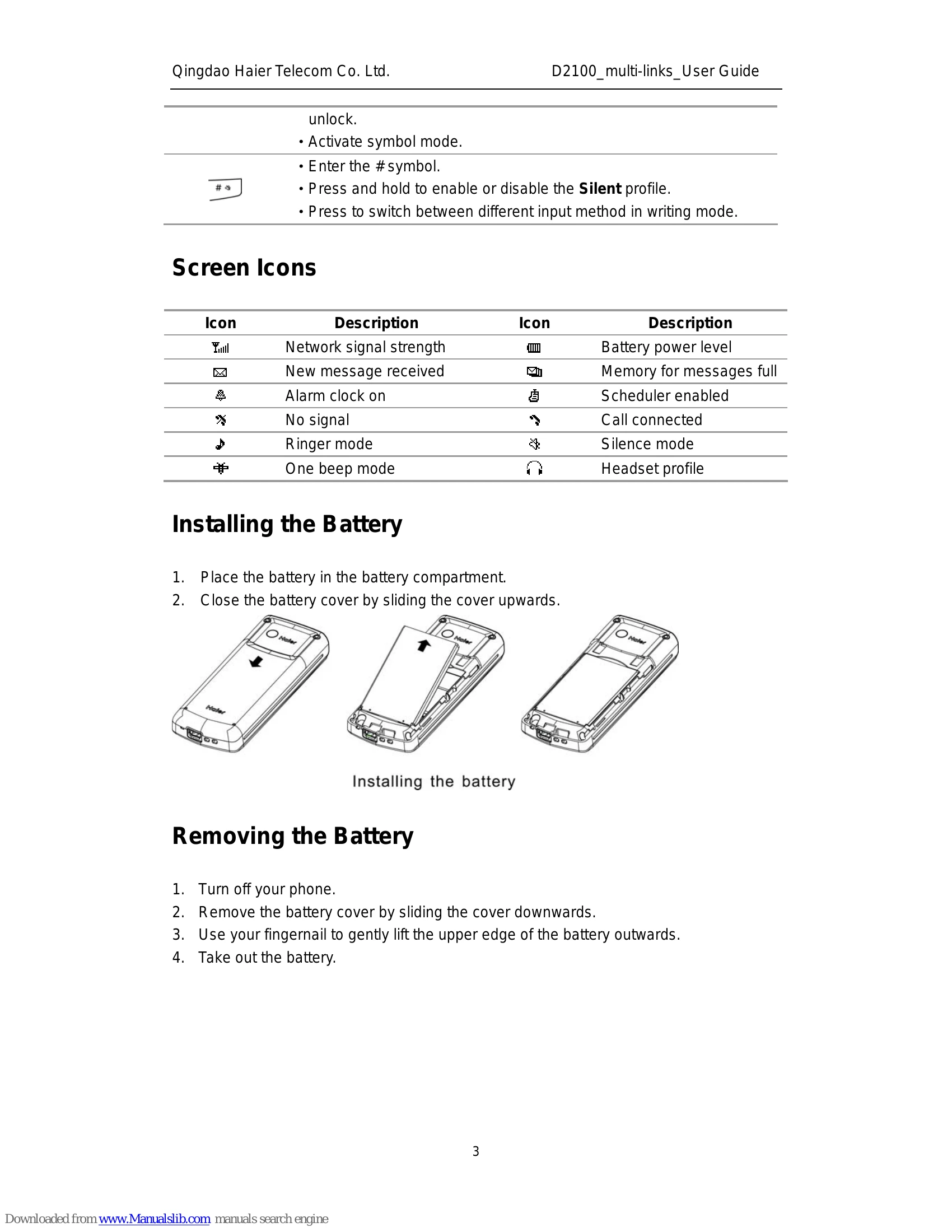
Installing and Removing the Battery
\nStep-by-step visual instructions for inserting and removing the battery.\n\n
Charging the Battery
\nInstructions on how to charge the phone, including recognizing charging indicators.\n\n
Using the Function Menu
\nExplains how to navigate and select options within the phone's menu system using the navigation keys.\n\n
Making and Receiving Calls
\nGuides the user on how to dial, make international calls, end calls, answer incoming calls, and reject calls.\n\n
Phone Lock
\nInformation about the phone lock feature for security and how to unlock the phone using a security code.\n\n
Radio
\nDetails how to use the FM radio function, including tuning, saving channels, and switching between earphone and speaker modes.\n\n
Changing the Text Input Method
\nExplains the different text input methods available (eZi, Abc/abc/ABC, en/En) and how to switch between them for entering text.\n\n
Entering Number (123)
\nInstructions on how to switch to number input mode.\n\n
Entering Symbols
\nGuide on how to access and select special characters from the character library.\n\n
RF Exposure Information
\nProvides compliance information regarding Radio Frequency (RF) exposure limits set by the FCC.\n