Getting Started with your Nautiz X5
1. Package Contents:
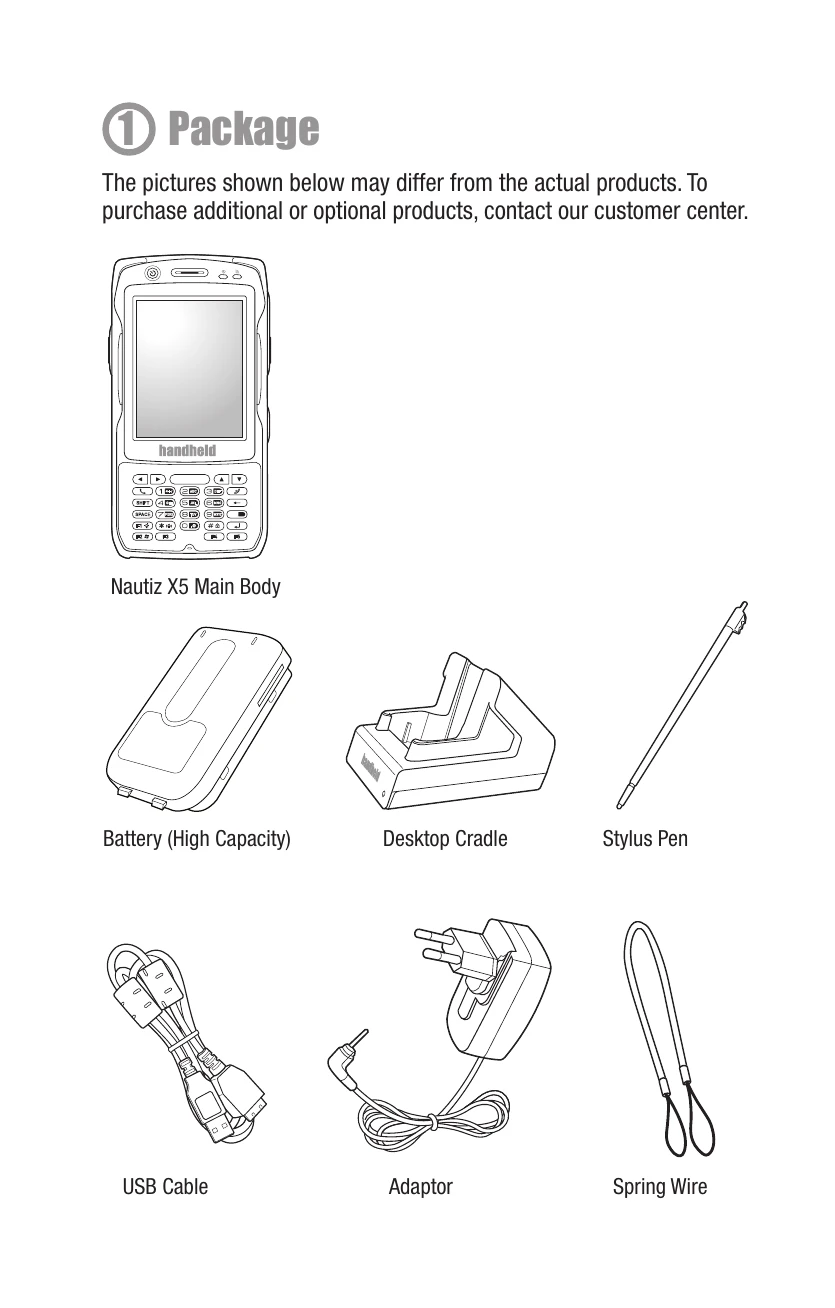
Unpack your device to find the Nautiz X5 main body, battery, USB cable, adapter, desktop cradle, and stylus pen. (Page 2)
2. Device Overview:
Familiarize yourself with the key components of your Nautiz X5, including the barcode scanner window, power button, various function buttons, screen, and ports. (Page 3)
3. Battery Connection:
Align the battery with the groove, insert it, and secure it by turning the fixing pins inward. To disconnect, power off the PDA, turn the pins outward, and pull out the battery. (Page 4)
4. USIM/USAM Card Insertion:
Insert the USIM or USAM card in the indicated direction. To remove, follow the reverse procedure. (Page 5)
5. Powering On/Off:
Press the Power button on the top of the device to turn it on or off. (Page 6)
6. Using the Stylus Pen:
Use the stylus for tapping (selecting/executing), dragging (selecting multiple items), and tap-and-hold (opening pop-up menus). (Page 6)
7. Using the Phone:
Make calls by running the 'Phone' program, entering a number, and pressing 'Talk'. Redial is available by pressing 'Talk' without a number. To answer, select 'Talk'. To refuse, select 'Ignore'. To end a call, select 'Finish' or the end button. (Page 7)
8. Using the Scanner:
Press the Front or Side Scanner button to scan barcodes. Keep a distance of about 10 cm and scan at the correct angle. Scanned information is saved automatically. Check saved barcodes in the "Memo" program. (Page 8)
9. Using the Camera:
Press the Front Scanner button to capture images or video while the camera program is running. Images/videos are saved in the album. Explore options for mode, resolution, flash, and full screen. (Page 9)
10. Connecting ActiveSync:
Install Microsoft ActiveSync on your PC before connecting. Connect the PDA to your PC using a USB cable (cradle or directly). ActiveSync will run automatically. Use it to transfer data between your PDA and PC. (Page 10)