Brand: HITACHI
Category: Camcorder
Document Type: Manual
Language: EN
Brand: HITACHI
Category: Camcorder
Document Type: Manual
Language: EN
Uploaded: Aug. 10, 2025, 12:50 a.m.
Recording: This camcorder can record on both HDD and DVD. In FINE mode, HDD allows up to 3 hours of recording, while DVD allows up to 30 minutes. Simple dubbing to an 8 cm DVD is possible with one button, without a DVD recorder or PC.
Photos: You can capture photos from videos or record images displayed during playback as photos onto a card.
Playback: Recording can start immediately after playback stops, eliminating the need to search for recording positions. You can also immediately play back desired recorded scenes without rewinding.
Editing: Use Disc Navigation to create original movies by deleting unnecessary scenes, moving scenes, and creating a Play List. You can also dub edited scenes to a DVD or dub edited movies to another DVD recorder or VCR.
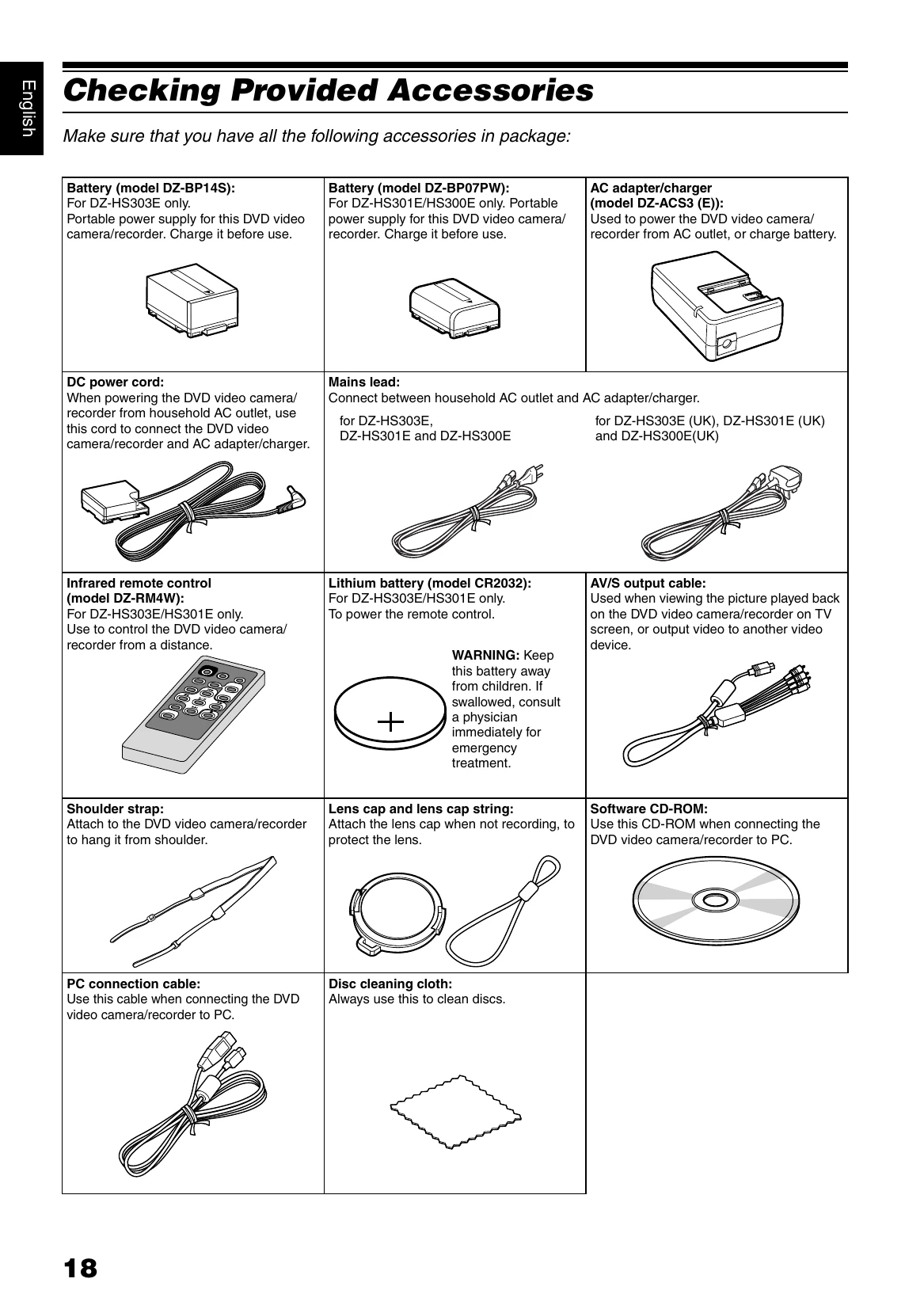
PC Connection: Create original DVDs on a PC using the provided software CD-ROM.
| Symptom | Cause and Correction | Reference page |
|---|---|---|
| No DVD video camera/recorder operation. | Is a fully charged battery attached? Is the DVD video camera/recorder powered from AC outlet? |
29, 30 |
| Power does not come on, or no operation occurs by pressing button. | Execute system reset (press the RESET button). Has the DVD video camera/recorder been subjected to impact? The DVD video camera/recorder could be damaged. Consult your dealer. |
151 |
| The date and time are incorrect. | Has the DVD video camera/recorder been left unused for a long period of time? The internal backup memory battery may be discharged: Charge it. |
36 |
| Pressing the SLEEP/RESTART button will not set to the sleep/restart standby status. | • Is the proper disc or card loaded? • Does the HDD, disc or card have remaining free space? • Is the DVD video camera/recorder now playing back? • Is Disc Navigation screen displayed? |
46 |
| No scene can be deleted. | Is the cursor placed on the scene to be deleted? If the selected scene (framed in red) exists, that scene will be deleted even if you use yellow cursor to select any scene. Check the colours of cursors and bar graph on the thumbnail screen. |
79, 85 |
| Disc cannot be removed. (Cover will not open.) | Did you detach the battery or AC adapter/charger before setting the power switch to "OFF"? Is the battery charged? Connect a charged battery or the AC adapter/charger, and then press the DISC EJECT button to remove the disc. Did the DVD video camera/recorder turn off because the battery remaining level ran out? Connect a charged battery or the AC adapter/charger, set the power switch to “OFF”, and then press the DISC EJECT button to remove the disc. Is the power switch set to "HDD” or “SD”? Set the power switch to “DVD” or “OFF”, and then press the DISC EJECT button. |
29, 30, 34 |
| DVD video camera/recorder cannot be operated from remote control. | Is the remote control pointed at the infrared receiver on DVD video camera/recorder? Point it at the infrared receiver to operate the DVD video camera/recorder. Is the infrared receiver on DVD video camera/recorder exposed to direct sunlight or strong fluorescent light, etc.? The remote control cannot operate the DVD video camera/recorder when strong light strikes the infrared receiver. Adjust the place or angle of the DVD video camera/recorder. Is there battery in the remote control? Also check the polarities of battery. The battery could be dead: Try replacing it. Is the DVD video camera/recorder powered? Turn it on. |
25 |
| Disc cover cannot be closed. | Is disc correctly inserted? Was disc inserted from wrong direction? Remove the disc and then reinsert it. Connect a fully charged battery or AC adapter/charger, and then turn the DVD video camera/recorder on. |
41 29, 31 |
| Operating sound is heard cyclically. | This sound is heard because the disc is cyclically operated and does not indicate a fault. | — |
| Some vibrations are felt or slight sound is heard from mechanism. | These vibrations or sound are caused by HDD/disc drive: This does not indicate a fault. | — |
| • No operation can be performed because the ACCESS/PC or CARD ACCESS indicator on this DVD video camera/recorder remains lit or blinking. • After disc or card is inserted, it takes some time until recording is possible. |
In the following cases, it will take more time than usual until operation is possible: • Immediately after a disc or card is reinserted. • When a long time has elapsed since the DVD video camera/recorder was turned off last. • When the temperature is greatly different from the status of previous recording. • When disc with scratches, dirt or fingerprints is inserted. • When disc is subject to severe vibrations. • When the battery or DC power cord was disconnected instead of following the correct procedure using power switch to turn the DVD video camera/recorder off. |
9, 41 |
| No image in viewfinder. | • Is LCD monitor open? No image will appear in viewfinder unless the LCD monitor is closed and securely locked to DVD video camera/recorder. • Is the DVD video camera/recorder set to the sleep/restart status? Press the SLEEP/RESTART button to release the sleep/restart status. |
35, 46 |
| No image appears on the LCD screen or in the viewfinder. | • Is DVD video camera/recorder connected to PC using PC connection cable? Unplug the PC connection cable. • Does DVD video camera/recorder stop at the end of the scene to which wipe-out was set and played back? Press the DISC NAVIGATION button. • Is the DVD video camera/recorder set to the sleep/restart status? Press the SLEEP/RESTART button to release the sleep/restart status. |
46, 88, 121 |