Brand: HITACHI
Category: Other
Document Type: Manual
Language: EN
Brand: HITACHI
Category: Other
Document Type: Manual
Language: EN
Uploaded: Nov. 21, 2025, 7:44 p.m.
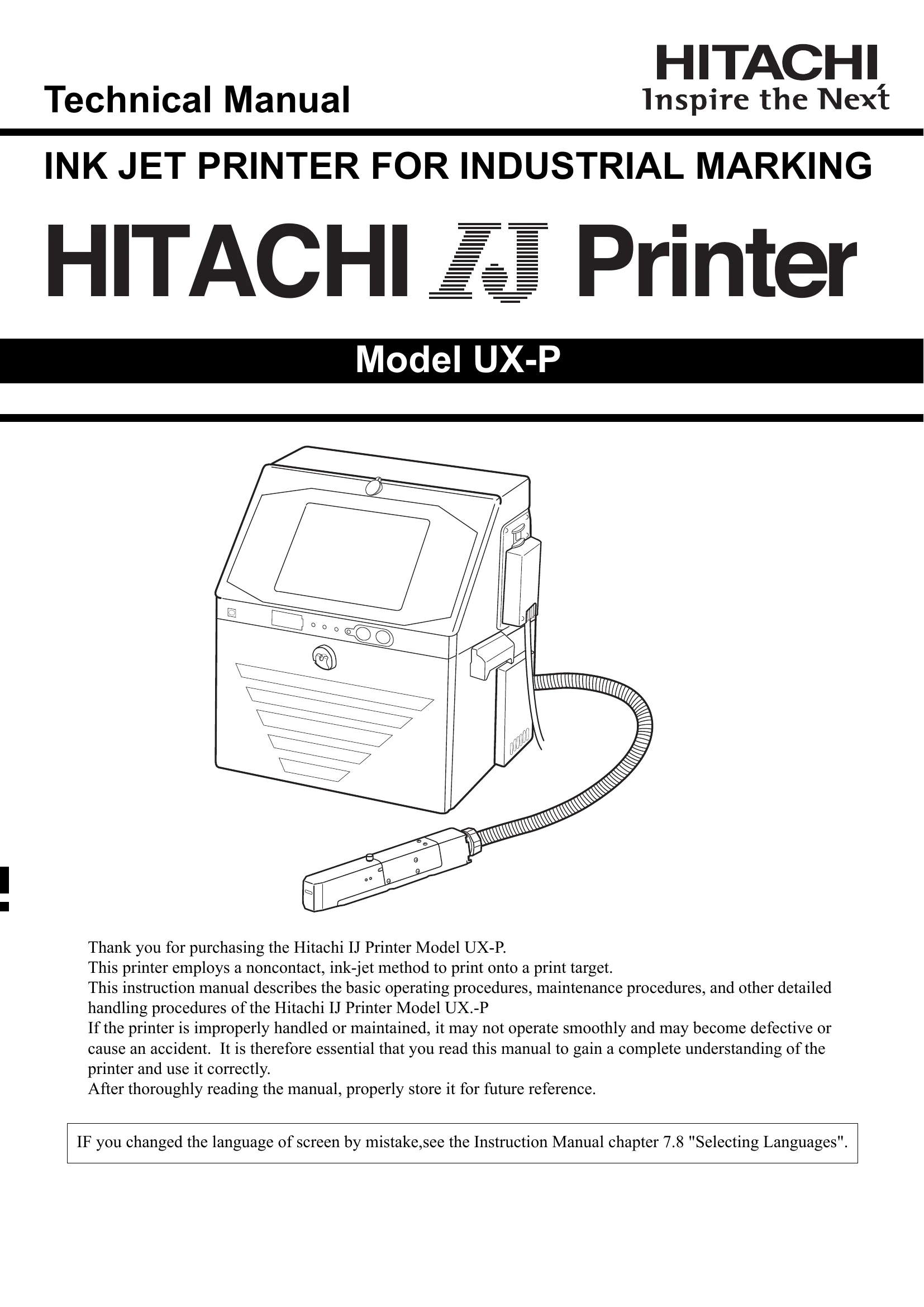
Before operating the Hitachi IJ Printer Model UX-P, thoroughly read the manual for safe and correct usage. The printer employs a noncontact, ink-jet method. This manual details basic operating procedures, maintenance, and other handling instructions. It is crucial to understand the printer's functions to prevent malfunctions, accidents, or defects due to improper handling or maintenance. Store the manual for future reference. If the screen language is changed by mistake, refer to Chapter 7.8 "Selecting Languages".
Usage Precautions:
| Phenomenon | Check | Solution |
|---|---|---|
| IC card cannot be read/written to. | Is the IC card passed parallel to the reader on the IJ printer main unit and within the read/write range (0-10 mm)? | Pass the IC card parallel to the reader on the IJ printer unit within the read/write range (0-10 mm). Also, when the IC card is being read/written to, do not remove it until the confirmation message is shown. If the IC card still cannot be read/written to, either the card or the RFID reader may be broken, etc. Contact your nearest local distributor. |
| User login/print data selection cannot be carried out with the card. | Are you passing the IC card over the reader on the IJ printer unit while the "Print description (HOME screen)" is being shown? Are the messages (Confirmation, Warning and Fault) displayed? | Press "HOME", and after the "Print description (HOME screen)" is shown, pass the IC card over the reader. Pass the IC card over the reader after you delete the messages when these (Check, Warning and Error) are displayed. |
| "IC card read error" (warning) is shown. | Has IC card creation been carried out? If it is an "IC card for user login", has the registered login ID been registered on the IJ printer main unit? If it is an "IC card for print data selection", is it being used with the IJ printer it was created by? Are print data selection settings set to restricted use? | If IC card creation has not been carried out, follow "(2) IC Card Creation Procedure" to create the IC card. There could be a mismatch between the print data registered on the IC card and the print data registered on the IJ printer main unit. Follow "(2) IC Card Creation Procedure" again to create the IC card. If print data selection settings are set to restricted use, "IC card read error" will be shown. Change the settings to remove the use restrictions. |
| "RFID Reader Failure" (warning) is shown. | Temporarily cut the power supply to the IJ printer. Is the message still shown after power supply is restored? | If "RFID Reader Failure" (warning) is still shown after power supply is restored, the RFID reader may be broken, etc. Contact your nearest local distributor. |