Quick Start Guide for External USB Storage Quick Start Guide

Quick Start Guide for External USB Storage Quick Start Guide

Brand: HITACHI

Category: Storage System

Document Type: Quick Start Guide

Language: EN
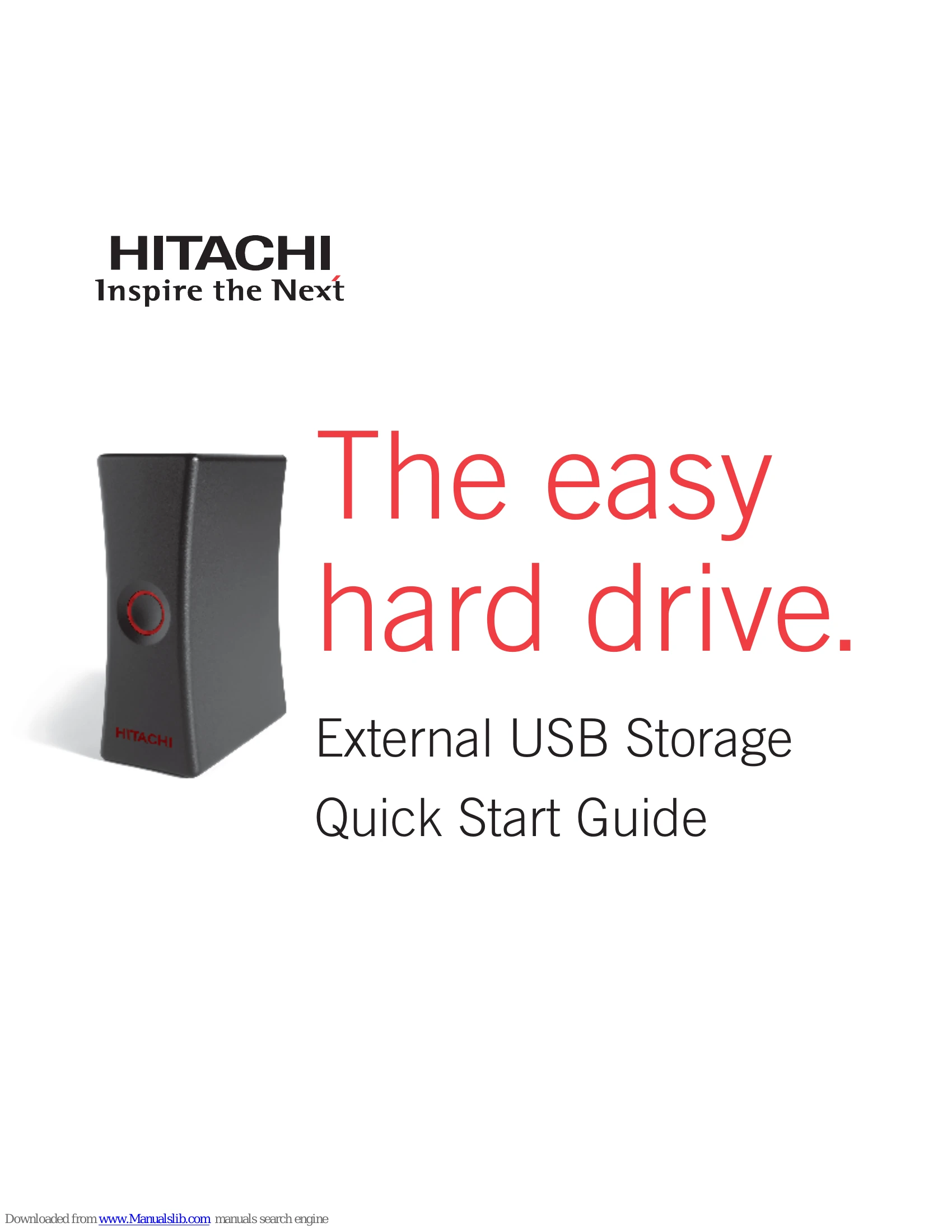
Uploaded: Nov. 21, 2025, 9:08 p.m.

Manual Publish Date: 2007-10-01

Warranty Information

1-year limited warranty for defects in materials and workmanship.

Easy Installation

  1. Find a stable spot for your hard drive.
  2. Connect power and USB cables to the drive.
  3. Plug the power cable into an outlet.
  4. Connect the USB cable to your PC.
  5. Turn on the drive's power switch.

NOTE: Move the drive only when powered off to prevent damage.

Check Installation: In Windows, the drive should appear in "My Computer". On a Mac, a new drive icon should appear on the desktop.

Easy To Use

Drive Lights

  • Red Circle On: Drive is ready.
  • Red Circle Spinning: Drive is in use.

Back-Up Software

  1. Double-click "Easy Drive" on your hard drive.
  2. Double-click the "TotalMedia Backup" folder.
  3. Select the folder for your computer (PC or Mac).
  4. Double-click "Setup" (Windows) or "Installer" (Mac) and follow on-screen instructions.
  5. Reboot your computer.
  6. Launch the backup application and click "Back Up".

One-Button Back Up

Press the red-ringed button to initiate a previously configured backup.

Turning Off Your Drive

In Windows OS:

  1. Close all applications using the drive.
  2. Click the "Safely Remove Hardware" icon in the System Tray.
  3. Select "Safely Remove USB Storage Device."
  4. Turn off the drive's power switch when prompted.

On a Mac system:

  1. Close all applications using the drive.
  2. Drag the drive icon to the trash in the dock.
  3. Turn off the drive's power switch when the drive disappears.
Privacy Policy