Brand: Honeywell
Category: Camera
Document Type: Manual
Language: EN
Brand: Honeywell
Category: Camera
Document Type: Manual
Language: EN
Uploaded: Nov. 21, 2025, 8:28 p.m.
Manual Publish Date: 2019-08-01
This is an instruction manual not a quality warranty. Changes may be published without notification.
| Q: How to find my password if I forget it? | A: Reset the device to the default factory settings. |
| 192.168.226.201 | admin |
| 123456 |
| Q: Fail to connect devices through IE browser, why? | A: Network is not well connected. Please check the connection and make sure it is connected well. |
| IP is not available. Reset the valid IP. | Web port number has been revised: contact administrator to get the correct port number. |
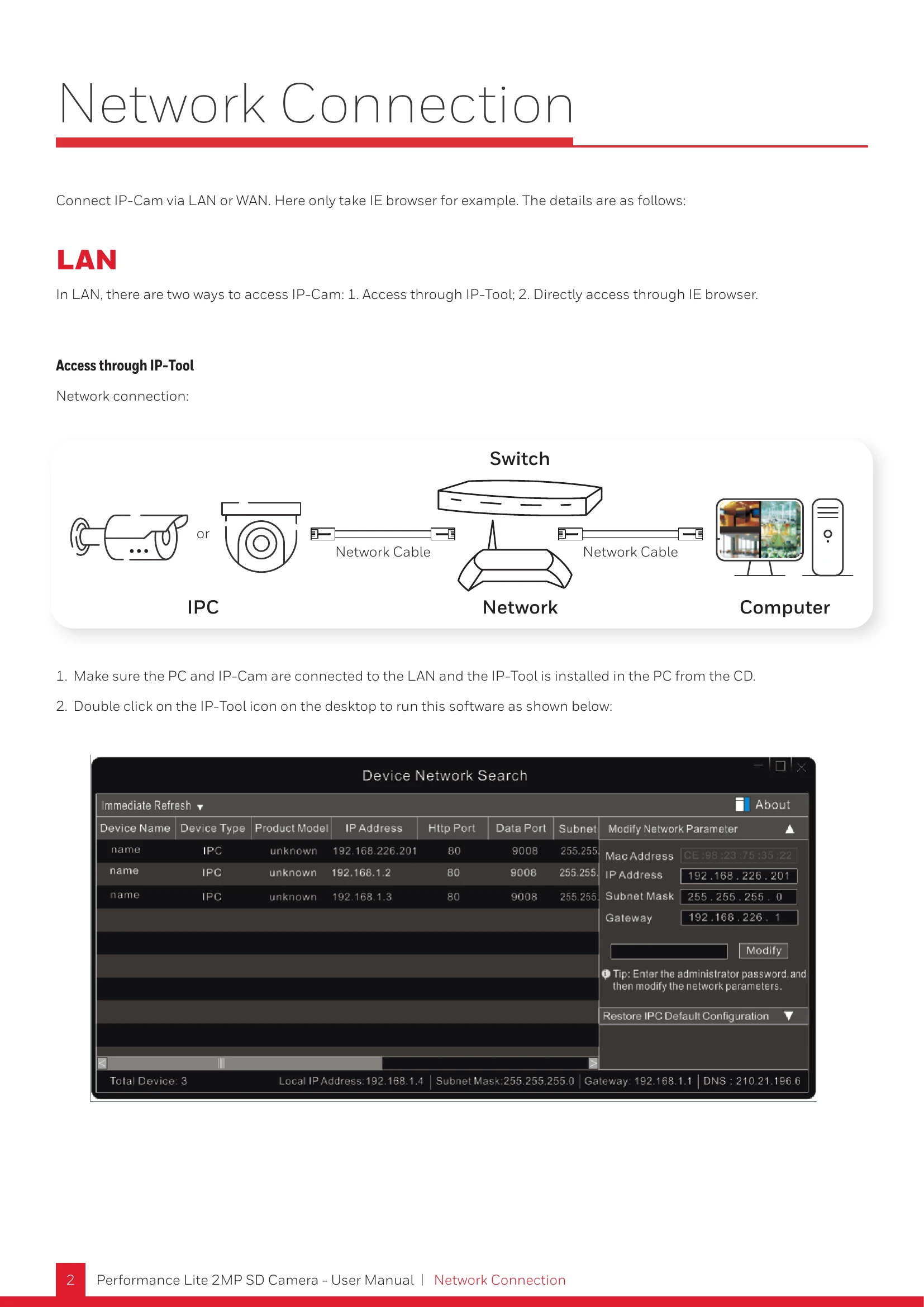
| Exclude the above reasons. Recover default setting by IP-Tool. | Default IP: 192.168.226.201 mask number: 255.255.255.0 |
| Q: IP tool cannot search devices, why? | A: It may be caused by the anti-virus software in your computer. Please exit it and try to search device again. |
| Q: IE cannot download ActiveX control. How can I do? | a. IE browser blocks ActiveX. Please try as below. |
| Open IE browser. Click Tools-----Internet Options.... | Select Security------Custom Level.... |
| Enable all the sub options under "ActiveX controls and plug-ins". |
| Then click OK to finish setup. | Other plug-ins or anti-virus blocks ActiveX. Please uninstall or close them. |