Brand: Honeywell
Category: Printer
Document Type: Manual
Language: EN
Brand: Honeywell
Category: Printer
Document Type: Manual
Language: EN
Uploaded: Nov. 21, 2025, 6:34 p.m.
Manual Publish Date: 2018-05-01
The PX4i and PX6i High Performance printers are rugged, high-volume, thermal transfer printers. With sturdy, all-metal construction, these printers are designed to excel at 24/7 printing in harsh industrial environments and easily adapt to changes in host environments or applications. The PX4i and PX6i support a maximum print width of four or six inches, respectively. Throughout this manual, both models of the printer are referred to as “printer” unless otherwise noted.
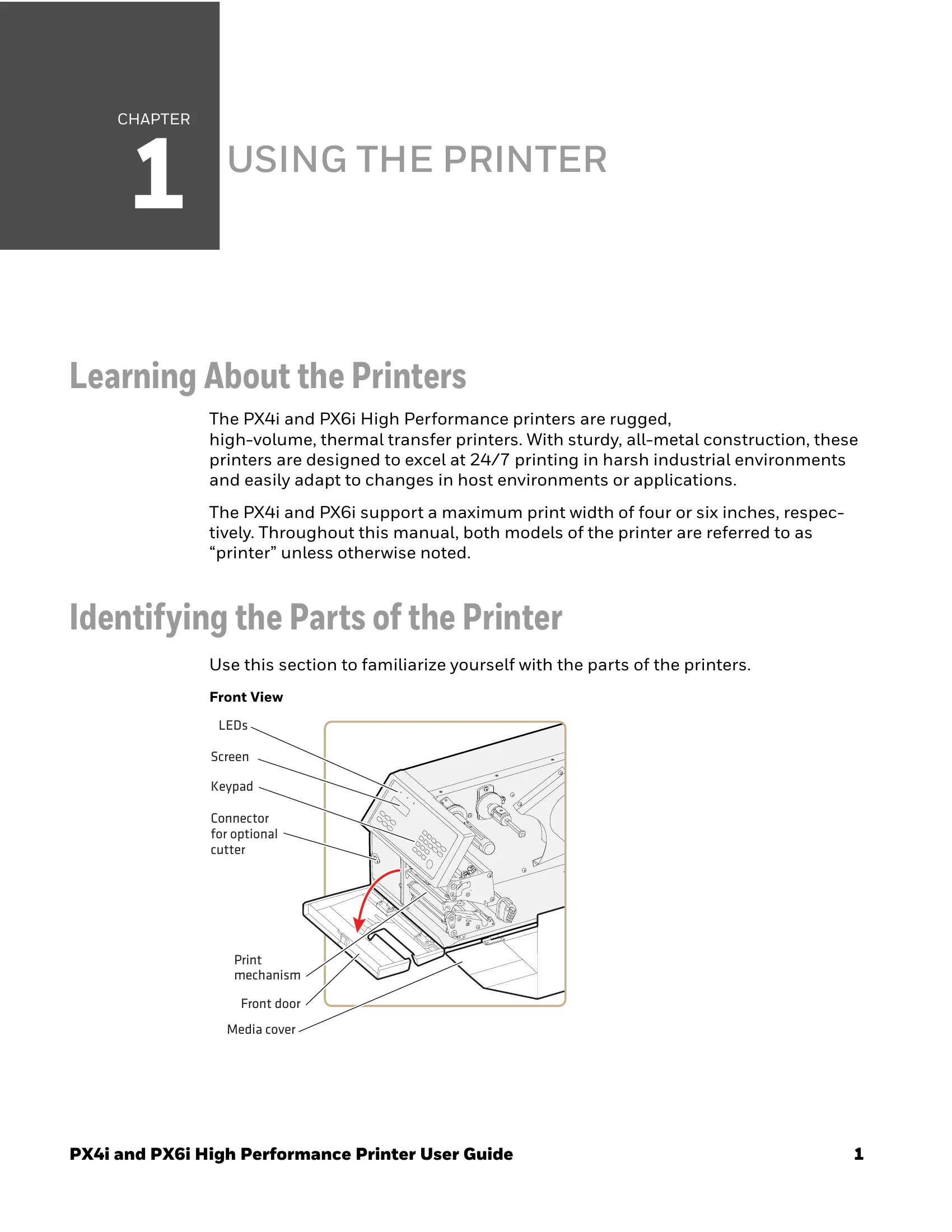
Use this section to familiarize yourself with the parts of the printers.

Your printer comes loaded with different printer command languages. The first time you start your printer, you are prompted to select the command language. The printer language you choose affects the functionality of the printer and how you interact with it.
| Printer Language | Description |
|---|---|
| Fingerprint | Fingerprint is a BASIC-inspired programming language you use to design label formats and write custom printer application software. |
| Printer Language (IPL) | IPL is an easy-to-use programming language that lets you design, download, and modify formats. |
| ZSim | ZSim is a Zebra™ interpreter program that interprets ZPL II or later programs. To setup, configure, and use ZSim, see the ZSim Programmer’s Guide. |
| DSim | DSim is a Datamax™ simulation program that runs Datamax programs. To setup, configure, and use DSim, see the DSim Programmer’s Guide. |
Press the key that corresponds to the printer language you want to run on your printer.
| Message | Description | Ready-to-Work Indicator Status | Error Number |
|---|---|---|---|
| Out of paper | The printer is out of paper. Load a new roll of media. For help, see "Loading Media" on page 5. | Blinking | 1005 |
| Next label not found | Next label not found | Blinking | 1031 |
| Label not taken | Label not taken | Blinking | |
| Out of transfer ribbon | The printer is out of transfer ribbon. Load a new roll of ribbon. For helps, see "Loading Ribbon" on page 38. | Blinking | 1027 |
| Transfer ribbon is installed | This is not an error condition. This message briefly appears after a new roll of transfer ribbon is installed. | Blinking | 1058 |
| Head lifted | The printhead is lifted. Lower the printhead. | Blinking | 1022 |
| Cutter does not respond | Open and shut the cutter. | Blinking | 1059 |
| Cutter error1 | Open and shut the cutter. | Blinking | 1701 |
| Cutter error2 | Open and shut the cutter. | Blinking | 1702 |
| Cutter error3 | Open and shut the cutter. | Blinking | 1703 |
| Cutter open | Shut the cutter. | 1704 | |
| LSS too high | This error can occur when you run a test feed without any media installed, or if you have incorrect media settings. Load the printer with media and select the appropriate media type. For help, see "Loading Media" on page 5. | Blinking | 1007 |
| LSS too low | This error can occur when you run a test feed without any media installed, or if you have incorrect media settings. Load the printer with media and select the appropriate media type. For help, see "Loading Media" on page 5. | Blinking | 1008 |
| Testfeed not done | The printer did not perform a test feed before it printed out test labels. Performing a test feed calibrates the sensor. To perform a testfeed, press the Feed button. | Blinking | 1606 |
| No RFID support installed | The optional RFID interface is not installed in the printer. | Blinking | 1320 |
| No tag found | No RFID tag has been found. | Blinking | 1321 |
| Pause Mode Entered | The print job is paused. | Blinking | |
| Setup Mode Entered | The printer is in Setup mode. | Off | |
| IP link error | No network connection. | Blinking | |
| IP configuration error | The printer is trying to acquire an IP address from the network. Wait for the printer to complete the task before taking any action. | Blinking | |
| Generic DP error | In Direct Protocol, you can enable error handling for specific errors using the ERROR statement. When errors added to the built-in error handling occur, this event is set. The text included in the SNMP trap is the standard text corresponding to the error. | Blinking | |
| Press any key to continue | If an error occurs in the Fingerprint immediate mode, for example “out of paper” when the print key is pressed, this event is set. | Off | |
| Application load error | If an application is started but does not run, the Ready-to-Work indicator blinks. For example, if there is a syntax error in the loaded program file. | Blinking | |
| RtW blink by application | This condition is set by the Fingerprint SYSHEALTH command. For more information, see the Fingerprint Command Reference Manual. | Blinking | |
| RtW off by application | This condition is set by the Fingerprint SYSHEALTH command. For more information, see the Fingerprint Command Reference Manual. | Off | |
| Application break | If you perform a user break by pressing Shift + Pause to stop an application from running, or if a runtime error occurs, the Ready-to-Work indicator turns off. You can turn the indicator on by changing to Direct Protocol or running an application. But, if the application handles the break (ON BREAK) or runtime error (ON ERROR GOTO), the Ready-to-Work indicator is not affected, and the application sets the status. For more information, see the Fingerprint Command Reference Manual. | Off | |
| Printhead not found | Printhead not found. | Off | |
| Rebooted | The printer has been rebooted. | Off | |
| Initializing | The printer is initializing. | Off | |
| Printer crash | Printer crash. In most instances, when the printer crashes, the screen is reset which causes the Ready-to-Work indicator to turn off. | Off | |
| Printer turned off | The printer is off. | Off | |
| Maintenance | Maintenance | Off | |
| Power supply Over temperature | The power supply is overheated and needs to cool down. | Off | 1718 |
| Printhead too hot | The printhead is overheated and needs to cool down. You need to resend your print job. | Off | 1088 |