Brand: Honeywell
Category: Scanner
Document Type: Manual
Language: EN
Brand: Honeywell
Category: Scanner
Document Type: Manual
Language: EN
Uploaded: Nov. 21, 2025, 6:02 p.m.
For warranty information, visit www.honeywellaidc.com and click Resources > Product Warranty.
Connecting the Scanner
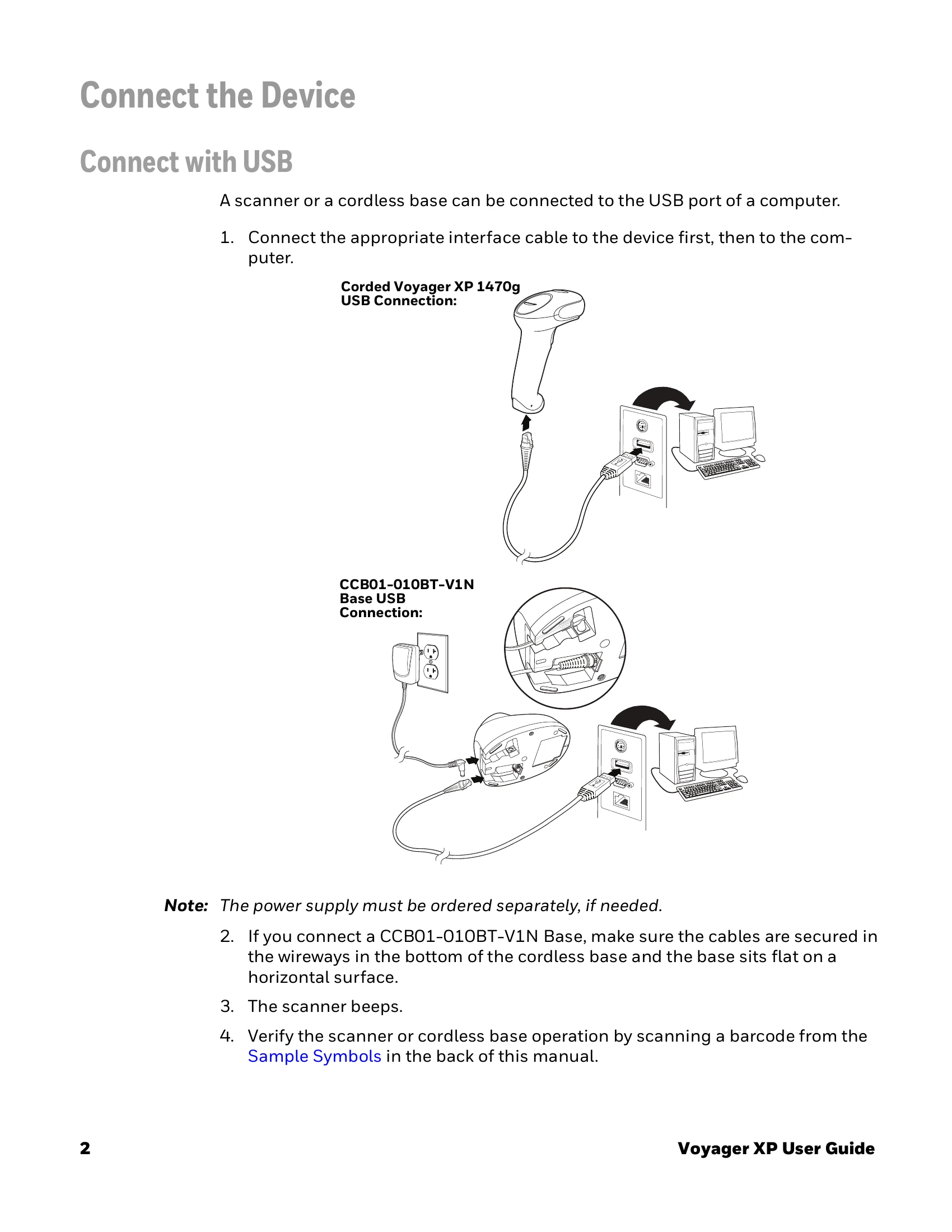
The scanner can be connected via USB or Keyboard Wedge. For USB connections, plug the cable into the scanner and then the computer. For Keyboard Wedge connections, turn off the computer, connect the scanner between the keyboard and computer, and then turn the computer back on.
Reading Techniques
The scanner uses an aiming dot to assist with reading barcodes. Center the aiming dot over the barcode. Adjust distance based on barcode size: closer for smaller barcodes, farther for larger ones.
Customizing Settings
Use programming barcodes from the manual to configure various settings, such as interface type, keyboard layout, beeper options, and symbology preferences.
| Is the power on? Is the aimer on? | If the aimer isn’t illuminated, check that:
|
| Is the scanner having trouble reading your symbols? | If the scanner isn’t reading symbols well, check that the symbols:
|
| Is the barcode displayed but not entered? | The barcode is displayed on the host device correctly, but you still have to press a key to enter it (the Enter/Return key or the Tab key, for example).
|
| The scanner won’t read your barcode at all. |
|